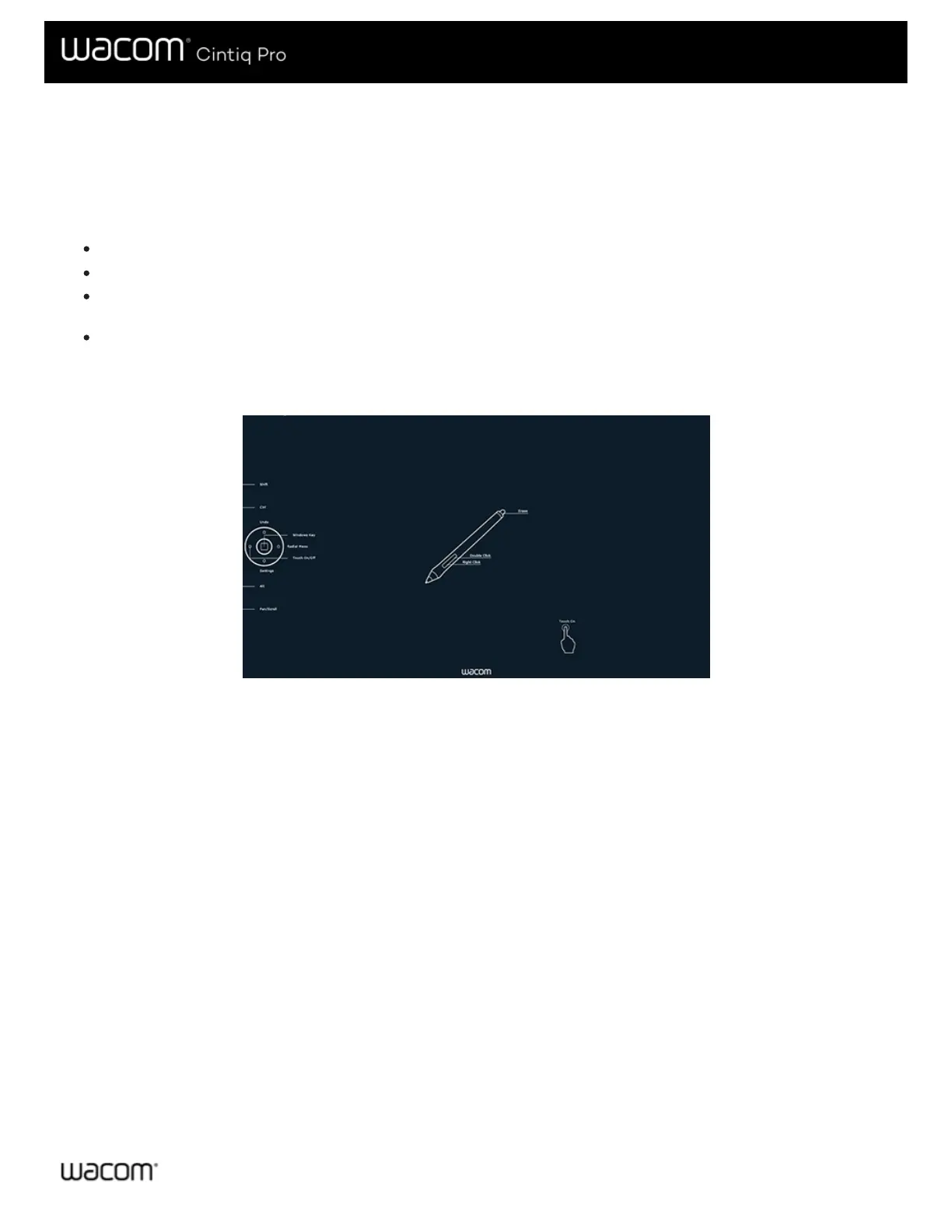
Settings View
You can view the current settings for the ExpressKeys™, Rocker Ring, Touch Ring, Center or Home button, Touch Strips, Touch
on/off, and the pen for your Pen Display at any time. Your display will vary, depending on model.
To use Settings View:
In the Tablet Properties ExpressKeys™ tab, set an ExpressKey to Settings.
To view the settings on the screen, press that ExpressKey.
To close the Settings View screen, click on it with your mouse, tap it with your pen, or press the ExpressKey a second
time.
To open the Tablet Properties tab for ExpressKeys™, Pen, or Touch, click the Properties... button for that item on the
Settings View screen.
If an ExpressKey has been disabled it will be displayed as disabled.
The above screenshot is for descriptive purposes; it may not match your screen.
Note: Some applications can override and control the ExpressKey functions.







 To Next Page