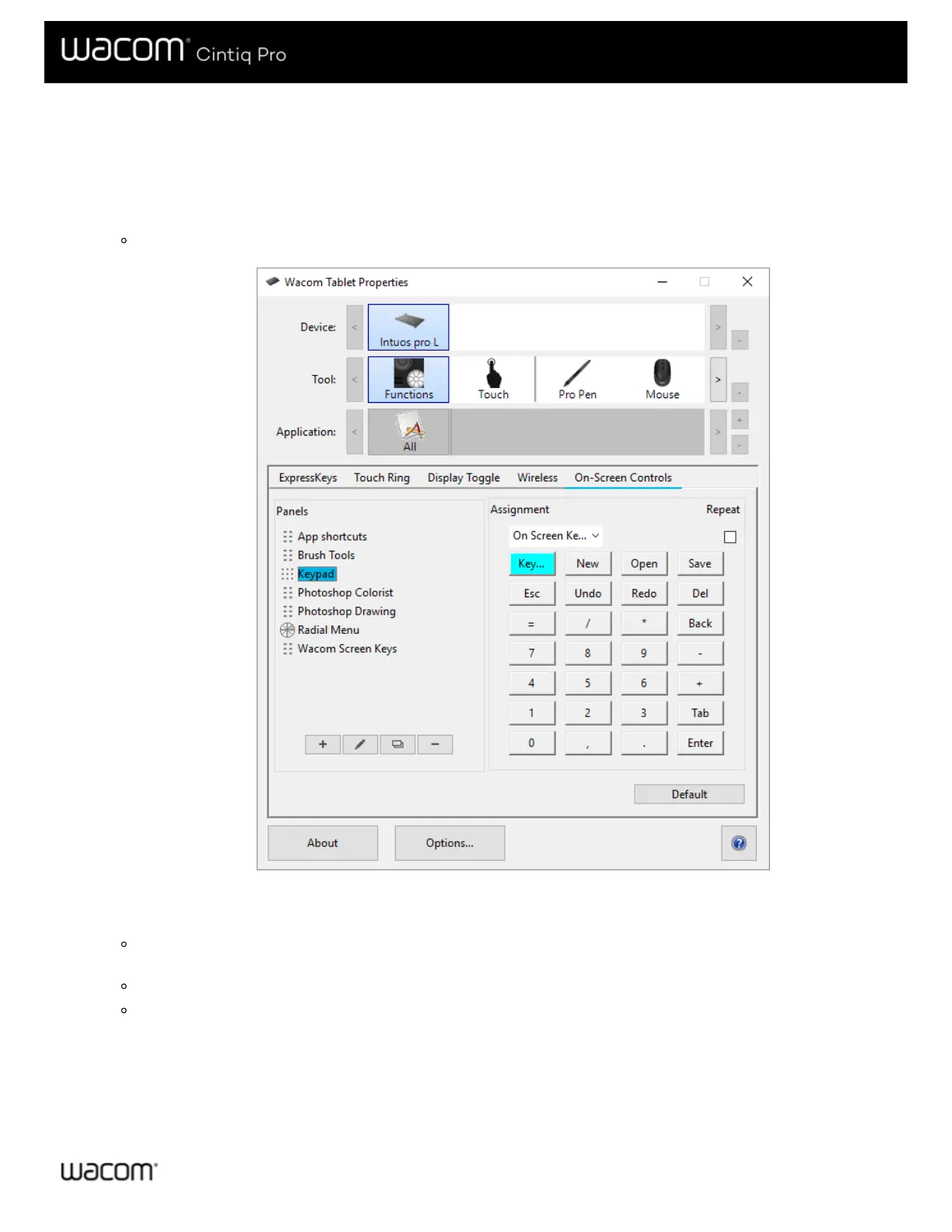
Assign settings to Keypads
After you create a Keypad, you can change the settings assigned to the buttons so that the Keypad includes the settings you
want.
1. In Wacom Tablet Properties on the On-Screen Controls tab, select the name of the Keypad in the Panels list.
An image of a Keypad appears under Key Assignment with default settings assigned to it.
2. Click a Keypad button that you want to change.
3. Select the setting that you want to assign from the Assignment drop-down above the Keypad.
To assign numbers, select Keyboard > Keystroke. When you select Keystroke, you are prompted to select a
keystroke or create a keystroke combination.
If you want the setting to repeat when you press and hold the Keypad button, select Repeat.
You must assign a setting to at least one button. For any buttons that you do not want to use, select Disabled.
Assign your On-Screen Control to a customizable component, like an ExpressKey or pen button, so that you can open it
when you want to use it.














 To Next Page