Assign keystrokes
You can assign keystrokes to customizable components of your device, like ExpressKeys™ and pen buttons. As a result,
pressing a button on your device performs the specified function instead of pressing the keystroke on your keyboard. You can
also assign a combination of keystrokes, so you only have to press one button instead of an entire keystroke combination.
1. Go to Wacom Tablet Properties.
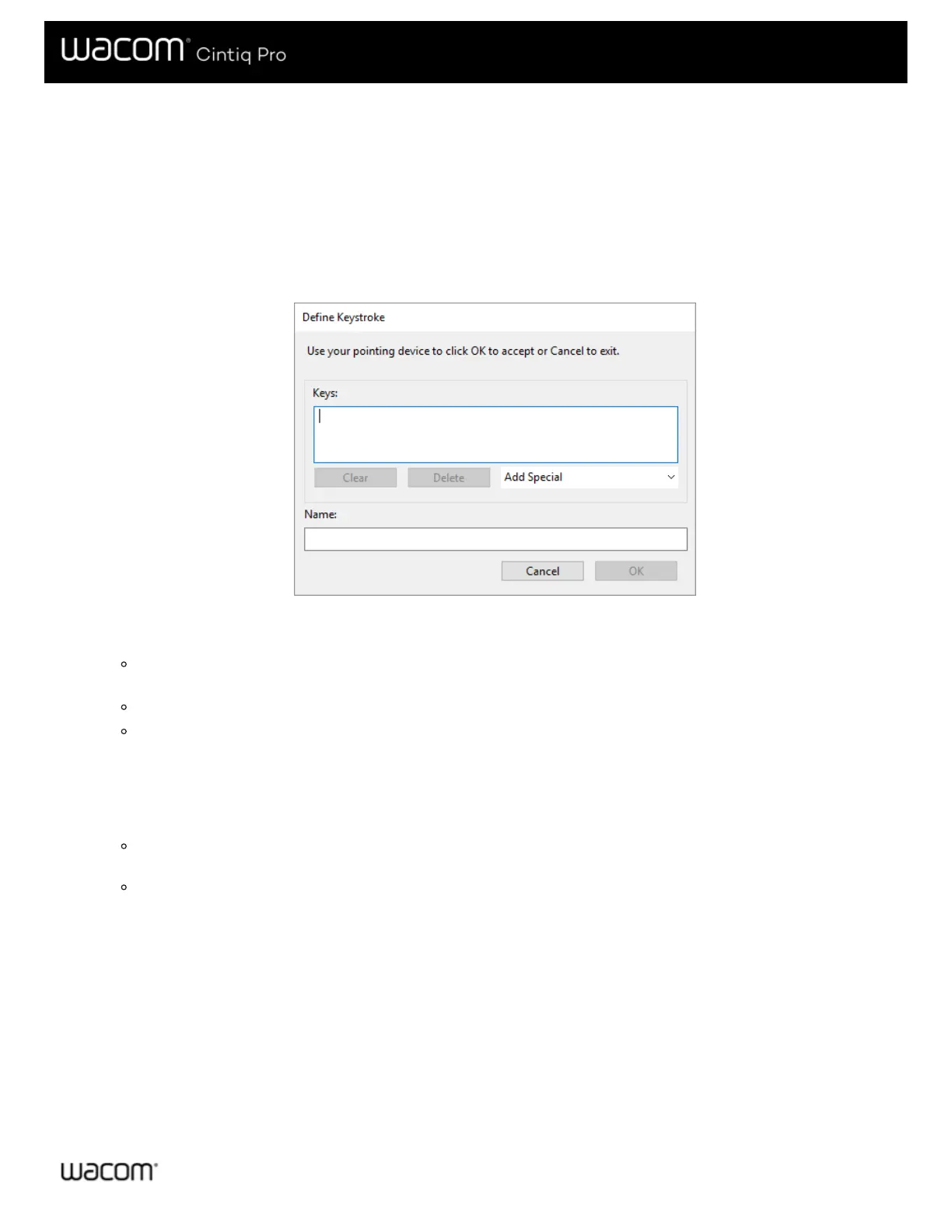
2. Select Keystroke from the drop-down menu of one of your device's customizable components. The Define Keystroke
window appears.
3. In the Keys box, enter the keystroke that you want to assign. If you want to assign a combination of keystrokes, enter each
keystroke that you want in the combination.
You can enter letters, numbers, function keys, and modifier keys. You can also choose combinations from the Add
Special drop-down.
Click Delete to remove only the last keystroke you entered.
Click Clear to remove all the keystrokes you entered so you can start over.
Note: Two Keys boxes appear for Touch Rings and mouse wheels. Enter the keystroke for clockwise or forward
wheel movement in the first box and counterclockwise or backward wheel movement in the second box.
4. Enter a Name for your keystroke and click OK.
The name appears on On-Screen Controls, in Wacom Tablet Properties, and in Settings view, so enter a name that
indicates the keystroke you assigned.
If you are assigning numbers to a Keypad, it is best practice to name the Keystroke the number that you assigned.
For example, if you assign the number 8 to a Keypad button, name the Keystroke 8.
Tip: You can assign different keystroke combinations to the same customizable component for different applications.
To learn which keystroke combinations are built-in as shortcuts for a particular application, refer to the documentation for the
application.













 To Next Page