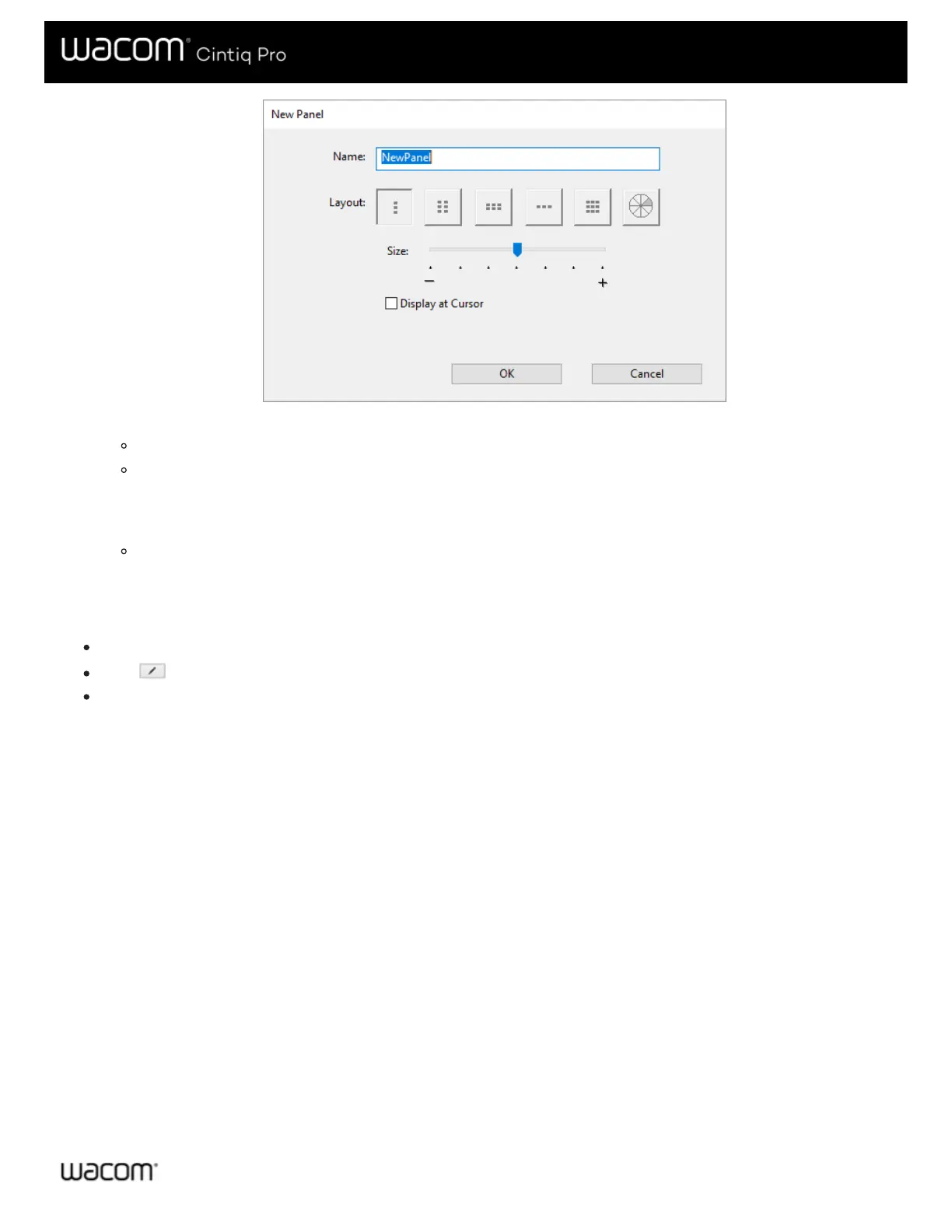
You can move the Size slider to change the size of the On-Screen Control when it appears on your screen.
You can select Display at Cursor if you want the On-Screen Control to appear next to your cursor when you open it.
If you do not select this, the On-Screen Control appears in the same location every time you open it.
6. Click OK.
The On-Screen Control that you just created appears in the Panels list on the On-Screen Controls tab.
7. Assign settings to your Radial Menus, Screen Keys and Keypads.
Tip: You can create an On-Screen Control and then switch the layout whenever you want.
From the Panels list, select the On-Screen Control that you want to change.
Click to edit.
Select a new layout, and click OK.
If you switch to an On-Screen Control that has fewer settings than your original one, your settings are not lost. For example, if you
create a Keypad and then change it to a Radial Menu, your first eight settings display in the Radial menu. If you switch back, all of
your original Keypad settings are still there.








 To Next Page