190 CHAPTER 23 CLICK 301
Note
On certain devices, the yellow LED may replace the green LED in the autobaud pro-
cess—that is, the yellow LED will come on to select the autobaud process, the yellow
LED is on during the autobaud process, etc.
Factory Reset (red flashing)
e Factory Reset operation will erase all user-congured elds, meaning that aer the
reset, the Click 301 may have to be recongured to work properly in its current applica-
tion. If a device is not responding and not communicating, resetting the device may x the
problem. Once the device is responding, restore the conguration needed for its current
application.
To reset the Click 301 to factory defaults, release the push-button when the red LED begins
ashing. e red LED should blink slowly, then the green and yellow LEDs will icker.
When the red LED glows solid, the module has the original factory conguration.
Computer Configuration
e Click 301 can be congured more exactly using the Click Supervisor soware. See
Chapters 4 and 5 of this document for instructions on how to download and install Click
Supervisor and how to connect to your device using the soware.
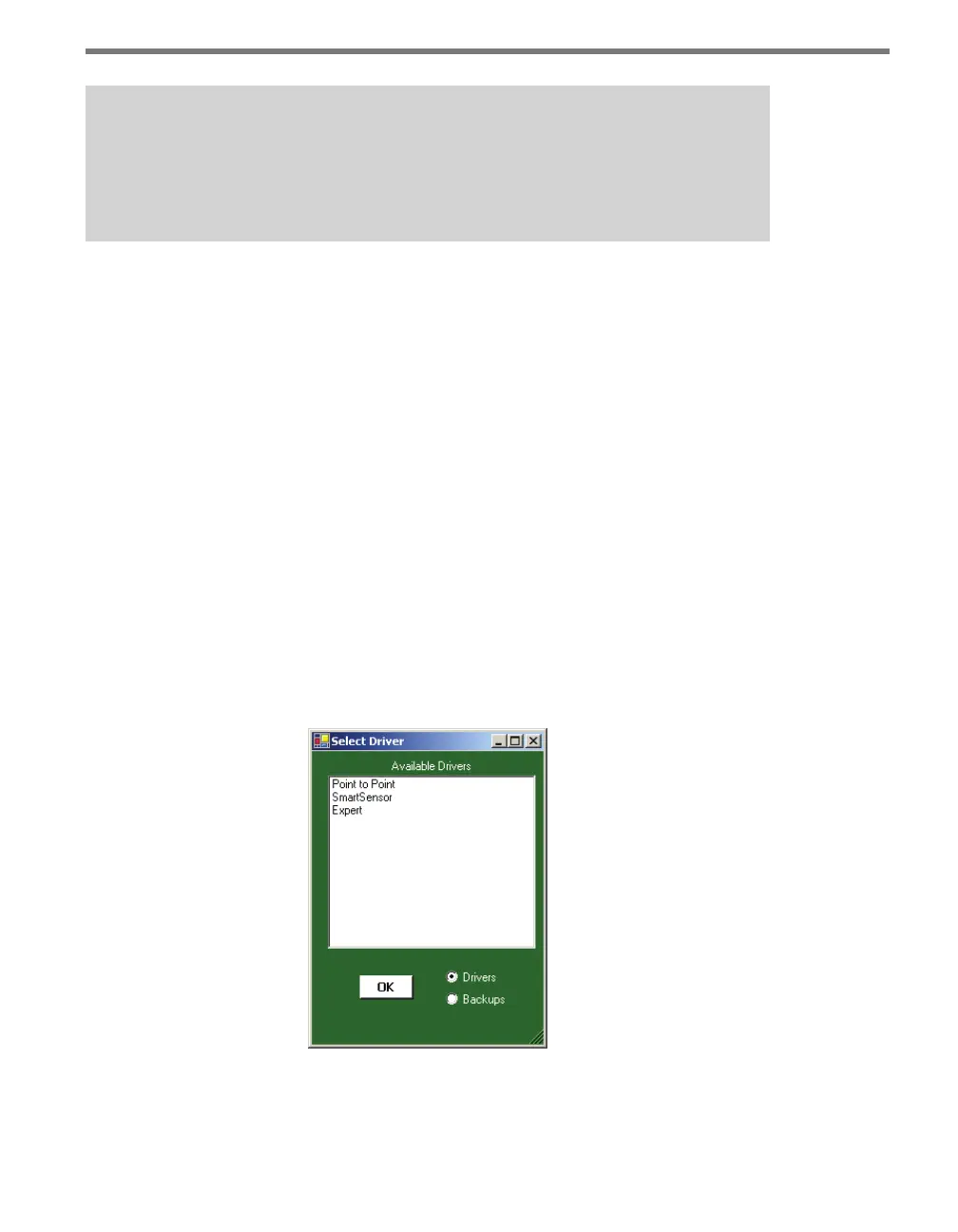
e Click 301 can be congured using one of three drivers (see Figure 23.3).
Figure 23.3 – Selecting a Driver
Which driver you use will depend on what you need to use the device for. e rst two driv-
ers are known as application drivers and are used to set the Click device to work in specic



 To Next Page