CHAPTER 23 CLICK 301 191
applications. Use the list below to nd the appropriate driver for your application.
If you intend to connect from your TOC to the Click 301 to a sensor, use the SmartSen-
sor driver.
If you intend to connect from your TOC to a Click 301 to another Click 301 to the sen-
sor, use the Point to Point driver.
To see advanced settings, use the Expert driver. is driver, which exposes every available
eld for the Click 301, should only be used under the direction of Wavetronix Technical
Services.
Aer you have made conguration changes on a driver and saved it to the Click device, the
word “current” will appear aer that driver to indicate the driver that is currently loaded
onto the device.
Note
Some settings appear on multiple drivers. Changing one of those settings on any
driver and saving them to the Click device will change that setting on all other drivers
it appears on.
e Backups option can be used to read congurations that have previously been saved to
le. See Chapter 5 for more information.
Application Drivers
e two application drivers have very similar settings and elds; the only important dier-
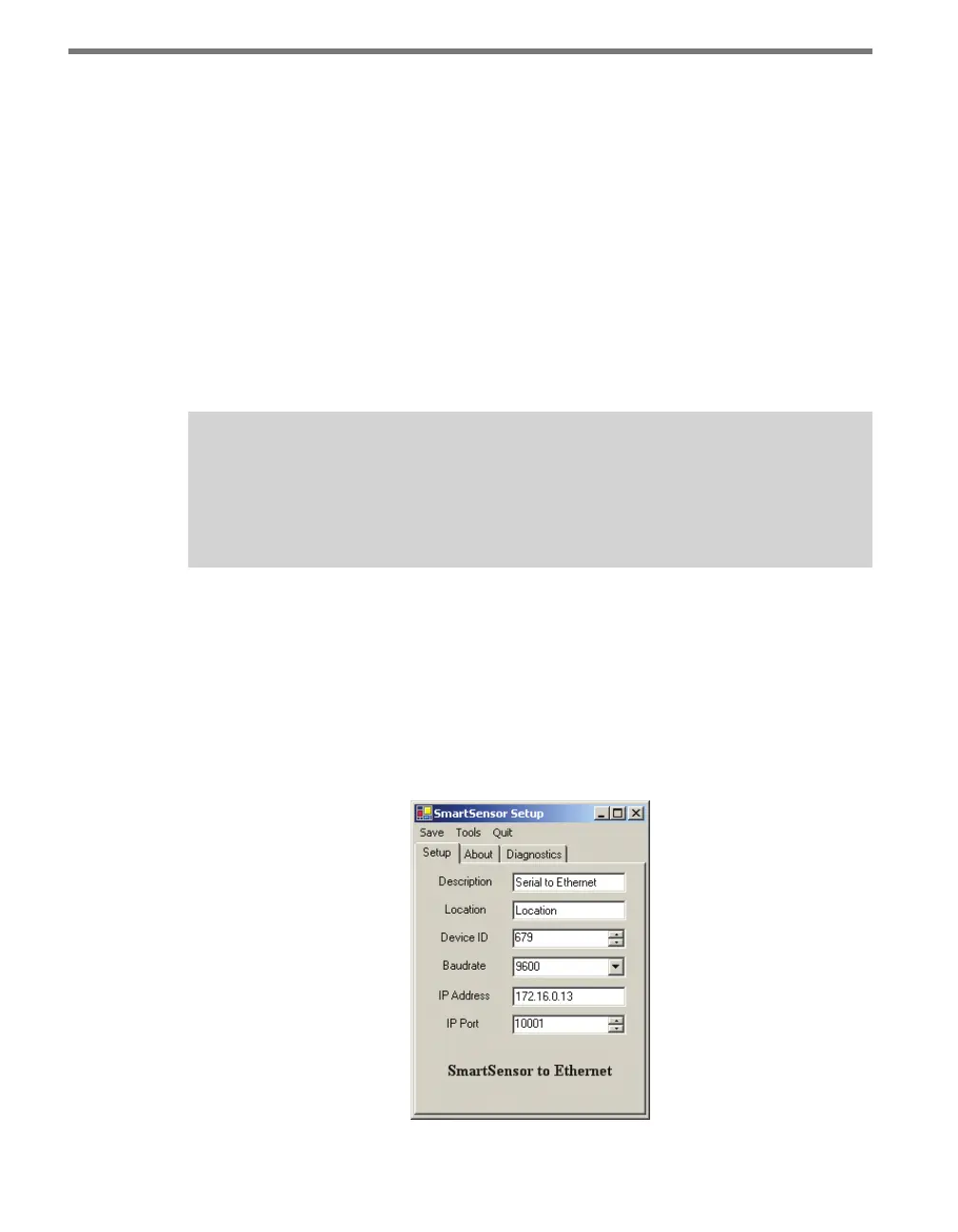
ences are found in the Setup tab. Under the Setup tab, you can change the settings aecting
the setup of the device and sensor (see Figure 23.4 and Table 23.2).
Figure 23.4 – Setup Tab



 To Next Page