32 CHAPTER 4 INSTALLING CLICK SUPERVISOR
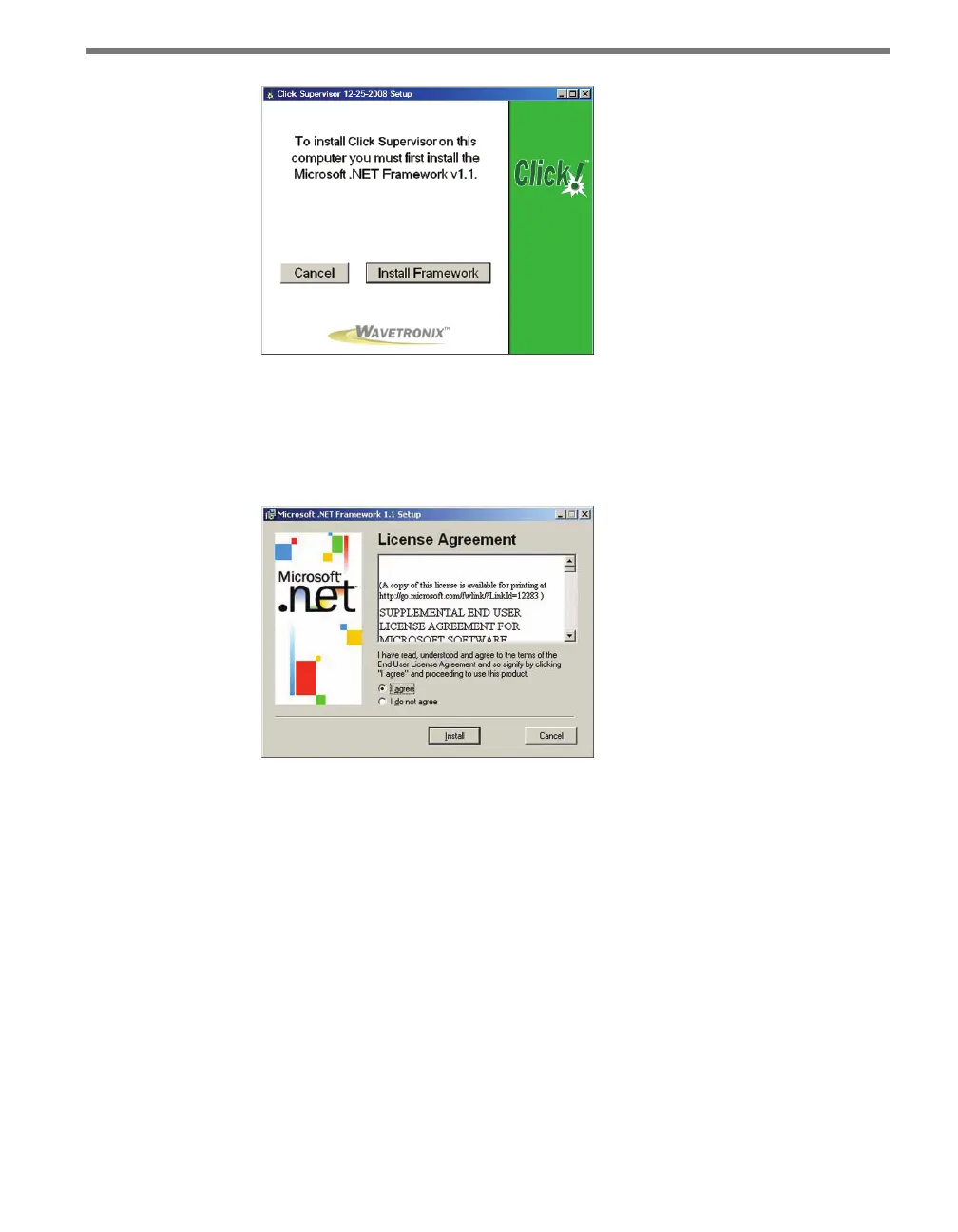
Figure 4.6 – Microsoft .NET Framework Prompt
Use the following steps to install Microso .NET Framework:
1 Click the Install Framework button.
2 Click the I Agree radio button when the License Agreement appears (see Figure 4.7).
Figure 4.7 – Microsoft .NET License Agreement
3 Click Install. A window will appear stating that the .NET Framework has been in-
stalled successfully.
4 Click OK and you will be returned to the Click Supervisor setup program.



 To Next Page