CHAPTER 4 CLICK 104 73
See the earlier Navigating through the Menu and the Menu Operation Example sections for
how to view this parameter.
Aer the Click 104 has reset to factory defaults, it will check the rotary switch; if it is set
to any option besides 0, that channel input mapping will be applied. If resetting to factory
defaults doesn’t reset the channel input mapping, check the rotary switch to see if it’s aect-
ing this setting.
Click Supervisor
Click Supervisor is the only way to congure non-data path type parameters such as the
description, location, and device ID. See Chapters 4 and 5 of this document for instructions
on how to download and install Click Supervisor and how to connect to your device using
the soware.
Note
Some of the parameters mentioned below can only be configured in Click Supervisor.
Others can be configured by the front panel menu and/or the rotary switch. If the ro-
tary switch has been used to configure the channel input mapping, that parameter is
considered to be in Hardware mode; it will be grayed out in Click Supervisor, meaning
you can view but not change the setting. If you would like to set it using Click Supervi-
sor, you will have to turn the rotary switch to 0.
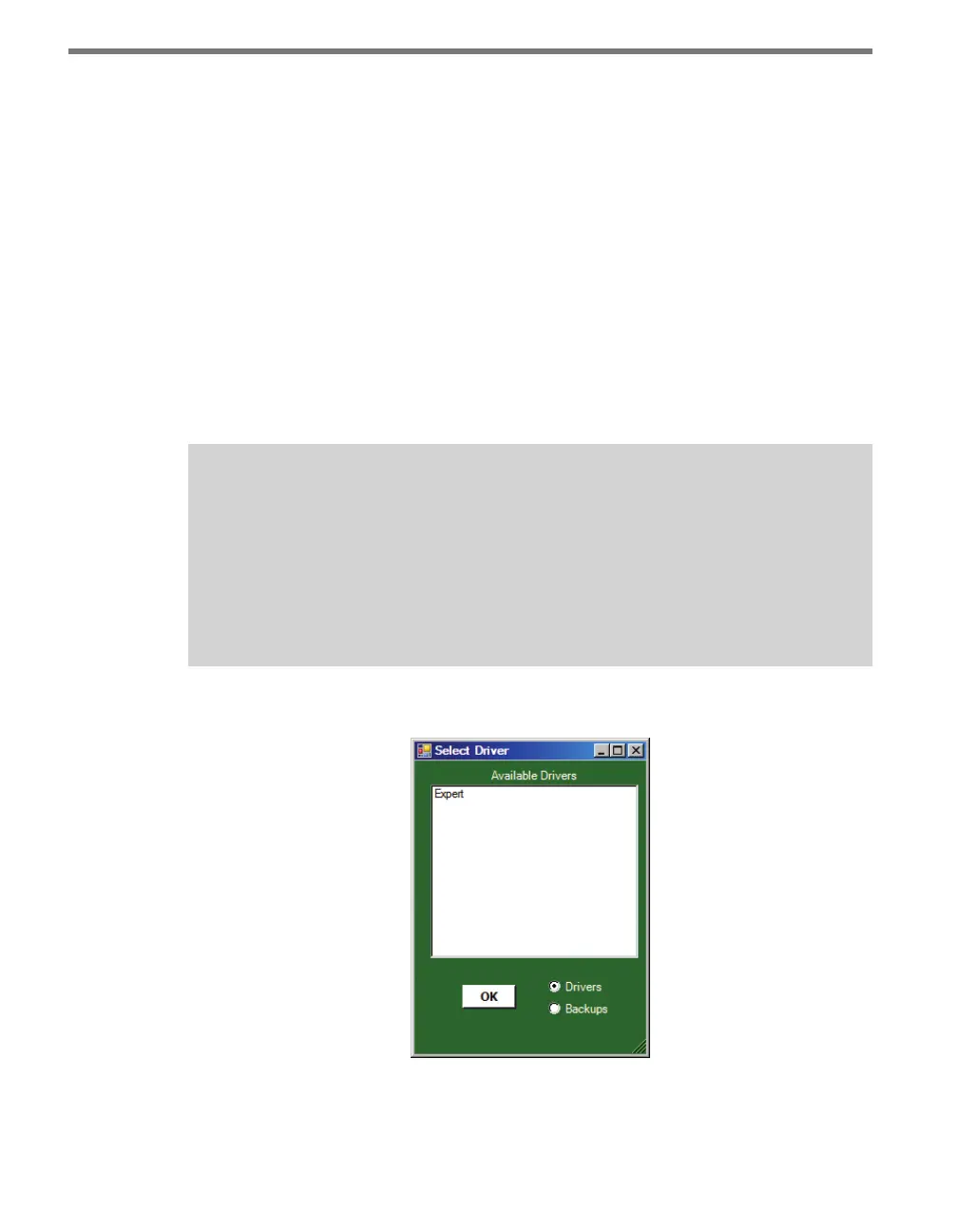
e Click 104 can be congured using the Expert driver (see Figure 8.6).
Figure 8.6 – Selecting a Driver
Aer you have made conguration changes on the driver and saved it to the Click device, the
word “current” will appear aer it to indicate the driver is currently loaded onto the device.



 To Next Page