120 CHAPTER 12 PROGRAMMING CONTACT CLOSURES
Note
For information about how to configure the Click 112/114, see the Click Series User
Guide or the Click 112/114 Quick-Reference Guide.
Communication via SmartSensor Manager
To setup communication via SmartSensor Manager:
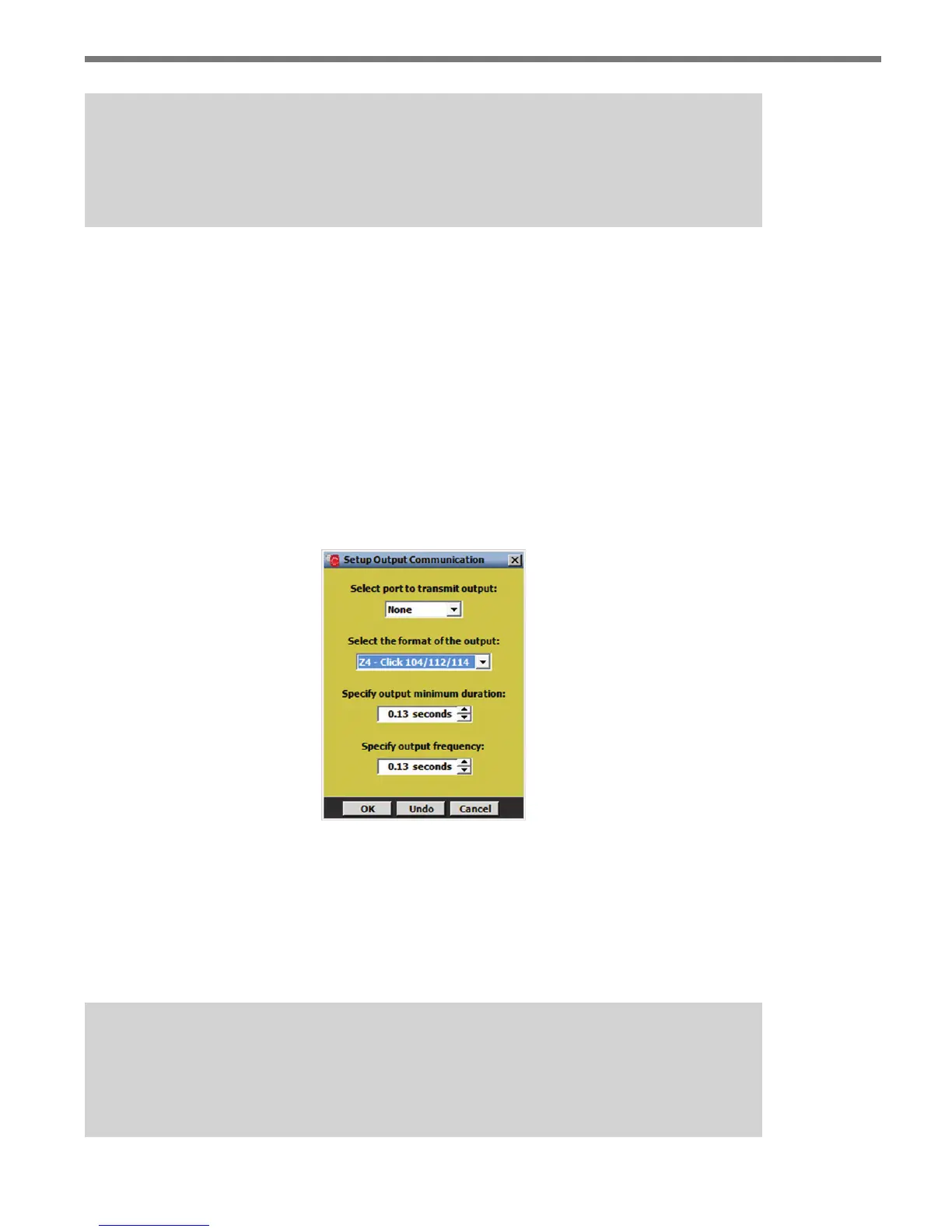
1 From the Channel-Alerts-Zone screen, click on Setup Output Communication.
2 Select Port 2 from the transmit output drop-down list. Port 2 is the data bus and is an
RS-485 port.
3 Select Z4 - Click 112/114 from the output format drop-down list to set up commu-
nication with a Click 112/114.
4 Click OK to save the communication changes.
5 Verify that detections are registering on the rack card and close SmartSensor Manager
if you are connected over the data bus.
Figure 12.1 – Setting Output Communications Using SmartSensor Manager
Click 172/174 Contact Closure Cards
e Click 172/174 cards are simple to program and require little on-site maintenance (see
Figure 12.2).
Note
The SmartSensor Advance Extended Range only works with the Click 112/114/104
card. It does not work with the Click 172/174/100 cards.



 To Next Page