CHAPTER 4 COMMUNICATION 41
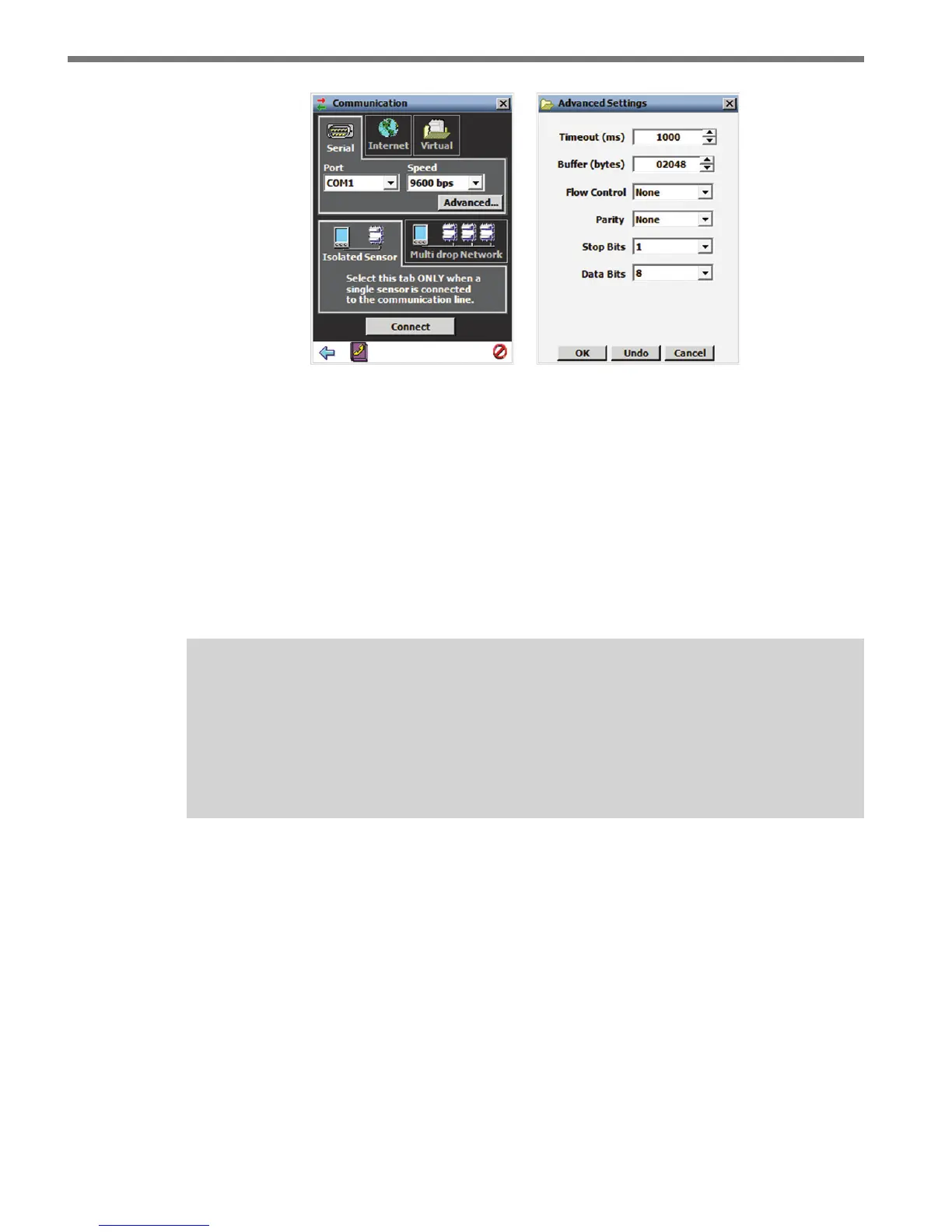
Figure 4.2 – Serial Connection (left) and Advanced Settings (right)
e Advanced Settings screen contains the following elds:
Timeout (ms) – Allows you to set an additional amount of time (in milliseconds) that
SSMA will wait for a response when communicating with the sensor.
Buer (bytes) – Contains the number of bytes used by SSMA to store data received
from the sensor.
Parity – is should always be set to None.
Stop Bits – is should always be set to 1.
Data Bits – is should always be set to 8.
Note
When a connection is made using the Isolated Sensor tab instead of the Multi-drop
Network tab, the software will connect to the first sensor it finds. If you have multi-
ple sensors and want to be able to connect to each one, use the Multi-drop Network
tab (see Multi-drop Network section below).
Internet Connection
1 Click on Communication.
2 Select the Internet tab (see Figure 4.3).
3 Enter the IP address of the Serial-to-Ethernet adapter to which the sensor of interest
is connected, or the domain name associated with the sensor in the Address eld. e
IP address is four octets, each ranging from 0-255, separated by dots (“.”). An URL
address can also be entered into this eld (i.e. sensor.earlink.com).
4 Enter the port number assigned to the Ethernet-to-Serial adapter in the Port eld.
is will be an integer value in the range of 0-65536. If you are using a Click 301
device, the default port number will be 10001. Click the Advanced… button for ad-



 To Next Page