58 CHAPTER 6 SENSOR CONFIGURATION
3 Reload the individual channel template les used in the current conguration (the
out-of-range zones will be deleted and the desired detection functions may be com-
promised).
2. Automatic Radar Configuration
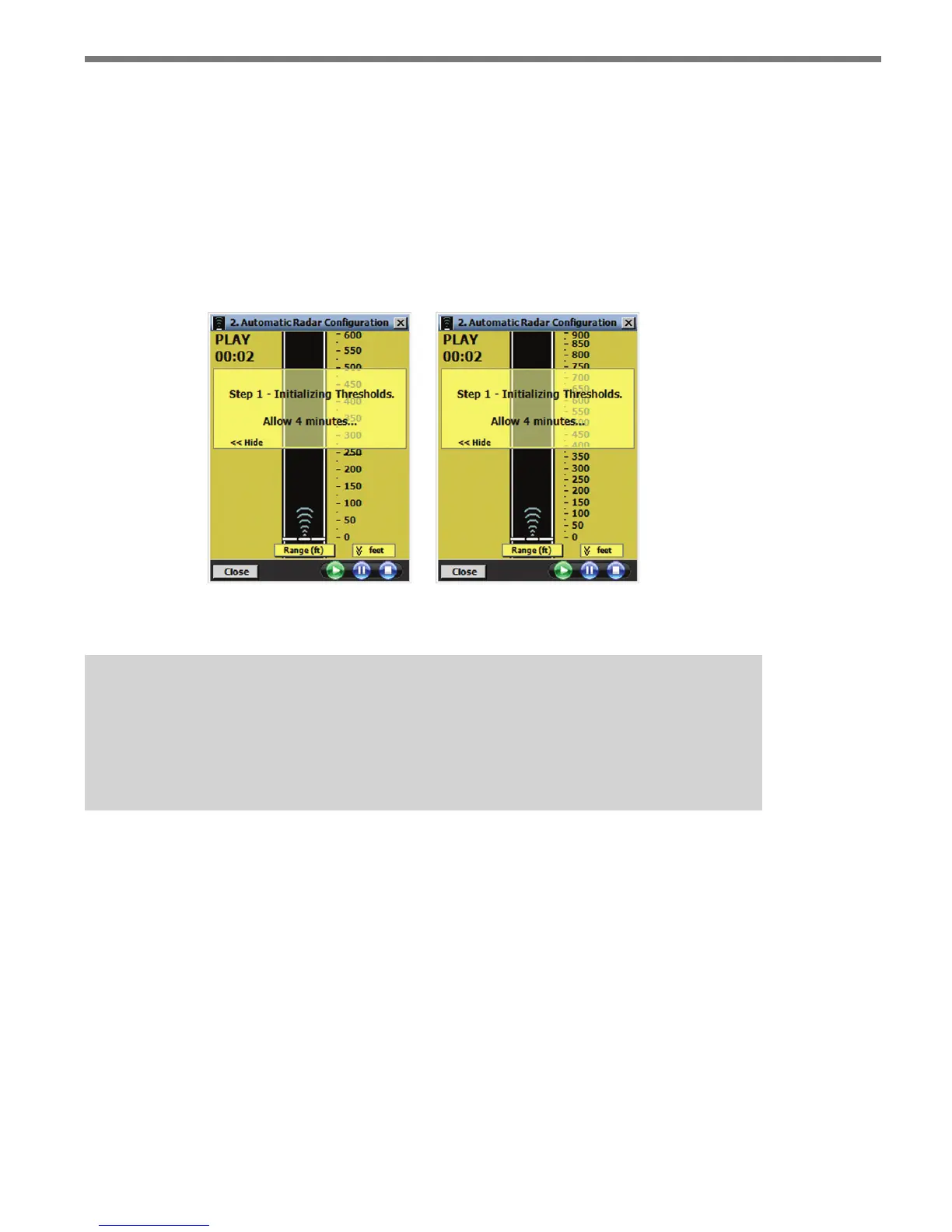
Click the Automatic Radar Conguration button and the Automatic Radar Congura-
tion screen will appear (see Figure 6.4).
Figure 6.4 – Automatic Radar Configuration Screen for Advance (left)
and Advance Extended Range (right)
Note
The ranges displayed in the Automatic Radar Configuration window will depend upon
whether you have SmartSensor Advance or SmartSensor Advance Extended Range.
The scale on the right side of the road view indicates the ranges.
Click the Play button to begin the auto-conguration process. e playing time will be shown
in the top-left corner of the screen. After approximately three minutes, trackers (sensor detec-
tions) will begin to appear on the roadway and the process will change to Step 2 Adjusting
resholds. e Pause button pauses the auto-conguration process; the Stop button will
terminate auto-conguration. e Close button closes the screen and returns to the Sensor
Conguration job menu. If the conguration process is running, it will continue to run after
closing. To terminate the automatic radar conguration process, press the Stop button.
e semi-transparent message window can be toggled on/o by clicking the Show>> and
<<Hide labels. e roadway range scale can be toggled on/o by clicking the feet label.
e following is a list of tracker display data that can be viewed by clicking the Range (ft)
display bar at the base of the roadway:



 To Next Page