6
Auto Shut-Off:
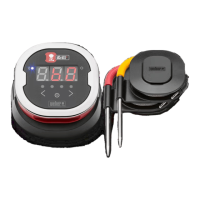
• The iGrill 2 will stay powered on for ve minutes before
automatically turning off if there are no probes installed and if it is
not paired to a smart device.
• The iGrill 2 will stay powered on for eight hours before automatically
turning off if not paired to a smart device and if probes are installed.
• The iGrill 2 will stay powered on indenitely if at least one probe is
installed and if it is paired with a smart device.
Connecting
To connect your iGrill 2 to your iPhone
®
, iPad
®
, iPod touch
®
or Android™
device follow these steps:
• Open Settings.
• Tap Bluetooth
®
.
• Set Bluetooth
®
to On.
• While turned on, place your iGrill 2 next to your smart device and
open the Weber iGrill App. Your smart device will automatically
recognize any available iGrill products and display them in the
‘Available Devices’ drop-down. You can view the ‘Available Devices’
by tapping the white iGrill logo at the top, right-hand corner of the
app.
• Select your iGrill 2 from the ‘Available Devices.’ You will then be
prompted to accept a pairing request. Once you accept, your smart
device will pair with the iGrill 2 and you are ready to congure your
settings and start cooking!
To connect an additional iGrill 2 or other iGrill product to your iPhone
®
,
iPad
®
, iPod touch
®
or Android™ device, follow these steps:
• While turned on, place your iGrill 2 (or other iGrill product) next to
your smart device and open the Weber iGrill App.



 To Next Page