24
January, 2017
LOAD MACHINE SETTINGS
While the “Loading Machine Settings” icon is flashing the software is retrieving its initial configuration
settings from the database. This includes the COM Port, Machine Name, System Parameters, etc…
If there is an issue during this process you will receive a message indicating that you have no active
PrimoCombis and will see the icon has a red X on it. You will not be able to proceed until this issue is
resolved.
There are 4 possible reasons why this will happen:
1. The Database cannot be found.
2. The User does not have access to the database.
3. All PrimoCombis are either deactivated, or there are no PrimoCombis configured in the Database.
4. The MCR button was not pressed.
CONNECTING WITH THE MACHINE
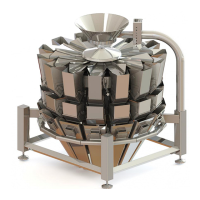
While the “Creating Connection with Machine” icon is flashing the software is trying to establish
communication to the PrimoCombi through the COM port. Once the COM port is open it will try to unlock
the main board’s internal security and establish bidirectional communication with the PrimoCombi.
If there is an issue during this process you will receive a message indicating that the security code has
failed, or you are not connected to a PrimoCombi and the icon will appear with a red X on it. You will be
asked if you want to open the Configuration Section of the software, or continue onwards.
There are several possible reasons for receiving this error. You should check the following in order:
1. Ensure the PrimoCombi is powered on. You will see a white light on the control panel if there is
power to the scale. Also ensure that the green MCR button was pressed.
2. Ensure that the serial cable between the control panel and PC panel is connected properly.
3. Ensure that only ONE instance of the 360 Operating System is running.
4. Double check that the COM port you have configured for the scale is the COM port that the
PrimoCombi is connected to.
5. Open the control panel and ensure that the serial cable is attached to the main board inside the
control panel (reclose and power on the PrimoCombi after you check).
6. Double-check that the security code is correct for the main board.
This step is a non-critical step to opening the software. You may choose No at the prompt and create a
manual connection to the scale.


 To Next Page