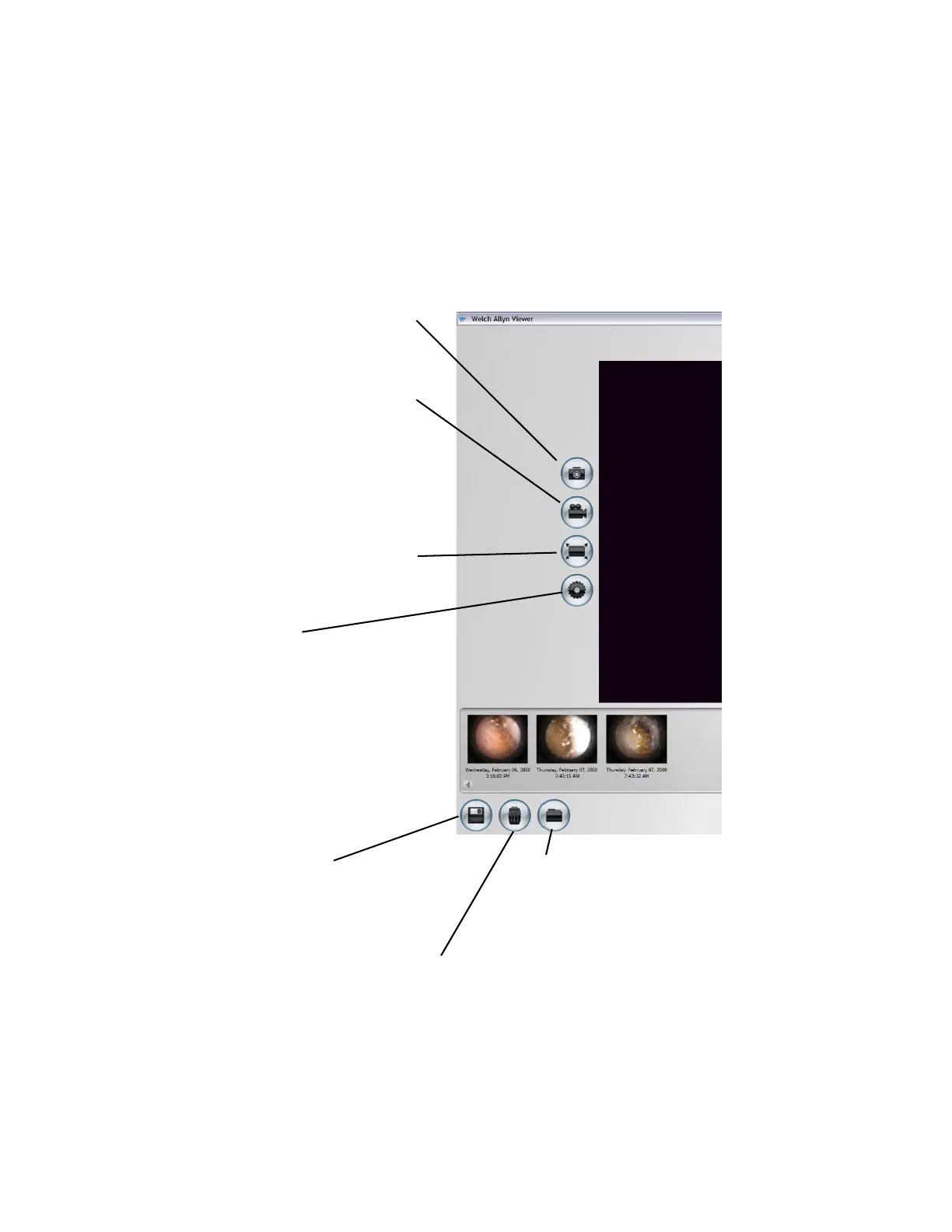
Settings:
Default Directory: Click Browse and
select the file path where you want
to save your images.
Video Clip Length: Select Video
Capture Limit and select an option.
Two minutes is the maximum
allowable length of a recorded video.
Default File Format: Select an
available file type for your graphics.
View Full Screen: Click to view full
screen.
Press ESC to return to the normal
view.
Record Video Clip: Click to start
recording (green icon); click again to
stop recording (blue icon). Video clip
displays as a thumbnail on the
screen and marked as Video.
NOTE: You must have a video
recorder such as Windows Movie
Maker or Windows Media Player
installed on your computer.
Snapshot: Click to take a snapshot
from the viewer. Image displays as a
thumbnail on the screen.
View Saved Images/Videos:
Window displays default directory for
storage. Select the file or select
another diretory or folder to locate the
desired file. Double-click on the file
name to view the image.
Clear All Images/Videos: Right-click the thumbnail and select
Clear. Click OK.
Save All Images/Videos: Right-click
the thumbnail and select Save. Click OK.












 To Next Page