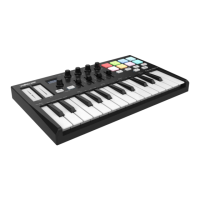
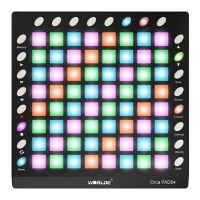
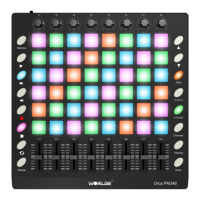
HANGZHOU WORLDE DIGITAL PIANO CO.,LTD HANGZHOU WORLDE MUSIC ELECTRONIC CO., LTD
WEBSITE: WWW.WORLDE.COM.CN EMAIL:SALES@WORLDE.COM.CN TEL:86 571 88730848
1.2Setup
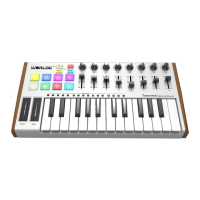
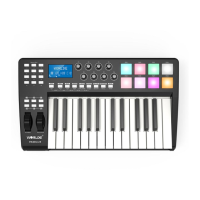
If you intend to connect your Panda keyboard to a computer, please read sections 1.2 and 1.3 first. If you only intend to
use your Panda keyboard to control a sound module or synthesizer using the external MIDI OUT you should skip to
section 1.4.
1.2.1 Minimum System Requirements
If you are using your Panda with a computer, the following minimum system requirements apply:
Windows Mac OS
Pentium 3 800 MHz or higher Macintosh G3* 800/G4* 733 MHz or higher
(CPU requirement may be higher for laptops) (CPU requirement may be higher for laptops)
256 MB RAM OS X 10.3.9 with 256 MB RAM,
DirectX 9.0b or higher OS X 10.4.2 or greater with 512 MB RAM
Windows XP (SP2) or higher *G3/G4 accelerator cards are not supported.
(Windows 98, Me, NT or 2000 not supported)
WORLDE suggests you also check the minimum system requirements for your software, as they may be greater
than the above.
USB hubs are not supported. WORLDE suggests that you connect directly to one of your computer’s built in USB ports.
1.3Using The Panda With Your Software
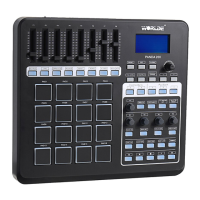
When installed, the Panda appears as a simple MIDI device with one input port and one output port. You should select
the listed Panda input port as the MIDI input device in your software. Once this is set, your software should be able to
receive notes and controller data from the Panda.
If you have connected external MIDI gear like a drum machine or another keyboard to your Panda’s MIDI IN port, this
gear can be interfaced to the computer by selecting the listed Panda input port. This way, your Panda is acting as a MIDI
to USB interface.
The port names are defined as USB Audio Device when connecting to USB port.
It will appear as a single USB Composite Device in the Device Manager.
1.4 MIDI Connections
The MIDI Out port accepts a standard 5-pin DIN-type MIDI plug(available from most professional audio retailers).
The MIDI Out port can be used to connect the Panda to a hardware sequencer, an external synthesizer or sound module,
for example.


 To Next Page