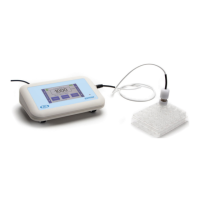
EVOM™ Manual
World Precision Instruments 1
QUICK START
Resistance
1. Power on the EVOM™ Manual using the power switch on the rear panel.
2. If a lename other than the default (plate1) is required:
• Press and hold the Store button for 2 seconds to enter the Store Option menu.
• Select
Filename
to enter a new name.
• Press
Clear
.
• Use the on screen keypad to enter a new name.
• Press
Enter
.
NOTE: Auto indexing changes the name to a numeric sequence formatted with
the name, a prex and a sequential number (name_prexN).
3. Press
Setup
to access the
Setup
menu.
• Select Mode–Set the mode to Resistance.
• Select Plate–Choose the plate size.
• Display Units– Select the display units in ohms or K-ohms.
• Resistance–Select the resistance range (auto or the desired range).
• Calibrate–Press Calibrate to calibrate the electrode. (This uses a 10K Ω
resistor to calibrate the cell ranges).
4. Press
Return
to navigate back to the main menu.
5. Insert a USB thumb drive into the USB port on the side of the EVOM™ Manual
and begin measuring by pressing the foot switch or touching the
Store
button
on the screen to store and advance to the next weel. Tap the
Next Well
area on
the right side of the screen to advance in increments of one well without taking a
measurement. Repeat the sampling process.
6. Once the last well has been recorded, the le storing selection notication
appears. Press
Store
. A system message will report if the USB thumb drive is
usable, or it will display an error. If the USB thumb drive is not plugged in or it
is not recognized, a warning message will appear. Press
Cancel
and try another
drive. The
Store
function cannot be used on an unrecognized drive. EVOM™
Manual should respond with “File saved” within 15 seconds. If “Saving le...” is still
seen after 20 seconds, press the
Return
key and use another USB drive. Once a
le has been saved, open the le on a computer to verify the contents.
NOTE: The le saving routine can take up to 15 seconds to complete. See the USB
cautions on page 5.
7. Remove the USB thumb drive and transfer the data le to your computer as a
CSV le (Excel).
Voltage
1. Power on the EVOM™ Manual using the power switch on the rear panel.
2. If a lename other than the default (plate1) is required:
• Press and hold the Store button for 2 seconds to enter the Store Option menu.


 To Next Page