TXD Transmit serial data to PC
Baud rate 9600bps
Data bits 8bits
Parity None
Stop bits 1
Flow control None
Com Port Setting
ADVANCED OPERATION
1
2
3
Female connector - 9 holes
Male connector - 9 pins
Setting: For the Matrix to enable two-way IR control
between inputs and outputs, press and hold OUTPUT 1
and OUTPUT 4 together for 3 seconds until ALL output
LED lights flash, signalling the unit is in Two-way IR
Mode.
Repeat the process to disable Two-way IR Mode.
At display end: Insert the IR receiver jack into the
IR RX port of the display receiver balun, with the receivers
themselves placed in clear view on or near the displays to
receive an infrared signal from the remote handset used
to control inputs.
Insert the IR emitter jack into the IR TX port of the display
receiver balun, ensuring that the emitter sensor is securely
attached to infrared sensor window of the display.
Follow the same connection and positioning for all baluns/
displays connected to the matrix. If all IR emitters and
IR receivers are positioned and connected correctly with
sources, displays and display receivers fully powered and
the matrix set to IR call-back enabled and IR TX Switch
mode activated, two-way IR will now be possible.
NOTE Misplaced or poorly secured IR emitters and
receivers may result in intermittent IR control signals
passed to and from the matrix. Check your placement
and adjust if necessary.
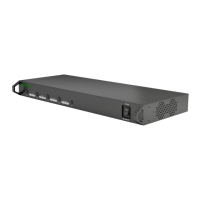
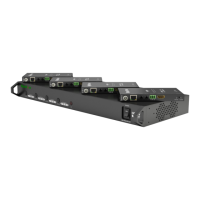
Typically, unless alternative methods of controlling
the matrix are chosen or problems with device
communication through the matrix encountered, basic
operation is all that is required to operate your MX-0404-
POH-KIT. However, the following information on advanced
operation will detail how the matrix system can be
configured and for advanced control and settings can
be altered or data manually input should such problems
arise, as well as configuring the system for third party
control.
RS232 Remote Control
Control of the matrix is possible through RS232 using
third party control systems or the dedicated WyreStorm
control software included with your purchase -
downloadable from product page on wyrestorm.com
Market leading control systems RS232 and IP integration
protocols are also available for download on the product
page. See website for compatible control systems.
i. RS232 Control
Should third party control be required, please see below
for control system configuration and hex code input. The
RS232 connection on the matrix is female DB9 Users
can use a USB to RS232 cable or a direct male to female
serial cable.
ii. Updating RS232 Settings
To update the firmware on the RX-70-POH Receiver:
Move the RS232 MODE switch on the Receiver to
the UPDATE setting to enter Firmware Update Mode.
Connect a Serial-to-USB cable from the RS232
port of the RX-70-POH to a computer and run VS010 RX
Firmware Update batch file available from wyrestorm.
com.
Once the update has been completed, be sure to
return the MODE switch to the NORMAL position for
RS232 control signal transmission to be passed.
NOTE Connect RS232 cables to the RS232 port of
the Receiver to form one extension cable.
Attention Ensure the RS232 MODE switch on
the Receiver is returned to Normal after updating.
Although the extenders will transmit audio/video
signals, RS232 control between the devices of will
not be possible when the switch is set to Update
mode.
10. Advanced Operation
2



 To Next Page