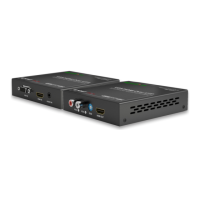
SW-0501-HDBT HDBaseT Presentation Switcher/Scaler Installation Guide | 160211-1512
Configuring EDID Operation
By default, the switcher resolution output to the display will be based on the display’s Extended Display Identification Data (EDID).
However, should the need arise, a specific output resolution can be used if the other connected display only supports a lower resolution.
1. Access the Web-UI. See Accessing the Web User Interface (Web-UI)
2. Navigate to: Functions > Output Timing
3. To set the output resolution using the displays EDID:
A. Select Auto in the Output Timing drop down list to set the output resolution using the displays EDID.
B. Select the resolution in the Output Timing drop down list that matches the lowest resolution supported by both displays.
4. Click Apply to save the changes.
Configuring the Audio Output
The Audio Out is disabled by default and the output level can be adjusted to suit the environment.
Enabling / Disabling the Audio Output
1. Access the Web-UI. See Accessing the Web User Interface (Web-UI)
2. Navigate to: Functions > Audio
3. Select Enable in the Mute drop down list to turn on the audio out.
Select Disable to turn off the audio out (default setting).
4. Click Apply to save the changes.
Adjusting the Audio Output Level
1. Access the Web-UI. See Accessing the Web User Interface (Web-UI)
2. Navigate to: Functions > Audio
3. Move the slider left to decrease the audio output level and right to increase the level testing the level as it is adjusted. Adjustment
Range: -100dB to +12 dB
4. Click Apply to save the changes.
Tip:
WyreStorm recommends setting the audio output level to 0dB to start as the output will be at an average level for most environments.



 To Next Page
 Loading...