EasyManua.ls Logo

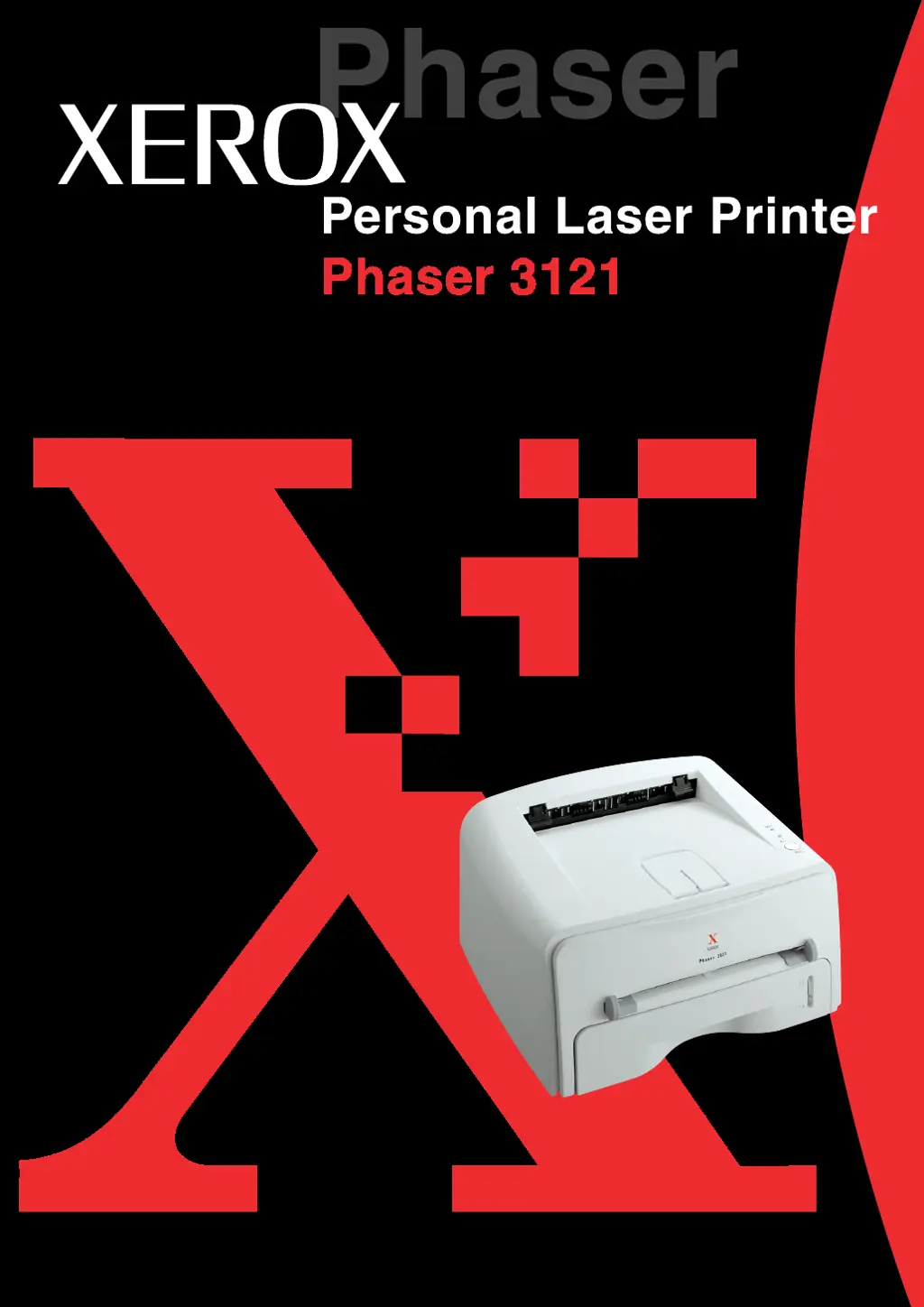
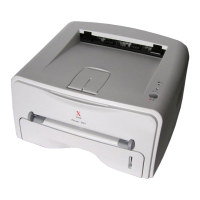
Xerox Phaser 3121 - User Manual

Xerox Phaser 3121
136 pages
Print Icon
To Next Page IconTo Next Page
Loading...

Table of Contents

Questions and Answers

  • H
    holmeslucasJul 28, 2025
    Why is my Xerox Phaser 3121 Printer not printing?
    • C
      combsdianeJul 28, 2025
      If your Xerox Printer isn't printing, there are several potential reasons. First, ensure the printer is receiving power by checking the power cord connections, power switch, and the power source. Also, verify that the printer is selected as the default printer in your Windows Printer folder. Other things to check: the printer cover is closed, paper is not jammed, paper is loaded, and the toner cartridge is installed. If a printer system error occurs, contact your service representative.
  • J
    Jamie SchwartzAug 3, 2025
    What to do if Xerox Phaser 3121 doesn't print after connecting cable?
    • B
      Brianna RyanAug 3, 2025
      If your Xerox Printer isn't printing, ensure the connection cable between the computer and the printer is properly connected. Try disconnecting and reconnecting it. If the issue persists, the cable might be defective. Try attaching the cable to another working computer or use a different printer cable to test.
  • H
    Heather FloresAug 11, 2025
    How to check port settings for Xerox Phaser 3121 Printer?
    • D
      Derek HorneAug 11, 2025
      If your Xerox Printer isn't printing, and you suspect the port setting is incorrect, check the Windows printer settings. Ensure the print job is sent to the correct port (e.g., LTP1). If your computer has multiple ports, verify the printer is connected to the one specified in the settings.
  • C
    Cynthia HoustonAug 18, 2025
    What to do if Xerox Phaser 3121 is in Manual Feed mode?
    • L
      lmooreAug 19, 2025
      If your Xerox Printer isn't printing, and the printer is in Manual Feed mode, add paper to the manual feeder. Then, press the button on the printer’s control panel to begin printing.

Summary

Environmental and Safety Consideration

Laser Safety Statement

Details on the printer's certification as a Class I laser product and safety precautions.

Introduction

Special Features

Highlights the printer's capabilities like high-speed printing and quality.

Setting Up Your Printer

Installing the Toner Cartridge

Detailed procedure for installing the toner cartridge into the printer.

Connecting a Printer Cable

Explains how to connect the printer to a computer using parallel or USB cables.

Installing Printer Software

Guidance on installing printer drivers and software for Windows and Linux.

Using Print Materials

Loading Paper

Proper techniques for loading paper into the printer tray and manual feeder.

Printing Tasks

Printing a Document

General steps for printing documents from Windows applications.

Using the Toner Save Mode

Enabling Toner Save mode to reduce toner consumption and cost.

Maintaining Your Printer

Maintaining the Toner Cartridge

Guidelines for toner cartridge storage, life expectancy, saving toner, and replacement.

Cleaning the Printer

Procedures for maintaining print quality by cleaning the printer's inside and outside.

Solving Problems

Troubleshooting Checklist

A step-by-step checklist to diagnose and resolve printer issues.

Solving General Printing Problems

Table of common printing problems and their potential causes and solutions.

Clearing Paper Jams

Instructions for removing jammed paper from different areas of the printer.

Solving Print Quality Problems

Checklist and solutions for common print quality issues like faded prints or toner specs.

Troubleshooting Error Messages

Interpreting printer control panel error messages and their solutions.

Appendix

Using Your Printer in Linux

Detailed guide for installing, configuring, and uninstalling the printer driver in Linux.

Xerox Phaser 3121 Specifications

General IconGeneral
Printer TypeLaser
Print Resolution1200 x 1200 dpi
First Page Out Time (Black)8.5 seconds
ConnectivityUSB
Paper Handling/Capacity150-sheet input tray
Operating System CompatibilityWindows, Mac, Linux

Related product manuals