EasyManua.ls Logo

Xerox Phaser 3117 - User Manual

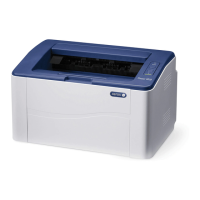
Xerox Phaser 3117
104 pages
Print Icon
To Next Page IconTo Next Page
Loading...

Table of Contents

Other manuals for Xerox Phaser 3117

Questions and Answers

  • D
    Destiny FisherAug 9, 2025
    What to do if Xerox Phaser 3117 does not print?
    • S
      scotthernandezAug 9, 2025
      If your Xerox Printer isn't printing, start by ensuring it's powered on and properly connected. Check the power cord, switch, and source. Next, make sure it's set as the default printer on your computer. Then, check the printer for common issues like an open cover, paper jams, empty paper tray, or an incorrectly installed toner cartridge. If it's in Manual Feed mode, add paper to the tray and press the control panel button. Ensure the connection cable is securely attached and not defective—try a different cable if possible. Verify the correct port setting in your computer's printer settings. Finally, confirm all print settings are correct in the printer properties.
  • M
    Matthew OwensAug 20, 2025
    How to troubleshoot Xerox Printer that does not print?
    • J
      Jeremy SextonAug 20, 2025
      To troubleshoot a Xerox Printer that isn't printing, begin by checking the power connections and ensuring the printer is turned on. Verify that the printer is set as the default printer on your computer. Inspect the printer for issues such as an open cover, paper jams, or a missing or incorrect toner cartridge. If the printer is in Manual Feed mode, add paper to the tray and press the button on the control panel to start printing. Check the connection cable between the printer and the computer, ensuring it is properly connected and not defective. Confirm that the port setting in the Windows printer setting is correct. Finally, review the printer properties to ensure all print settings are correct.
  • B
    Beverly PittmanOct 29, 2025
    Why Xerox Phaser 3117 does not print?
    • J
      Janet HudsonOct 30, 2025
      There are several reasons why your Xerox Printer might not be printing. First, ensure the printer is receiving power by checking the power cord connections, power switch, and power source. Also, verify that the printer is selected as the default printer in your Windows printer settings. Check the printer itself: make sure the cover is closed, there are no paper jams, paper is loaded, and the toner cartridge is correctly installed and is the correct type. It may also be in Manual Feed mode, so add paper to the tray and press the button on the printer’s control panel. Finally, check the connection cable between the computer and the printer, and the port setting in Windows to make sure that the print job is sent to the correct port. Also, check the printer properties to ensure that all print ...

Summary

Important Precautions and Safety Information

Chapter 1: Introduction

Chapter 2: Setting Up Your Printer

Installing the Toner Cartridge

Step-by-step instructions for installing the toner cartridge into the printer.

Loading Paper

Instructions on how to load paper into the printer's input tray correctly.

Connecting a Printer Cable

Step-by-step guide to connect the printer to the computer via a USB cable.

Turning the Printer on

Instructions for properly plugging in and powering on the printer.

Installing Printer Software

Instructions for installing the necessary printer software from the CD-ROM, including system requirements.

Chapter 3: Using Print Materials

Using Manual Feed Mode

Instructions for loading and printing using the manual feed option for special materials.

Chapter 4: Maintaining Your Printer

Maintaining the Toner Cartridge

Guidelines for storing, handling, and understanding the life expectancy of the toner cartridge.

Replacing the Toner Cartridge

Instructions on when and how to replace the toner cartridge.

Chapter 5: Solving Problems

Troubleshooting Checklist

A systematic guide to diagnose and resolve printer malfunctions step-by-step.

Solving General Printing Problems

Solutions for common printing operational issues like no printing or slow printing.

Clearing Paper Jams

Procedures for identifying and removing jammed paper from various printer areas.

Solving Print Quality Problems

A checklist to help resolve common print quality issues like fading or streaks.

Troubleshooting Error Messages

How to interpret LED patterns to identify and resolve printer errors.

Xerox Phaser 3117 Specifications

General IconGeneral
Print TechnologyLaser
Print SpeedUp to 17 ppm
Paper Capacity150 sheets
ConnectivityUSB 2.0
Processor150 MHz
Memory8 MB
Paper Handling Output100 sheets
Print Resolution600 x 600 dpi
Media Sizes SupportedA4, Letter, Legal, Executive, A5, B5
Supported Operating SystemsWindows, Mac OS, Linux
First Page Out TimeLess than 10 seconds

Videos

HOW TO FIX XEROX PHASER 3117 LEDS BLINKING ERROR, NO PRINTING

Related product manuals