EasyManua.ls Logo

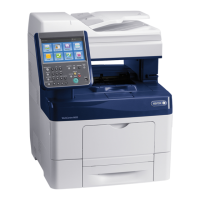
Xerox WorkCentre 6655 - User Manual

Xerox WorkCentre 6655
282 pages
Print Icon
To Next Page IconTo Next Page
Loading...
Xerox
®
WorkCentre
®
6655/6655i
Color Multifunction Printer
2016 Xerox
®
ConnectKey
®
Technology
User Guide

Table of Contents

Other manuals for Xerox WorkCentre 6655

Questions and Answers

  • C
    Curtis MurraySep 12, 2025
    Why Xerox All in One Printer fails to power on?
    • J
      jakecurtisSep 12, 2025
      Your Xerox All in One Printer might fail to power on for several reasons: * One or both of the power switches are not turned on. Turn on both power switches. * The power cord is not correctly plugged into the outlet. Turn off the printer power switch, and plug the power cord securely into the outlet. * There could be something wrong with the outlet. Plug another electrical appliance into the outlet to see if it operates properly, or try a different outlet. * The printer is connected to an outlet with incorrect voltage or frequency. Use a power source that matches the printer's electrical specifications.
  • M
    Madison MullinsAug 25, 2025
    Why is my Xerox Printer printing from the wrong tray?
    • A
      Andrew BoydAug 25, 2025
      If your Xerox printer is printing documents from the wrong tray, the application and print driver may have conflicting tray selections. Check the tray selected in the print driver. Go to the page setup or printer settings of the application from which you are printing. Set the paper source to match the tray selected in the print driver or set the paper source to Automatically Select. To have the print driver select the tray, set the tray used as the paper source to Auto Selection Enabled.
  • C
    Christina GarciaAug 26, 2025
    Why is automatic 2-sided printing not working on my Xerox Printer?
    • M
      Melvin ClarkAug 26, 2025
      If you're experiencing issues with automatic 2-sided printing on your Xerox printer, it could be due to unsupported or incorrect paper. Ensure that you are using a supported paper size and weight for 2-sided printing. Remember that envelopes and labels cannot be used for 2-sided printing. Also, verify that the '2-Sided Print' option is selected in the print driver properties under the Paper/Output tab.
  • J
    James HoffmanAug 27, 2025
    Why does my Xerox All in One Printer reset or turn off frequently?
    • J
      Joel GilesAug 28, 2025
      Your Xerox All in One Printer might reset or turn off frequently due to: * The power cord not being plugged into the outlet correctly. Turn off the printer, ensure the power cord is correctly plugged into both the printer and the outlet, then turn the printer back on. * A system error. Turn the printer off, then on again. * The printer being connected to an uninterruptible power supply. Turn off the printer and connect the power cord to a suitable outlet. * The printer being connected to a power strip shared with other high-power devices. Plug the printer directly into the outlet or into a power strip not shared with other high-power devices.
  • J
    John Snyder MDAug 29, 2025
    How to fix automatic 2-sided printing problems on Xerox All in One Printer?
    • D
      davismatthewAug 29, 2025
      To fix automatic 2-sided printing problems on your Xerox All in One Printer: * Ensure that you are using a supported paper size and weight for 2-sided printing. Note that envelopes and labels cannot be used for 2-sided printing. * In the print driver Properties, select 2-Sided Print on the Paper/Output tab.
  • P
    paul66Aug 30, 2025
    Why does my Xerox Printer reset or turn off frequently?
    • R
      Robin SuttonAug 30, 2025
      If your Xerox Printer frequently resets or turns off, the issue might stem from a few causes. Ensure the power cord is correctly plugged into both the printer and the outlet. If a system error occurred, turn the printer off and on again. You can print the Error History from the Information Pages of the Printer Setting Utility. Avoid connecting the printer to an uninterruptible power supply; instead, use a suitable outlet. Also, make sure the printer isn't sharing a power strip with other high-power devices; plug it directly into the outlet or a dedicated power strip.
  • V
    Victor StevensSep 18, 2025
    Why Xerox All in One Printer makes unusual noises?
    • C
      Courtney ElliottSep 18, 2025
      If your Xerox All in One Printer is making unusual noises, it could be due to an obstruction or debris inside the printer. Turn off the printer and remove any obstruction or debris.
  • D
    Daniel WilkinsNov 22, 2025
    What to do if Xerox Printer fails to print?
    • K
      Kerry MyersNov 22, 2025
      If your Xerox Printer fails to print, there are several possible reasons. The printer might have an error, so follow any onscreen prompts to clear it, or try turning the printer off and on again. Check if the printer is out of paper and load paper into the tray if needed. Also, verify that none of the toner cartridges are empty and replace them if they are. Ensure that the front door is completely closed and that the toner cartridge and imaging unit are correctly installed. Lastly, confirm that the power cord is properly plugged into the outlet. If the printer is busy, a previous print job might be the problem. On your computer, you can use the printer properties to delete all print jobs in the print queue. At the control panel, touch Job Status. If the print job does not appear check the ...
  • J
    Julie MooreSep 9, 2025
    Why is my Xerox WorkCentre 6655 All in One Printer not working, even though it's plugged in?
    • A
      Austin ScottSep 9, 2025
      If your Xerox All in One Printer is plugged in but not working, it might be connected to an outlet with incorrect voltage or frequency. Use a power source that matches the electrical specifications of the printer.
  • G
    Grace AndrewsSep 6, 2025
    What to do if my Xerox All in One Printer won't turn on, and I suspect the outlet?
    • B
      Brian McconnellSep 6, 2025
      If your Xerox All in One Printer isn't powering on, and you think the outlet might be the issue: • Plug another electrical appliance into the same outlet to see if it works. • Try plugging the printer into a different outlet.

Summary

Safety

Electrical Safety

Detailed guidelines and precautions for safe electrical operation of the printer.

Operational Safety

Guidelines for safe operation, including handling paper trays and moving the printer.

Maintenance Safety

Precautions and guidelines for performing maintenance procedures safely on the printer.

Printer Symbols

Explanation of various symbols used on the printer to indicate warnings and safety information.

Features

Parts of the Printer

Identification and overview of the printer's main physical components and their locations.

Administration Features

Details on printer administration, including access control and network services.

Finding the IP Address of the Printer

Instructions on how to locate the printer's IP address for network configuration.

Xerox ConnectKey Apps

Information on available ConnectKey Apps that extend printer functionality.

Installation and Setup

Power Cord Safety Information

Essential safety instructions related to the printer's power cord and electrical connections.

Connecting the Printer

Methods and steps for physically connecting the printer to a computer or network.

Configuring Network Settings

Instructions for setting up and configuring the printer's network connectivity options.

Installing the Software

Procedures for installing printer drivers and necessary software on various operating systems.

Paper and Media

Supported Paper

Information on recommended paper types, sizes, weights, and loading guidelines.

Loading Paper

Step-by-step instructions on how to load paper into different printer trays.

Printing on Special Paper

Guidelines and procedures for printing on special media like envelopes and labels.

Printing

Selecting Printing Options

How to choose and configure various print settings for optimal output.

Managing Jobs

Procedures for controlling print jobs, including pausing, deleting, and viewing job status.

Printing Features

Explanation of advanced printing capabilities like duplex printing and booklet creation.

Printing Special Job Types

How to use special print job types like Secure Print, Sample Set, and Delay Print.

Copying

Basic Copying

Fundamental steps for making copies using the document glass or feeder.

Selecting Copy Settings

Options for customizing copy jobs, including image quality and layout.

Scanning

Basic Scanning

Procedures for scanning documents and storing them to various destinations.

Scanning to a Folder

How to scan documents to public or private folders on the printer or network.

Setting Scan Options

Customizing scan settings such as resolution, file format, and image enhancements.

Scanning to an Email Address

How to scan documents and send them as email attachments.

Faxing

Configuring the Printer for Faxing

Initial setup and configuration required for the printer's fax functionality.

Basic Faxing

Overview of the different methods for sending faxes using the printer.

Sending an Embedded Fax

Instructions for sending faxes directly from the printer control panel.

Sending an Internet Fax

Sending faxes via email by attaching scanned documents.

Maintenance

Cleaning the Printer

Detailed procedures for cleaning various parts of the printer to maintain performance.

Ordering Supplies

Information on when and how to order printer consumables like toner and paper.

Moving the Printer

Safety precautions and steps for safely moving the printer.

Troubleshooting

General Troubleshooting

Common printer issues and their solutions, including power and connectivity problems.

Jams

Guidance on locating, clearing, and minimizing paper jams in the printer.

Print-Quality Problems

Troubleshooting steps for addressing issues related to print quality and output.

Getting Help

Information on how to get assistance, including control panel messages and online support.

Specifications

Printer Configurations and Options

Overview of available printer configurations, features, and standard options.

Physical Specifications

Details on the printer's physical dimensions, weights, and clearance requirements.

Electrical Specifications

Details on power supply voltage, frequency, consumption, and ENERGY STAR compliance.

Performance Specifications

Information on printer performance metrics like power-on time and print speeds.

Regulatory Information

Basic Regulations

Compliance information for FCC, Canada, and European Union standards.

Copy Regulations

Legal restrictions and regulations concerning the reproduction of documents.

Fax Regulations

Regulatory requirements and standards related to fax transmission and equipment.

Recycling and Disposal

All Countries

General information on product disposal and environmental considerations for all regions.

North America

Xerox's equipment take-back and recycling program details for North America.

European Union

Environmental guidelines and disposal procedures for equipment in the European Union.

Xerox WorkCentre 6655 Specifications

General IconGeneral
Duplex printingYes
Print technologyLaser
Maximum resolution2400 x 600 DPI
Time to first page (black, normal)11 s
Print speed (black, normal quality, A4/US Letter)35 ppm
Copier resize25 - 400 %
Maximum copy resolution600 x 600 DPI
Time to first copy (black, normal)15 s
Time to first copy (color, normal)16 s
Scan toE-mail, File, USB
Scanner typeFlatbed & ADF scanner
Image formats supportedJPG, TIF
Document formats supportedPDF, XPS
FaxingColor faxing
Modem speed33.6 Kbit/s
Fax coding methodsJPEG, MH, MMR (Fax coding method), MR
Fax transmission speed3 sec/page
Digital sender-
Printing colorsBlack, Cyan, Magenta, Yellow
Maximum duty cycle100000 pages per month
Recommended duty cycle500 - 10000 pages per month
Number of print cartridges4
Printer managementDHCP, BOOTP, SNMP, WINS, SLP v2, HTTP, HTTPS, DHCP Autonet, SSL, NTP, DNS, SSDP
Internal memory4096 MB
Processor frequency1000 MHz
Sound power level (standby)25.1 dB
Sound pressure level (printing)51.8 dB
Paper input typePaper tray
Total input capacity700 sheets
Total output capacity- sheets
Maximum input capacity1250 sheets
Auto document feeder (ADF) input capacity60 sheets
Custom media width76.2 - 216 mm
Custom media length127 - 356 mm
Paper tray media typesCard stock, Envelopes, Glossy paper, Labels, Photo paper, Plain paper, Pre-Printed, Recycled paper
Paper tray media weight60 - 220 g/m²
Maximum ISO A-series paper sizeA4
DisplayLCD
Control typeTouch
Product colorBlue, White
Market positioningBusiness
Cabling technology10/100/1000Base-T(X)
Security algorithmsFIPS 140-2
Ethernet LAN data rates10, 100, 1000 Mbit/s
Mobile printing technologiesApple AirPrint, Xerox PrintBack
Supported network protocols (IPv6)TCP/IP: HTTP/HTTPS, Internet Printing Protocol, LPR/LPD, Raw Socket Printing/Port 9100, IPv4/IPv6, WSD, NetWare: Bindery and NDS IPX/SPX, NDPS/NEPS, AppleTalk, Apple Bonjour
Standard interfacesEthernet, USB 2.0
AC input frequency50 - 60 Hz
Power consumption (standby)71.04 W
Power consumption (average operating)486.36 W
Mac operating systems supportedMac OS X 10.7 Lion, Mac OS X 10.8 Mountain Lion, Mac OS X 10.9 Mavericks
Linux operating systems supportedUbuntu 13.10, Ubuntu 14.04
Windows operating systems supportedWindows 7 Enterprise, Windows 7 Enterprise x64, Windows 7 Home Basic, Windows 7 Home Basic x64, Windows 7 Home Premium, Windows 7 Home Premium x64, Windows 7 Professional, Windows 7 Professional x64, Windows 7 Starter, Windows 7 Starter x64, Windows 7 Ultimate, Windows 7 Ultimate x64, Windows 8, Windows 8 Enterprise, Windows 8 Enterprise x64, Windows 8 Pro, Windows 8 Pro x64, Windows 8 x64, Windows 8.1, Windows 8.1 Enterprise, Windows 8.1 Enterprise x64, Windows 8.1 Pro, Windows 8.1 Pro x64, Windows 8.1 x64, Windows Vista Business, Windows Vista Business x64, Windows Vista Enterprise, Windows Vista Enterprise x64, Windows Vista Home Basic, Windows Vista Home Basic x64, Windows Vista Home Premium, Windows Vista Home Premium x64, Windows Vista Ultimate, Windows Vista Ultimate x64, Windows XP Home, Windows XP Home x64, Windows XP Professional, Windows XP Professional x64
Sustainability certificatesBlue Angel, ENERGY STAR
CertificationFCC, CE 2006/95/EC, 2004/108/EC & 1999/5/EC, UL 60950-1/CSA 60950-1-07, EAC, WEEE, GS, NOM, Citrix
Package depth675 mm
Package width671 mm
Package height751 mm
Package weight43900 g
Operating temperature (T-T)5 - 32 °C
Operating relative humidity (H-H)15 - 85 %
Weight and Dimensions IconWeight and Dimensions
Depth553 mm
Width538 mm
Height625 mm
Weight37600 g

Related product manuals