EasyManua.ls Logo

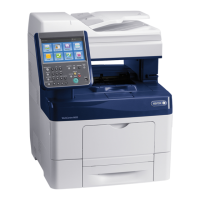
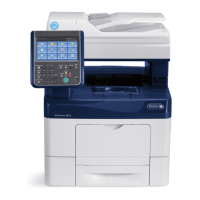
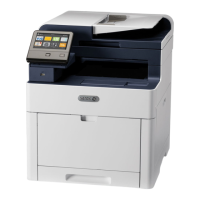
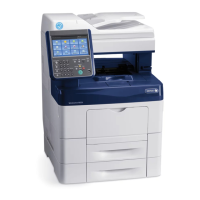
Xerox WorkCentre 6655i - User Manual

Xerox WorkCentre 6655i
282 pages
Print Icon
To Next Page IconTo Next Page
Loading...
Xerox
®
WorkCentre
®
6655/6655i
Color Multifunction Printer
2016 Xerox
®
ConnectKey
®
Technology
User Guide

Table of Contents

Questions and Answers

  • W
    William FinleyAug 13, 2025
    Why does my Xerox All in One Printer reset or turn off frequently?
    • J
      Jessica GatesAug 13, 2025
      Your Xerox All in One Printer might reset or turn off frequently due to: * The power cord not being plugged into the outlet correctly. Turn off the printer, ensure the power cord is correctly plugged into both the printer and the outlet, then turn the printer back on. * A system error. Turn the printer off, then on again. * The printer being connected to an uninterruptible power supply. Turn off the printer and connect the power cord to a suitable outlet. * The printer being connected to a power strip shared with other high-power devices. Plug the printer directly into the outlet or into a power strip not shared with other high-power devices.
  • M
    melinda05Aug 17, 2025
    How to fix automatic 2-sided printing problems on Xerox All in One Printer?
    • T
      Thomas KingAug 17, 2025
      To fix automatic 2-sided printing problems on your Xerox All in One Printer: * Ensure that you are using a supported paper size and weight for 2-sided printing. Note that envelopes and labels cannot be used for 2-sided printing. * In the print driver Properties, select 2-Sided Print on the Paper/Output tab.
  • A
    Amanda MedinaAug 21, 2025
    Why Xerox All in One Printer fails to power on?
    • D
      Danielle MarshAug 21, 2025
      Your Xerox All in One Printer might fail to power on for several reasons: * One or both of the power switches are not turned on. Turn on both power switches. * The power cord is not correctly plugged into the outlet. Turn off the printer power switch, and plug the power cord securely into the outlet. * There could be something wrong with the outlet. Plug another electrical appliance into the outlet to see if it operates properly, or try a different outlet. * The printer is connected to an outlet with incorrect voltage or frequency. Use a power source that matches the printer's electrical specifications.
  • W
    William JordanAug 25, 2025
    What to do if Xerox All in One Printer fails to print?
    • M
      melissa62Aug 26, 2025
      If your Xerox All in One Printer fails to print, consider the following: * The printer may have an error. Follow the onscreen prompts to clear the error, or try turning the printer off and then on again. * The printer may be out of paper. Load paper into the tray. * A toner cartridge may be empty. Replace the empty toner cartridge. * The front door may be open. Ensure that the toner cartridge and imaging unit are installed and fully seated, and that the door is completely closed. Try turning the printer off and then on again. * The power cord may not be correctly plugged into the outlet. Turn off the printer, confirm that the power cord is properly connected to both the printer and the outlet, and then turn the printer back on.
  • A
    Anthony ButlerAug 28, 2025
    Why Xerox All in One Printer prints documents from the wrong tray?
    • M
      millernicoleAug 28, 2025
      Your Xerox All in One Printer may print documents from the wrong tray because the application and print driver have conflicting tray selections. To resolve this: 1. Check the tray selected in the print driver. 2. Go to the page setup or printer settings of the application from which you are printing. 3. Set the paper source to match the tray selected in the print driver or set the paper source to Automatically Select.
  • J
    Jeremy KempSep 1, 2025
    What to do if paper tray fails to close on Xerox All in One Printer?
    • M
      Michele JohnsonSep 1, 2025
      If the paper tray on your Xerox All in One Printer fails to close, check the following: * Ensure the paper tray lift plate is locked down by pushing down on the paper stack at the back of the tray until it locks down. * If the tray is extended for legal size paper, be aware that the tray will protrude when inserted into the printer. * Check for any debris or objects blocking the tray. * Adjust the paper guides in the tray to match the size of the paper.
  • N
    Nancy AriasSep 5, 2025
    Why condensation has formed inside my Xerox All in One Printer?
    • M
      Michael Williams DDSSep 5, 2025
      Condensation may form inside your Xerox All in One Printer if: * The printer has been sitting in a cold room. Allow the printer to acclimate for several hours before operation and to operate for several hours at room temperature. * The relative humidity of the room is too high. Reduce the humidity in the room or move the printer to a location where the temperature and relative humidity are within the operating specifications.
  • K
    Katherine DanielsSep 9, 2025
    Why Xerox All in One Printer makes unusual noises?
    • T
      Tracy BooneSep 9, 2025
      If your Xerox All in One Printer is making unusual noises, it could be due to an obstruction or debris inside the printer. Turn off the printer and remove any obstruction or debris.

Summary

Safety

Electrical Safety

Covers electrical hazards, power cord, and emergency shutdown procedures.

Operational Safety

Guidelines for safe printer operation, including location and ozone release.

Maintenance Safety

Precautions for performing maintenance procedures and using cleaning agents.

Printer Symbols

Explanation of symbols used to indicate hazards and warnings.

Environmental, Health, and Safety Contact Information

Contact details for safety and environmental inquiries.

Features

Parts of the Printer

Identifies key components of the printer via diagrams and labels.

Control Panel Overview

Details the touch screen display and physical buttons on the printer.

Administration Features

Covers access rights, authentication, and accounting settings.

Xerox ConnectKey Apps

Explains how apps extend printer functionality.

More Information

Provides links to additional resources and support.

Installation and Setup

Installation and Setup Overview

Steps for connecting the printer and installing software.

Selecting a Location for the Printer

Guidelines for optimal printer placement and environment.

Power Cord Safety

Important safety information regarding electrical connections.

Connecting the Printer

Instructions for USB, network, and telephone line connections.

Configuring Network Settings

Details on TCP/IP and IP address configuration.

Modifying General Settings

How to adjust language, date, time, and display settings.

Installing the Software

System requirements and steps for driver installation.

Paper and Media

Supported Paper

Information on paper types, weights, and sizes compatible with the printer.

Loading Paper

Instructions for loading paper in various trays and special media.

Printing on Special Paper

Guidelines for printing on envelopes, labels, and cardstock.

Printing

Printing Overview

Basic steps for sending a print job to the printer.

Selecting Printing Options

Customizing print settings like quality, layout, and paper selection.

Managing Jobs

How to view, pause, delete, or manage print jobs.

Printing Features

Explains duplex printing, booklets, watermarks, and scaling.

Printing Special Job Types

Using secure print, sample sets, delayed, and saved jobs.

Print From

Printing documents from USB, saved jobs, or mailbox.

Copying

Basic Copying

Steps for making copies, including loading originals and setting quantities.

Document Glass and Feeder

Guidelines for placing originals on the glass or in the feeder.

Selecting Copy Settings

Adjusting image quality, layout, and output format.

ID Card Copying

Instructions for copying both sides of small documents onto one page.

Advanced Copying

Building complex copy jobs with multiple segments and settings.

Scanning

Basic Scanning

Methods for scanning documents to various destinations.

Document Glass and Feeder

Proper handling of originals for scanning.

Scanning to a Folder

Saving scans to public or private folders on the printer.

Scanning to Network File Repositories

Sending scans to network servers via templates.

Setting Scan Options

Customizing basic, advanced, layout, and filing settings.

Scanning to a USB Flash Drive

Saving scanned images directly to a USB drive.

Scanning to an Email Address

Sending scans as email attachments.

Faxing

Configuring the Printer for Faxing

Initial setup and settings for fax functionality.

Basic Faxing

Methods for sending faxes: embedded, server, internet, LAN.

Document Glass and Feeder

Handling originals for fax transmission.

Sending an Embedded Fax

Scanning and transmitting faxes directly via telephone line.

Sending a Server Fax

Faxing through a network fax server.

Sending an Internet Fax

Sending scans as email attachments for faxing.

Using the Address Book

Managing contacts for fax recipients.

Maintenance

Cleaning the Printer

Procedures for cleaning exterior, scanner, and interior components.

Billing and Usage Information

Viewing impression counts and usage data.

Ordering Supplies

Information on when and how to order printer supplies.

Moving the Printer

Safety precautions and steps for relocating the printer.

Troubleshooting

General Troubleshooting

Resolving common issues like power, resets, and print failures.

Jams

Locating, clearing, and minimizing paper jams.

Print-Quality Problems

Diagnosing and solving issues with print output quality.

Copy and Scan Problems

Troubleshooting quality issues with copying and scanning.

Fax Problems

Resolving issues with sending and receiving faxes.

Getting Help

Using control panel messages and support resources.

Specifications

Printer Configurations and Options

Details on available features, memory, and resolution.

Physical Specifications

Printer dimensions, weight, and clearance requirements.

Environmental Specifications

Operating temperature, humidity, and elevation limits.

Electrical Specifications

Voltage, power consumption, and ENERGY STAR compliance.

Performance Specifications

Information on power-on time and print speed.

Regulatory Information

Basic Regulations

Compliance with FCC, Canadian, and EU standards.

Copy Regulations

Legal restrictions on reproducing documents in various regions.

Fax Regulations

US, Canada, and EU regulations for fax transmission.

Material Safety Data Sheets

Links to safety data sheets for printer components.

Recycling and Disposal

All Countries

General guidelines for product disposal and hazardous materials.

North America

Information on Xerox's equipment take-back and recycling program.

European Union

Disposal requirements for household and business equipment.

Other Countries

Guidance for disposal in regions outside the EU.

Xerox WorkCentre 6655i Specifications

General IconGeneral
Print TechnologyLaser
Standard Paper Capacity550 sheets
Copy ResolutionUp to 600 x 600 dpi
Scan ResolutionUp to 600 x 600 dpi (optical)
Fax Speed33.6 Kbps
FunctionsPrint, Copy, Scan, Fax
Memory4 GB
Connectivity10/100/1000Base-T Ethernet, USB 2.0
Maximum Paper Capacity1250 sheets

Related product manuals