EasyManua.ls Logo

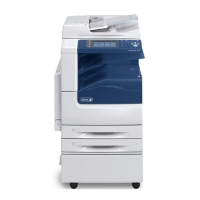
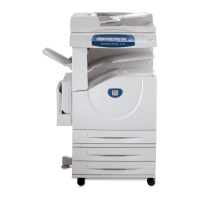
Xerox WorkCentre 7132 - Service Manual

Xerox WorkCentre 7132
27 pages
Print Icon
To Next Page IconTo Next Page
Loading...
WorkCentre
®
copier-printer
Service
Manual
WorkCentre 7132
7132
705P01181 (EDOC/SGS)
January 2007

Other manuals for Xerox WorkCentre 7132

Questions and Answers

  • J
    johnsonanthonySep 18, 2025
    How to fix Xerox All in One Printer finisher that does not stack output correctly?
    • F
      froweSep 18, 2025
      If the finisher on your Xerox All in One Printer does not stack output correctly, check that the paper tray guides are locked into position against the paper.
  • H
    harristanyaAug 25, 2025
    What to do if my Xerox All in One Printer displays a memory full error message?
    • C
      chloe76Aug 25, 2025
      If your Xerox All in One Printer is displaying a memory full error message, first, check with the Key Operator about available memory. Second, divide the remaining pages of the job into several smaller jobs and run the job again.
  • S
    smithkevinAug 25, 2025
    Why my Xerox All in One Printer has blank output?
    • K
      Kevin HaneyAug 26, 2025
      If you're getting blank output from your Xerox All in One Printer, ensure the document is loaded face up in the document feeder. If you have a new drum cartridge, the toner may not be dispensed; try repeating the job. Check that the seal tape has been removed from the new drum cartridge. Reinstall the drum cartridge and the toner cartridge. If problems persist, replace the drum cartridge or the toner cartridge if the screen message for replacement is displayed.
  • L
    Lauren BrownAug 26, 2025
    What to do if my Xerox All in One Printer displays a tray fault?
    • C
      Chelsea ThomasAug 27, 2025
      If your Xerox All in One Printer displays a tray fault, try the following: Open the paper tray, move the paper tray guides away from the paper, then move the paper tray guides against the paper so that they are just touching the paper. If the issue persists, power the machine off and then on.
  • D
    Drew HillSep 19, 2025
    How to fix Xerox All in One Printer paper not properly stacked up in the output tray?
    • L
      Lawrence CallahanSep 19, 2025
      If paper delivered to an output tray is not properly stacked up in your Xerox All in One Printer, flip over the paper stack in the paper tray, or rotate it head to toe.
  • K
    Kathleen MarshallSep 23, 2025
    What to do if my Xerox All in One Printer cannot store a document for secure polling due to full memory?
    • D
      David LawrenceSep 23, 2025
      If your Xerox All in One Printer cannot store a document for secure polling due to full memory, cancel the operation, then repeat the same operation later when additional memory is available.
  • A
    anthony34Sep 9, 2025
    How to eliminate ghosting on Xerox All in One Printer output?
    • E
      Emily MorganSep 10, 2025
      To eliminate ghosting on your Xerox All in One Printer output, check the quality of the documents. If you're using transparencies, select [Transparency] in [Paper Type] so the machine adjusts the quality. Feed the document SEF. If problems persist, replace the drum cartridge.
  • L
    Lisa FoxSep 12, 2025
    How to fix washout on Xerox All in One Printer output?
    • T
      tatewesleySep 12, 2025
      To fix washout on your Xerox All in One Printer output, check the quality of the documents. If the image is lighter near the borders, select a darker image quality setting on the touch screen. As a last resort, replace the drum cartridge.
  • J
    Jessica CookSep 3, 2025
    What to do if my Xerox All in One Printer does not display the finisher/stapler option?
    • P
      Patrick ButlerSep 3, 2025
      If your Xerox All in One Printer does not display the finisher/stapler option, check that the cables from the finisher are securely connected to the machine. Slide the Finisher into its correct position. Note that the machine configures itself when additional options are attached.
  • B
    brianna44Sep 1, 2025
    How to fix missing characters on Xerox All in One Printer output?
    • K
      kelli50Sep 1, 2025
      To fix missing characters on your Xerox All in One Printer output, try loading fresh paper. If that doesn't work, reinstall the drum cartridge or replace the toner cartridge if the screen message for replacement is displayed.

Summary

Service Call Procedures

Initial Actions

Key steps to perform at the start of a service call.

Call Flow

Sequence of operations and decision points during a service call.

Detailed Maintenance Activities (HFSI)

In-depth maintenance tasks guided by HFSI procedures.

Status Indicator RAPS

Image Quality RAPs

Image Quality Entry Diagnostics

Tests for image quality upon entry into the system.

Image Quality Issues

Analysis and resolution for various image quality problems.

Defect Samples

Visual examples and descriptions of common image defects.

Drives

Paper Transportation

Xerographics;Development

Xerox WorkCentre 7132 Specifications

General IconGeneral
FunctionsPrint, Copy, Scan, Fax
Printing TechnologyLaser
Print Speed (Black)32 ppm
Print Resolution1200 x 1200 dpi
Max Resolution (BW)1200 x 1200 dpi
Duplex PrintingYes
Scan Resolution600 x 600 dpi
Copier Max Resolution600 x 600 dpi
ConnectivityEthernet, USB
Scanner TypeFlatbed
Fax Speed33.6 Kbps
USB ConnectivityUSB 2.0
Media SizeA4, Letter, Legal
Copy Speed (Black)32 ppm
DisplayColor Touch Screen
Network ConnectivityEthernet

Related product manuals