EasyManua.ls Logo

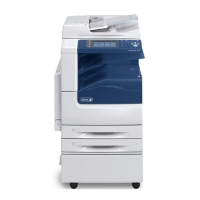
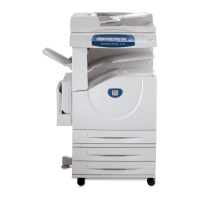
Xerox WorkCentre 7132 - Service Manual

Xerox WorkCentre 7132
27 pages
Print Icon
To Next Page IconTo Next Page
Loading...
WorkCentre
®
copier-printer
Service
Manual
WorkCentre 7132
7132
705P01181 (EDOC/SGS)
January 2007

Other manuals for Xerox WorkCentre 7132

Questions and Answers

  • M
    Melissa HernandezSep 12, 2025
    How to resolve solid density variations on Xerox All in One Printer output?
    • R
      robert87Sep 12, 2025
      To resolve solid density variations on your Xerox All in One Printer output, check the quality of the documents. You can also select [Lighten/Darken] on the touch screen. If the issue persists, replace the drum cartridge.
  • L
    Lisa FoxSep 12, 2025
    How to fix washout on Xerox All in One Printer output?
    • T
      tatewesleySep 12, 2025
      To fix washout on your Xerox All in One Printer output, check the quality of the documents. If the image is lighter near the borders, select a darker image quality setting on the touch screen. As a last resort, replace the drum cartridge.
  • A
    anthony34Sep 9, 2025
    How to eliminate ghosting on Xerox All in One Printer output?
    • E
      Emily MorganSep 10, 2025
      To eliminate ghosting on your Xerox All in One Printer output, check the quality of the documents. If you're using transparencies, select [Transparency] in [Paper Type] so the machine adjusts the quality. Feed the document SEF. If problems persist, replace the drum cartridge.
  • J
    James GentrySep 8, 2025
    How to fix bluish copies from my Xerox All in One Printer?
    • M
      Melinda ReevesSep 8, 2025
      To fix bluish copies from your Xerox All in One Printer, avoid placing the machine near a window, as this can cause images to become bluish or reddish. Also, do not power on the machine with the platen cover opened. Wake up the machine from Power Saver mode with the platen cover closed. If images are bluish or reddish, power the machine off and on with the platen cover closed; repeat as necessary.
  • W
    Wayne JohnsonSep 7, 2025
    Why my Xerox All in One Printer produces light copies when scanning glossy, shiny, or coated documents through the document feeder?
    • S
      sandra94Sep 7, 2025
      If your Xerox All in One Printer produces light copies when scanning glossy, shiny, or coated documents through the document feeder, use the document glass instead of the document feeder.
  • B
    barbaraflowersAug 23, 2025
    How to fix Xerox All in One Printer that will not power on?
    • K
      Kathleen StevensAug 23, 2025
      If your Xerox All in One Printer won't power on, try these steps: First, check the power cord to ensure it's properly connected. Second, verify that the power switch is in the ON position. Third, look at the back of the machine for the RESET button and make sure it is not tripped (popped up); push it to reset if needed. Finally, test the AC outlet by plugging in another appliance to confirm it's supplying voltage.
  • S
    sydney07Sep 5, 2025
    How to prevent deformed transparencies with Xerox All in One Printer?
    • S
      sueholtSep 5, 2025
      To prevent deformed transparencies with your Xerox All in One Printer, ensure that [Transparency] is selected in [Paper Type]. The machine automatically adjusts the handling for transparencies, as they tolerate less heat than paper.
  • T
    tayalaSep 4, 2025
    Why my Xerox All in One Printer does not accept documents into memory?
    • S
      Sara OconnorSep 4, 2025
      If your Xerox All in One Printer does not accept documents into memory, check with the Key Operator about available memory. If memory is almost full, print and delete unnecessary files.
  • J
    Jessica CookSep 3, 2025
    What to do if my Xerox All in One Printer does not display the finisher/stapler option?
    • P
      Patrick ButlerSep 3, 2025
      If your Xerox All in One Printer does not display the finisher/stapler option, check that the cables from the finisher are securely connected to the machine. Slide the Finisher into its correct position. Note that the machine configures itself when additional options are attached.
  • L
    Lori BraunSep 2, 2025
    What to do if my Xerox All in One Printer does not display the Tandem Tray Module (or one of the paper trays)?
    • W
      wcunninghamSep 2, 2025
      If your Xerox All in One Printer does not display the Tandem Tray Module (or one of the paper trays) as one of the Paper Supply selections, check that no paper trays are open. If a tray is ajar, the machine cannot sense its connection. Open and close each paper tray and the Tandem Tray Module. If the problem persists, power the machine off and then on.

Summary

Service Call Procedures

Initial Actions

Key steps to perform at the start of a service call.

Call Flow

Sequence of operations and decision points during a service call.

Detailed Maintenance Activities (HFSI)

In-depth maintenance tasks guided by HFSI procedures.

Status Indicator RAPS

Image Quality RAPs

Image Quality Entry Diagnostics

Tests for image quality upon entry into the system.

Image Quality Issues

Analysis and resolution for various image quality problems.

Defect Samples

Visual examples and descriptions of common image defects.

Drives

Paper Transportation

Xerographics;Development

Xerox WorkCentre 7132 Specifications

General IconGeneral
FunctionsPrint, Copy, Scan, Fax
Printing TechnologyLaser
Print Speed (Black)32 ppm
Print Resolution1200 x 1200 dpi
Max Resolution (BW)1200 x 1200 dpi
Duplex PrintingYes
Scan Resolution600 x 600 dpi
Copier Max Resolution600 x 600 dpi
ConnectivityEthernet, USB
Scanner TypeFlatbed
Fax Speed33.6 Kbps
USB ConnectivityUSB 2.0
Media SizeA4, Letter, Legal
Copy Speed (Black)32 ppm
DisplayColor Touch Screen
Network ConnectivityEthernet

Related product manuals