11
Connecting with the Mi Home/Xiaomi Home App
This product works with the Mi Home/Xiaomi Home app*. Use the Mi Home/Xiaomi
Home app to control your device, and to interact with other smart home devices.
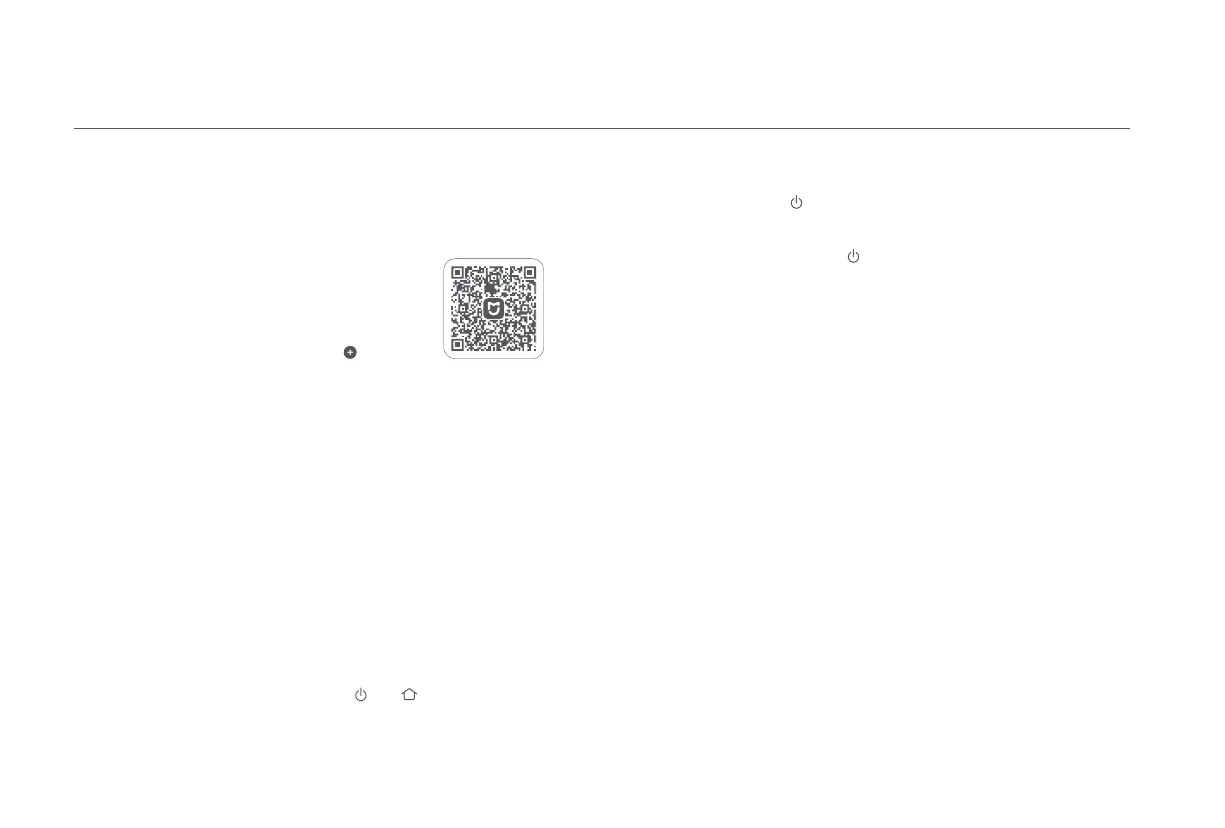
Scan the QR code to download and install the app. You
will be directed to the connection setup page if the
app is installed already. Or search for "Mi Home/Xiaomi
Home" in the app store to download and install it.
Open the Mi Home/Xiaomi Home app, tap " " on the
upper right, and then follow the instructions to add your
device.
* The app is referred to as Xiaomi Home app in Europe (except for Russia). The
name of the app displayed on your device should be taken as the default.
Notes:
· The robot vacuum works with the Mi Home/Xiaomi Home app, and it supports Android 9.0 &
iOS 12.0 or above.
· Only 2.4 GHz Wi-Fi networks are supported.
· The version of the app might have been updated, please follow the instructions based on the
current app version.
Resetting Wi-Fi
Take the following steps if the robot vacuum cannot be connected to the network
because the router is reset, the password is forgoen, or for other reasons:
1. Open the cover of the robot vacuum so that you can see the Wi-Fi indicator.
2. Simultaneously press and hold the buons and until you hear a voice to
indicate that the robot vacuum is waiting for the network configuration.
3. When the Wi-Fi indicator blinks, the Wi-Fi connection has been reset successfully.
Sleep Mode
The robot vacuum will automatically enter sleep mode after it is paused for 10
minutes, and its indicator will go out. To wake it up, press any button on the robot
vacuum.
Pausing
When the robot vacuum is running, press any button to pause it.
Note: Do not lift or move the robot vacuum while it is paused. Otherwise, it may have navigation
errors that could prevent the robot vacuum from returning to the omni station or cause the loss
of the map.
Quick Map Creation
After configuring the network for the first time, follow the instructions in the
app to quickly create a map, and the robot vacuum will start mapping without
cleaning. The mapping process will be completed when the robot vacuum
returns to the omni station, and the map will be saved automatically.
Turning On/Off
Press and hold the button for three seconds to turn the robot vacuum on.
When the indicator on the robot vacuum lights up, it means the robot vacuum
enters the standby mode. When the robot vacuum is paused and not being
charged, press and hold the button for three seconds to turn it off.
Note: When the robot vacuum is charging, it will automatically turn on and cannot be turned off.
78FF9E4E





 To Next Page