EN 19
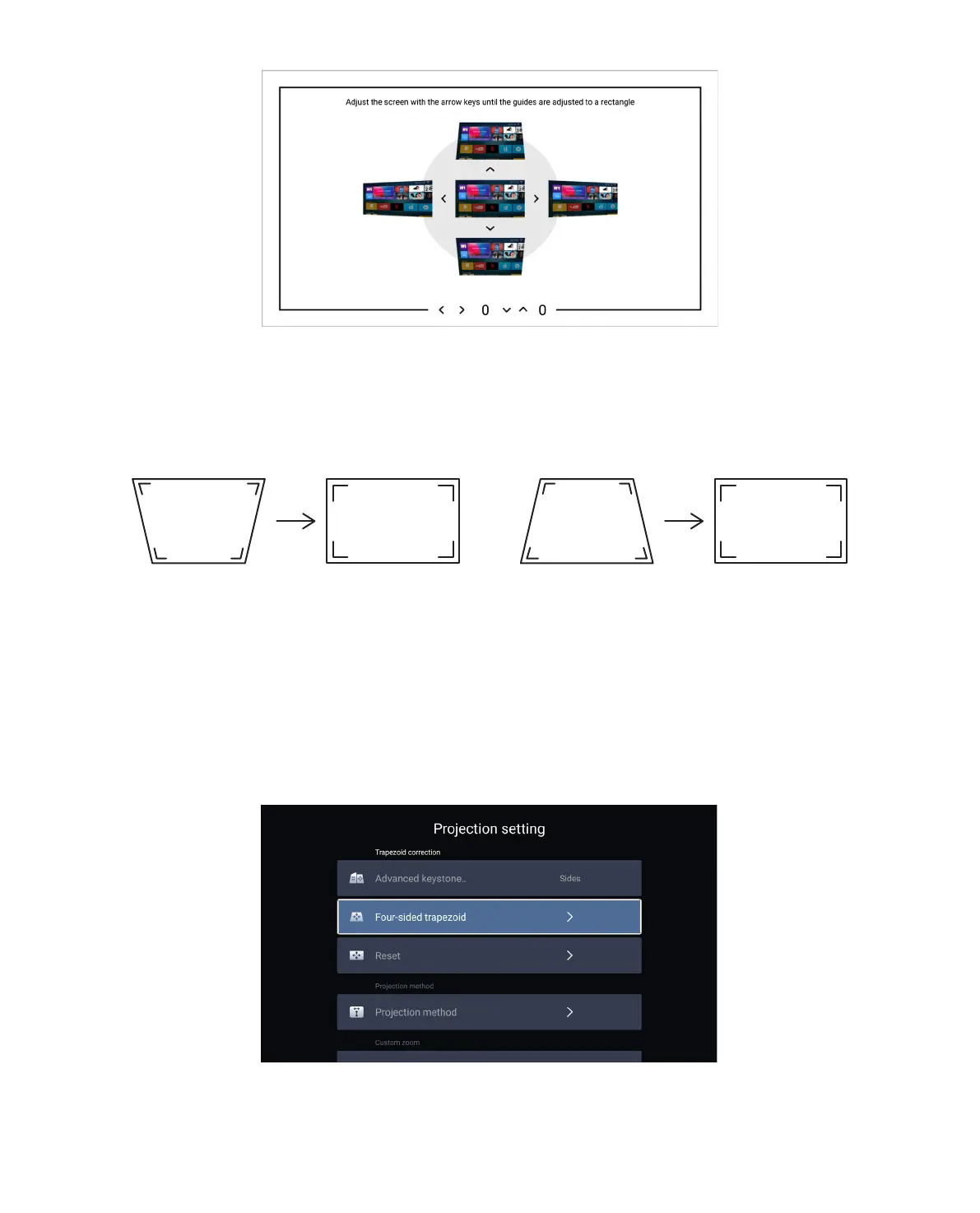
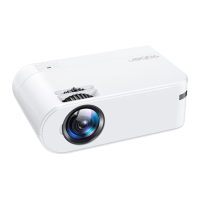
Step 2: If the projection image shows as (1), press the button on the remote controller or
projector to increase the vertical parameter (-50~0), until to achieve the projection image (2).
Step 3: If the projection image shows as (3), then press the button on the remote controller or
projector, and decrease the vertical parameter (0~50), until to achieve the projection image (4).
(1) (2) (3) (4)
When the projection screen is not rectangular, it can be adjusted by 4-point keystone
correction.
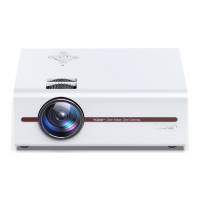
Step 1: Select the [ Corners ] option in the [ Advanced keystone correction ] menu;
Step 2: Press the button to select the [ Square Trapezoid ] menu, then press the [ OK ] bottom
to enter the submenu.
5.2.2 Horizontal & Vertical Keystone Correction


 To Next Page