12
TF-RACK Quick Guide
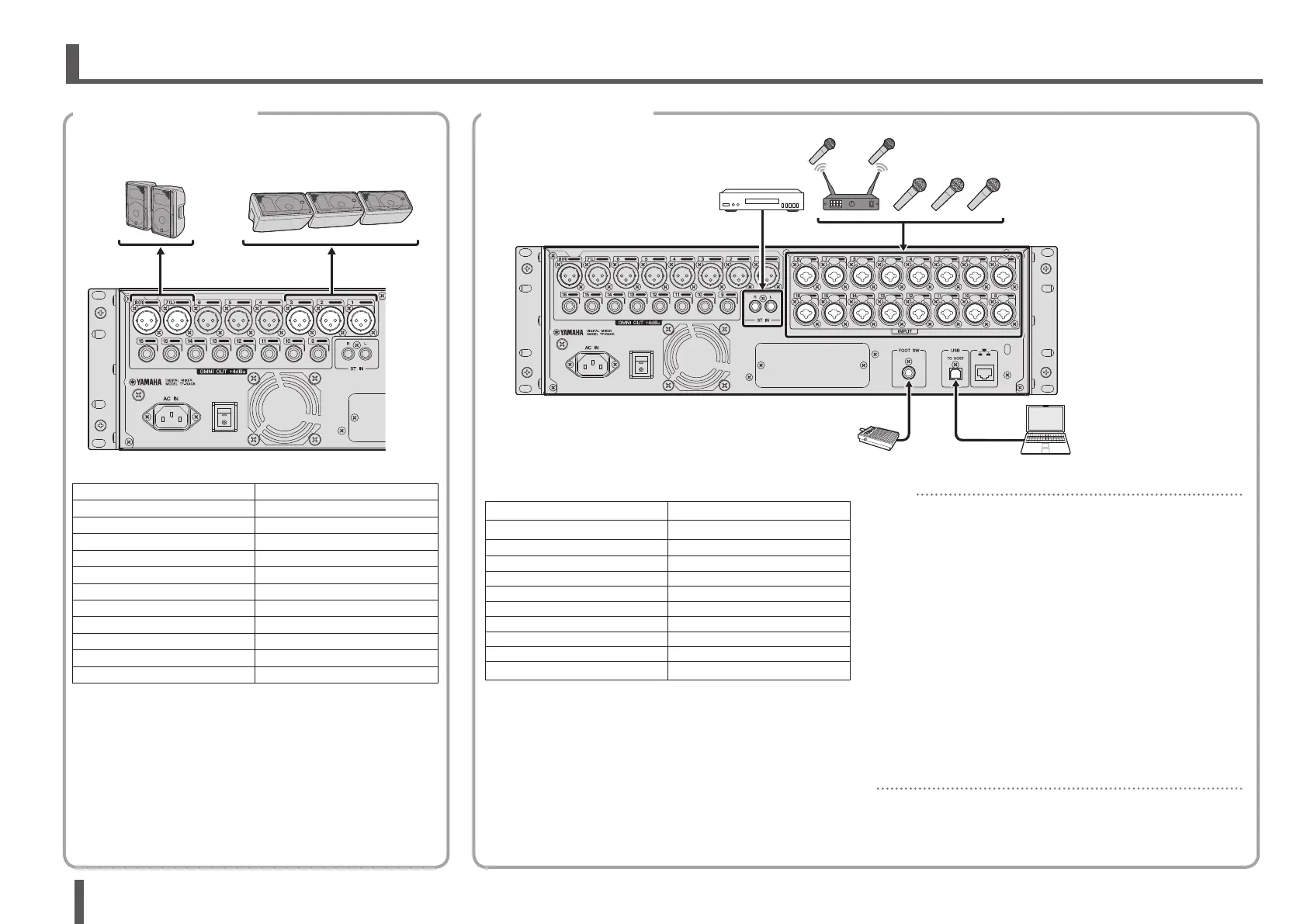
Default signal routing for each output jack
OMNI OUT 1 AUX1 OUT
OMNI OUT 2 AUX2 OUT
: :
OMNI OUT 6 AUX6 OUT
OMNI OUT 7 STEREO L OUT
OMNI OUT 8 STEREO R OUT
OMNI OUT 9 AUX9 OUT
OMNI OUT 10 AUX10 OUT
: :
OMNI OUT 14 AUX14 OUT
OMNI OUT 15 MONITOR L OUT
OMNI OUT 16 MONITOR R OUT
Each OMNI OUT jack is configured by default to output a
bus. You can change the bus that is output on the
SETUP
→
OMNI OUT PATCH screen.
The OMNI OUT jacks can be configured to output the
following signals.
AUX1–AUX20, MATRIX1–4, STEREO L, STEREO R, SUB,
MONITOR L, MONITOR R, NO ASSIGN (no output signal
assigned).
5. Connections
Default signal routing for each channel
CHANNEL TF-RACK
CH 1 INPUT 1
: :
CH 16 INPUT 16
CH 17 INPUT 1
: :
CH 32 INPUT 16
ST IN 1L PLAYBACK L
ST IN 1R PLAYBACK R
ST IN 2L ST IN L
ST IN 2R ST IN R
Default signal routing for each channel is shown above.
To change the signal routing, use the INPUT screen (page
16).
HINT
What if I’m using condenser mics?
Phantom power must be supplied to condenser mics.
Some direct boxes also need phantom power. When using
phantom power, first set “+48V Master” on the SETUP
screen to on, then turn phantom power on or off for each
channel on the corresponding channel’s INPUT screen.
Make sure you turn phantom power off if it is not needed.
For more details, refer to the Reference Manual.
Why can’t I hear anything?
•Is the fader that corresponds to the desired INPUT jack
raised?
•Does the input select for each channel match each
INPUT jack?
• Is the channel’s head amp gain set too low?
•Is the channel's mute turned on?
•Is the channel muted?
Connecting inputsConnecting outputs
Powered speakers
(oormonitors)
Powered speakers
(front speakers)
Mic
FC5 (optional)
Computer
(DAW software)
USB 2.0
CD player
Wireless mic receiver


 To Next Page