16
TF-RACK Quick Guide
To return to the OVERVIEW screen, press the Home key ( ) below the display.
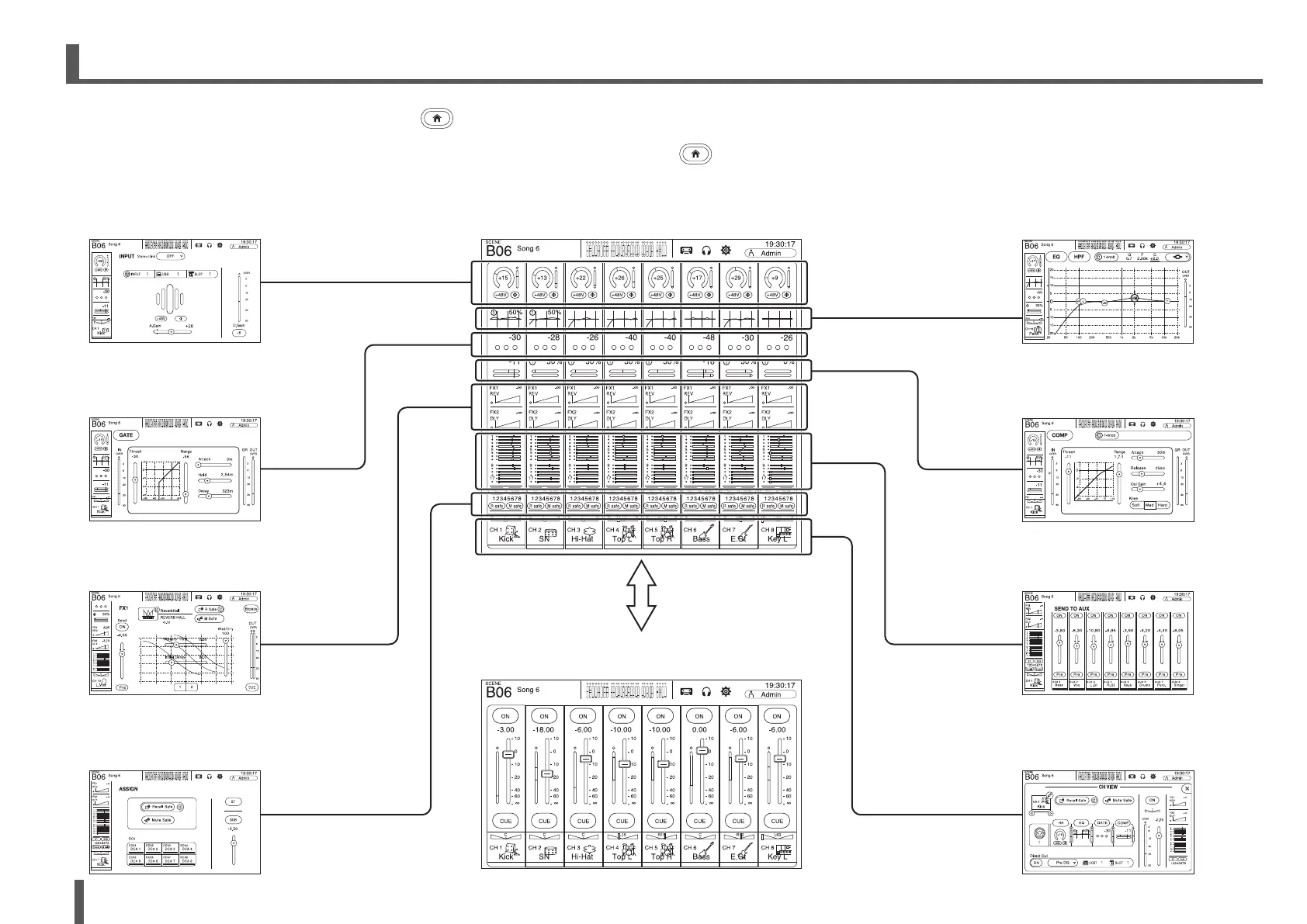
The OVERVIEW screen can display the CH STRIP section and the FADER section. When the OVERVIEW screen is first displayed, the FADER section is displayed.
You can switch between the FADER section and the CH STRIP section by pressing the Home key (
) while the OVERVIEW screen is displayed.
In the example shown here, we will explain how to switch to the different screens from the input channel screen. For details or information about other screens, refer to the Reference Manual.
7. Displaying the configuration screens
INPUT
Allows you to change input channel settings.
EQ
Controls the EQ for each channel.
GATE
Allows you to configure the noise gate
for each channel.
COMP
Allows you to configure the
compressor for each channel.
FX1/FX2
Used to select effects and edit their
parameters.
SEND TO AUX
Allows you to set each channel's AUX bus
send levels.
ASSIGN
Allows you to turn Recall Safe and Mute Safe
on and off, assign the channel to a DCA,
and adjust the SUB bus send level.
CH VIEW
Provides an overall view of a channel's settings.
You can adjust settings on this screen or switch
to the dedicated screen for each setting.
OVERVIEW CH STRIP section
Provides an overall view of the mixer. From here you can move to the
different screens.
OVERVIEW FADER section
Displays the fader level for each channel.


 To Next Page