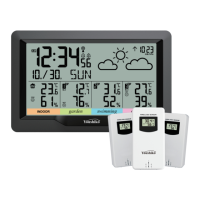
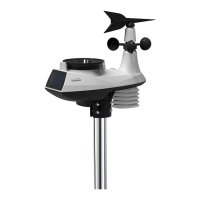
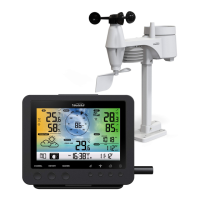
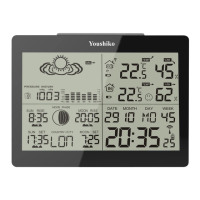
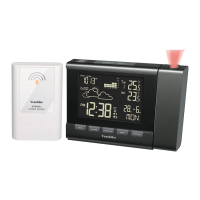
RC WIRELESS THERMO-HYGRO WEATHER STATION
WITH WEATHER FORECAST
MODEL: YC9342
USER MANUAL
Thank you for selecting this
delicate wireless weather station.
Utmost care has gone into the
design and manufacture of the
clock. This manual is used for
MSF version. Please read the
instructions carefully according
to the version you purchased and
keep the manual well for future
reference.
OVERVIEW
MAIN UNIT
1
6
7
8
9
10
11
1. LCD display
2. [ HISTORY ] key
- In normal mode, press to display the past 24 hour pressure records.
3. [ MEM ] key
- In normal mode, press to check maximum and minimum thermo-hygro reading, or
press and hold for 3 seconds to delete both records.
4. [ 12/24 /
] key
- In normal mode, press to switch between 12 or 24 hour format of time display, or
press and hold for 3 seconds to activate wireless sensor pairing mode.
- In setting mode, press to decrease the setting values.
5. [ CH /
] key
- In normal mode, press to switch between CH 1~3 of outdoor sensor’s weather
display, or press and hold for 2 seconds to enter auto-cycle mode.
- In setting mode, press to increase the setting values.
6. [ TIME ] key
- In normal mode, press to switch between alarm 1 and alarm 2, or press and hold for
2 seconds to enter time setting mode.
- In time setting mode, press to step the setting.
7. [ ALARM ] key
- ,QQRUPDOPRGHSUHVVWRWXUQRQRႇDODUPDQGDODUPRUSUHVVDQGKROGIRU
seconds to enter alarm setting mode.
- In alarm setting mode, press to step the setting.
8. [ RESET ] key
- In case of malfunction, press to reset the main unit.
9. [ SNOOZE / LIGHT ] key
- When alarm is sounding, press to stop the current alarm and enter snooze.
- When alarm is sounding, press and hold for 2 seconds to stop the current alarm, the
clock will sound again in the next day.
10. [ BARO ] key
- In normal mode, press to switch between hPa (mb) and inHg, or press and hold for 3
seconds to enter the “rel” and “abs” switch mode.
11. [ °C / °F ] key
- In normal mode, press to switch between Celsius and Fahrenheit, or press and hold
for 3 seconds to receive the RC signal once.
12. Battery compartment
LCD DISPLAY
1. Time section
2. Weather forecast & baro pressure
section
3. Ch. 1-3 temperature & humidity
reading
4. Indoor temperature & humidity
reading
5. Calendar and alarm section
6. Moon phase section
5
6
1
2
3
4
WIRELESS THERMO-HYGRO SENSOR
1. LED indicator
-
Flashes when the remote unit is
transmitting.
2. LCD display
- to show the detected temperature or
humidity of the sensor.
3. Wall mounting holder
4. [ RESET ] key
- Press to restart the sensor.
5. [ CHANNEL ] slide switch
- Assign the transmitter to Channel
from 1 to 3.
6. Battery compartment
- Accommodates 2 x AA size batteries.
GETTING STARTED
BEFORE USING THE MAIN UNIT AND TRANSMITTER:
1. Remove the battery door of the main unit and transmitter.
2. Install 2 new AA size batteries for both main unit and transmitter, according to the
polarity mark on the battery compartment.
3. After the batteries are installed, all LCD segment will be shown.
4. Press the [ RESET ]NH\RIPDLQXQLW¿UVWDQGSUHVVWKH[ RESET ] key of transmitter.
5. It will automatically receive 433 MHz signal from transmitter for channel test in 8
seconds.
6. Replace the battery door.
7. After 5 minutes channel test, it will turn to RC signal reception automatically.
8. Radio controlled function, the current time automatically synchronized with the time
signal transmitted from Anthorn, England (MSF60).
NOTE:
1. The unit can operate up to 3 remote transmitters.
2. 3RVLWLRQWKHXQLWDQGWUDQVPLWWHUZLWKLQWKHHႇHFWLYHWUDQVPLVVLRQUDQJHPHWHUVLQ
usual circumstances.
3. In some cases, you may not receive the signal immediately, you can reset the unit
and transmitter again as described above.
4. Also in some cases, after pressing the reset buttons, clock time will self set
automatically with in few mins to few hours or max by between 1am to 5am,
depending on your location or radio signal, after that you never have to do anything.
5. Please install wireless sensor outside, where direct sunshine and very heavy rain can
be avoided for accurate readings.
6. Once the channel is assigned to a sensor, you can only change it by removing the
batteries or resetting the sensor, you also need to press and hold [ 12/24 /
] key for
3 seconds on main unit to pair this sensor. After replacing the batteries of the wireless
VHQVRURUWKHXQLWIDLOVWRUHFHLYHZLUHOHVVVHQVRUVLJQDORIDVSHFL¿HGFKDQQHO\RX
need to press and hold [ 12/24 /
] key for 3 seconds on main unit to pair this sensor
again.
7. Place the units away from metal objects and electrical appliances like TV / Computer/
Mobile phones / WiFi Hub etc to minimize the interference.
VIEW MULTIPLE WIRELESS SENOR CHANNELS
1. In normal mode, press [ CH /
] key to switch the display between CH 1~3.
2. In normal mode, press and hold [ CH /
] key for 2 seconds to enter auto-cycle
mode, After a “bi” sounds, it will alternately displays the CH 1~3 at 4 second intervals.
3. During auto-cycle mode, press [ CH /
] key again to stop auto-cycle mode and
display the current channel.
RECEPTION OF RADIO CONTROLLED SIGNAL
The time and date are radio-controlled. The current time and date are automatically
synchronized with the time signal transmitted from UK (MSF).
:KHQXVHGIRUWKH¿UVWWLPHDIWHULQVHUWLQJWKHEDWWHULHVRUSUHVVLQJWKH[ RESET ]
key), the clock will start to receive the RC signal after 5 minutes with the signal strength
LQGLFDWRUÀDVKLQJ<RXFDQDOVRSUHVVDQGKROG[ °C / °F ] key with 3 seconds to receive
the RC signal once.
RCC SIGNAL INDICATOR
The signal indicator shows signal receive status. The signal receiving status could be
FODVVL¿HGLQWRW\SHV
No RCC signal received Receiving RCC signal Received RCC signal
NOTE:
- (YHU\GD\WKHZLUHOHVVVHQVRUZLOODXWRPDWLFDOO\VHDUFKIRUWKHWLPHVLJQDODW
DQG
-
Always place the unit away from interfering sources such as TV set, computer, etc.
- Avoid placing the unit on or next to metal plate.
- Closed area such as airport basement, tower block or factory is not recommended.
- Do not start reception on a moving article such as vehicle or train.
- User can permanent disable or enable the RC function by press and hold the
[SNOOZE/LIGHT] key for 8 seconds.
DAYLIGHT SAVING TIME (DST)
This clock has been programmed to automatically switch when the daylight saving time is
LQHႇHFW8VHUFDQGLVDEOHWKH'67IXQFWLRQLQWLPHDQGFDOHQGDUVHWWLQJPRGH
NOTE:
DST AUTO/OFF setting only available when RCC function is ON.
TIME AND CALENDAR SETTING
1. In normal mode, press and hold [ TIME ] key for 2 seconds to enter date and time
setting mode.
2. Press [ CH /
] or [ 12/24 / ] key to adjust the setting.
3. Press [ TIME ] key to enter the next setting.
4. 7KHVHWWLQJVHTXHQFH\HDU
DM / MD month day DST AUTO / OFF
hour minute second weekday language +RXURႇVHW
5. Press [ TIME ] key or leave the unit for 30 seconds to complete the setting and return
to normal mode.
Weekday language GB
FR DE ES IT
ALARM TIME SETTING AND DISPLAY
1. In normal time mode, press [ TIME ] key to select the alarm 1 or alarm 2.
2. In alarm1/alarm2 mode, press and hold [ ALARM ] key for 2 seconds until alarm hour
GLJLWÀDVKHV
3. Press [ CH /
] or [ 12/24 / ] key to change the value
4. 5HSHDWWKHDERYHRSHUDWLRQVWRVHWWKHDODUPWLPHLQWKLVRUGHU+RXU
Minute
,FHSUHDODUPRQRႇ
5.
Press [ ALARM ] key or leave the unit for 30 seconds to return to normal mode.
Time of alarm 2
Ice alert icon
USING ALARM AND SNOOZE FUNCTION
1. Set the desired alarm time as described in the previous section.
2. Or press [ ALARM ] key to turn on alarm 1, press it again to turn on alarm 2, press
it thrice to turn on both alarm 1 and alarm 2, with the alarm icons “
” and / or “
´GLVSOD\VRQWKH/&'3UHVVLWDJDLQWRWXUQRႇERWKDODUPDQGDODUPZLWKWKH
icons disappear.
3. When clock reach the alarm time, alarm sound will start.
:KHUHLWFDQEHVWRSSHGE\IROORZLQJRSHUDWLRQ
a) Auto-stop after 2 minutes alarming if without any operation and the alarm will activate
again in the next day.
b) By pressing [ SNOOZE / LIGHT ] key to enter snooze that the alarm will sound again
after 5 minutes.
c) By pressing and hold [ SNOOZE / LIGHT ] key for 2 seconds to stop the alarm and
will activate again in the next day
d) By pressing [ ALARM ] key to stop the alarm and the alarm will activate again in the
next day.
NOTE:
- The alarm function will turn on automatically once you set the alarm time.
- The snooze could be used continuously in 24 hours.
- During the snooze, the alarm icons “
” and / or “ ´ZLOONHHSÀDVKLQJ
- The ice pre-alarm will be activated when the alarm 1 and / or 2 is on.
- Once the ice pre-alarm activates, the preset alarm will sound 30 minutes earlier if the
outdoor temperature is below -3°C.
- 7RDFWLYDWHWKHLFHSUHDODUPIXQFWLRQSOVHQVXUH
a. Turn on the ice pre-alarm function in the alarm setting mode.
b. Turn on the corresponding alarm.
READING INDOOR/OUTDOOR TEMPERATURE & HUMIDITY FUNCTION
In normal mode, press [ °C / °F ] key to switch between °C /°F temperature unit. The
WHPSHUDWXUHDQGKXPLGLW\ZLOOGLVSOD\³+L/R´RQWKHFRQGLWLRQVLQWKHIROORZLQJFKDUW
Area Condition Display
Temperature
Temperature < -40°C LO
Temperature > 70°C HI
Humidity
Humidity < 20% LO
Humidity > 90% HI
Temperature < -40°C or > 70°C --
NOTE:
- If no signals are received or the transmission is interfered, “- -” will appear on the LCD.
- Relocated the clock or transmitter in other positions and make sure the transmission is
ZLWKLQWKHHႇHFWLYHUDQJHRIPDSSUR[
BARO, TEMPERATURE AND HUMIDITY TREND
The Barometric pressure, temperature and humidity trend indicator shows the trends of
changes in the forthcoming few minutes. Arrows indicate a rising, steady or falling trend.
Arrow indicator
Trend Rising Steady Falling
BAROMETRIC/ATMOSPHERIC PRESSURE
T
O SELECT THE PRESSURE DISPLAY MODE
1. Press and hold the [ BARO ] key for 2 seconds to enter select model
2. Press [ CH /
] or [ 12/24 / ]NH\WRVHOHFWEHWZHHQ
- abs --- the absolute atmospheric pressure of your location.
- rel --- the relative atmospheric pressure based on the sea.
3. In "abs" mode, press [ BARO ] key to exit, In "rel" mode, press [ BARO ] key to set
relative atmospheric pressure value in next section.
TO SET RELATIVE ATMOSPHERIC PRESSURE VALUE
1. Get the atmosphere pressure data of the sea level (it is also the relative atmosphere
pressure data of your home area) through the local weather service, internet and
other weather channels.
2. Press and hold [ BARO ]NH\IRUVHFRQGVXQWLO³DEV´RU³UHO´LFRQÀDVKHV
3. Press [ CH /
] or [ 12/24 / ] key to switch to “rel” mode.
4. Press [ BARO ]NH\RQFHDJDLQXQWLOWKH³UHO´DWPRVSKHUHSUHVVXUHGLJLWÀDVKHV
5. Press [ CH /
] or [ 12/24 / ] key to change its value.
6. Press [ BARO ] key to save and exit the setting mode, or let it exit automatically 30
seconds later without pressing any key.
TO SELECT THE MEASUREMENT UNIT FOR THE BAROMETER
Use the [ BARO ] key to change the unit between hPa (mb) / inHg.
NOTE:
- When power up the main unit, it will display the relative pressure reading and default
value is 1013 mb/hPa (29.91 inHg), which refers to the average atmosphere pressure.
- When you change the relative atmosphere pressure value, the weather indicators will
change along with it.
- The relative atmosphere pressure is based on the sea level, but it will change with the
absolute atmosphere pressure changes after operating the clock for 1 hour.
WEATHER FORECAST
The built-in barometer can notice atmosphere pressure changes. Based on the data
collected, it can predict the weather conditions in the forthcoming 24 ~ 72 hours.
Sunny Partly Cloudy Cloudy Rainy Stormy Snowy
NOTE:
1. The accuracy of a general pressure-based weather forecast is about 70% to 75%.
2. The weather forecast is meant for the next 24 ~ 72 hours, it may not necessarily
UHÀHFWWKHFXUUHQWVLWXDWLRQ
3. The Snowy weather forecast is not based on the atmospheric pressure, but based
on the temperature of current channel. When the outdoor temperature is below -3°C,
the Snowy weather indicator will be displayed on the 24 HOUR FORECAST display
section.
PAST 24 HOURS HISTORY PRESSURE RECORD
The current and historical atmosphere is shown near the
24 HOUR FORECAST section.
To check the pressure history in a particular hour during the
past 24 hours, press the [ HISTORY ] key. Each press on
the key will go back by an hour.
Under the pressure history mode, press any key (except
[HISTORY ] key) to go back the normal mode, or let it exit
automatically 30 seconds later without pressing any key.
MAX / MIN RECORD
The main unit preserves the MAX / MIN weather data records since the last manual
reset.
1. In normal mode, press [ MEM ] key once to show the indoor & current outdoor
channel maximum temperature and humidity records.
2. Press [ MEM ] key repeatedly to show the minimum records.
3. Press [ MEM ] key again to exit.
4. To erase all the MAX / MIN records, press and hold [ MEM ] key for 3 seconds.
MOON PHASE
The main unit can show the northern hemisphere moon phase status, below is the table
which illustrate how the moon will appear on the main unit.
Moon Phase Icon
Description
Moon Phase Icon
Description
New Moon Full Moon
Waxing Crescent Waxing Gibbous
First quarter Third quarter
Waxing Gibbous Waxing Crescent
LOW BATTERY ICON
When the battery indicator “
” appear on the clock section or the LCD becomes dim,
replace with 2 new AA size batteries at once; while If the low battery indicator “
”
appear in the outdoor section, it indicates that the battery power of the transmitter is not
enough, and you should replace with 2 x AA size batteries at once.
IMPORTANT NOTE
- This main unit is intended to be used only indoors.
- Do not subject the unit to excessive force, shock, dust, temperature or humidity.
- Do not cover the ventilation holes with any items such as newspapers, curtains etc.
- Do not immerse the unit in water. If you spill liquid over it, dry it immediately with a
soft, lint-free cloth.
- Do not clean the unit with abrasive or corrosive materials.
- Do not tamper with the unit’s internal components. This invalidates the warranty.
- Only use fresh batteries. Do not mix new and old batteries.
- Do not dispose old batteries as unsorted municipal waste. Collection of such waste
separately for special treatment is necessary.
- Attention! Please dispose of used unit or batteries in an ecologically safe manner.
- 7HFKQLFDOVSHFL¿FDWLRQVDQGXVHUPDQXDOFRQWHQWVIRUWKLVSURGXFWDUHVXEMHFWWR
change without notice.
SPECIFICATIONS
MAIN UNIT
Dimensions (W x H x D) 85 x 143.5x 51mm
Main power 2 x AA size 1.5V batteries
Barometer display range
540 to 1100hPa (+/- 4hPa at 0 ~50°C, 700
~ 1100hPa condition), 15.95 to 32.49inHg
Operating temperature range -5°C to 50°C ( 23°F to 122°F )
Display temperature range (In / Outdoor) -40°C to 70°C (-40°F to 158°F)
Display humidity range (In / Outdoor) RH 20% to 90 %
Resolution of temperature
1 decimal place of °C/°F (above -10°C / °F)
Integer of °C/°F (below -10°C / °F or above
100 °F)
Resolution of humidity 1%
Resolution of Barometer
Integer of hPa
1 decimal place of inHg
Number of sensors support Up to 3 units
Radio controlled signal MSF
WIRELESS SENSOR
Dimensions (W x H x D) 65 x 100 x 35mm
Main power
2 x AA size 1.5V batteries
(Lithium battery recommended for low
temperature environment)
Operating temperature range -20°C to 60°C ( -4°F to 140°F )
Operating humidity range RH 1% to 99 % (non-condensing)
RF frequency 433MHz
RF transmission range 30 meters
$OOHQTXLULHVVHUYLFH#\RXVKLNRFRXN
0DGHIRU<RXVKLNRLQ35&

 Need help?
 General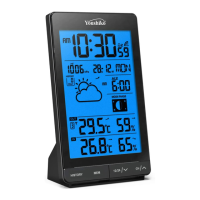

 To Next Page