11
1.13.
Input in programming
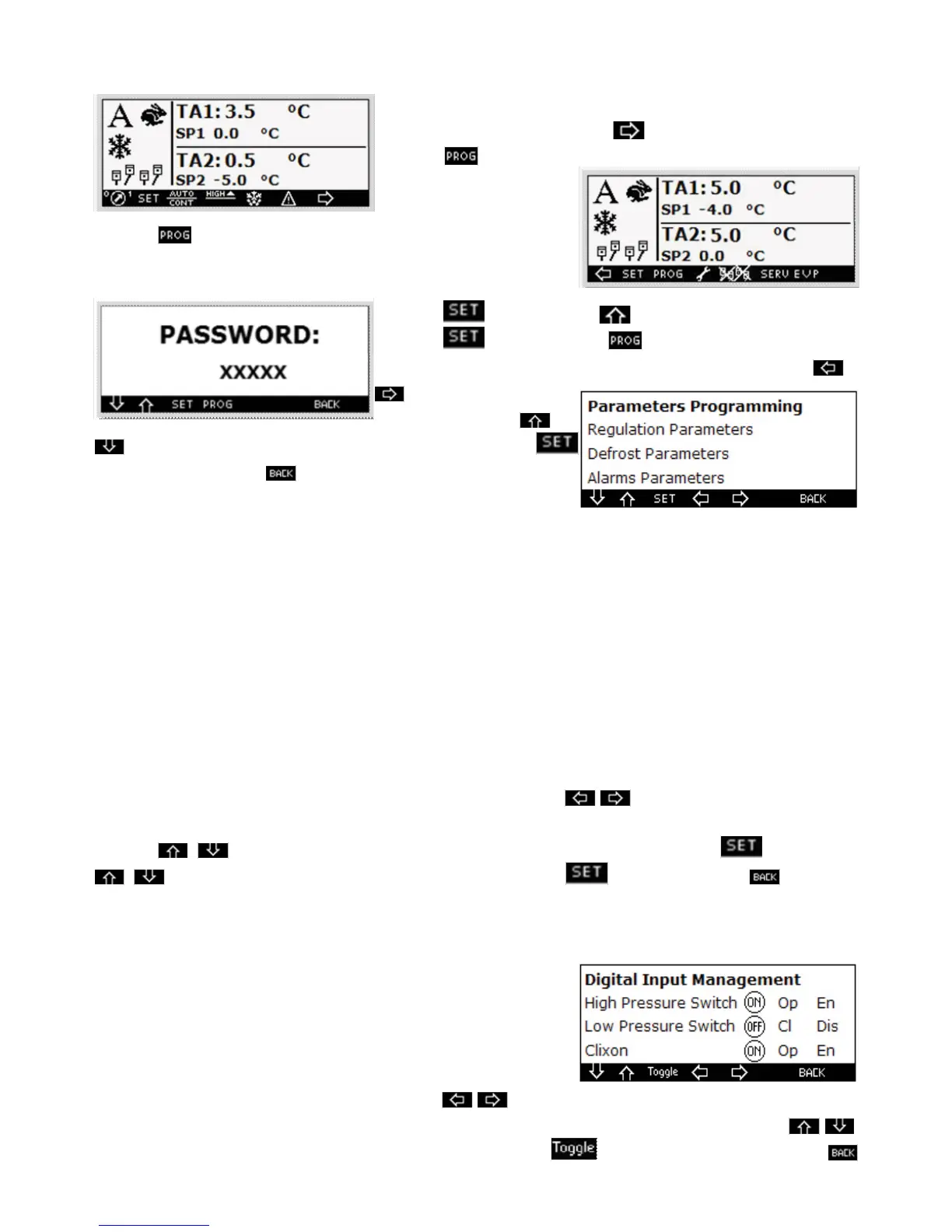
To enter the programming perform the following procedure:
On the main, screen by pressing the key you switch to the screen
where the
key is located
Press the key for f ve seconds and the password screen will be
displayed
Press the key and through select the number 11.
Press the key and then the key to enter the f rst program-
ming screen. For the navigation among the various screens use the
keys, for the shifting in
the sections press the
keys. To select the required section, highlight it, then press the
key to access it. Press the key and you will return to the previous
screen.
1.14. List of sections
The sections in the programming branch are:
• Adjustment parameters
• De-frosting parameters
• Alarm parameters
• Switching on parameters
• Digital inputs management
• Digital outputs management
• Clock conf guration
• Maintenance conf guration
• Probe conf guration
• Conf guration
To programme the parameters, listed in the specif c table, f rst press the keys through which you can
switch from one screen to the other, in order to identify the parameter to be modif ed.
Press the keys to highlight the value of the parameter to be modif ed, then press the key and then
keys to modify its value, conf rm its modif cation through the key. If you press the key you
will switch to the previous screen.
1.15. Digital inputs management
If you enter this section you can display the screen. The labels located
in correspondence of each digital input from the left represent : the
current state, the logic, (active in opening “op” or active in closure “cl”),
the enable “en” or disable “dis”. You can both programme the logic
and enable any input; for this purpose, starting from the initial screen
identify the input to be modif ed by operating on the keys
through which you can switch from one screen to the other. When the required input is identif ed press the
keys until the parameter to be modif ed is highlighted; then press the key to modify the value. Press the



 To Next Page