47 / 58
Identificazione: MD-AL-GI-00
Rev. 4.0 del 31.01.18 - Applicazione: GID
Manual of 11/06/2019 Rev. 1.8 “User Manual for 3000SP storage inverter”
Percentage of battery discharge
Maximum charge current in A
Maximum voltage value (protection)
Max. charge threshold
(V)
Value of maximum voltage (charge)
Max. discharge current
(A)
Maximum discharge current in A
Min. discharge voltage
(V)
Minimum voltage value (protection)
Minimum voltage value (discharge)
Voltage with batteries charged to 0%
Voltage with batteries charged to 100%
6.4.4. Software Update
Before updating the software from the display, send an email to Azzurro ZCS Technical Support requesting
the files for updating the 3000SP inverter firmware. Proceed as follows:
1. Switch off the ZCS 3000SP inverter by disconnecting the AC power and turning off the batteries.
If Pylontech batteries are used, set the switches of each battery in the pack to 0.
If Weco ReSU 4K4 batteries are used, press the power button for 5 seconds until the RUN light turns
off.
If Tawaki Maui 4 kWh batteries are used, press the POWER button so that it is OFF, making sure that
all the LEDs are off.
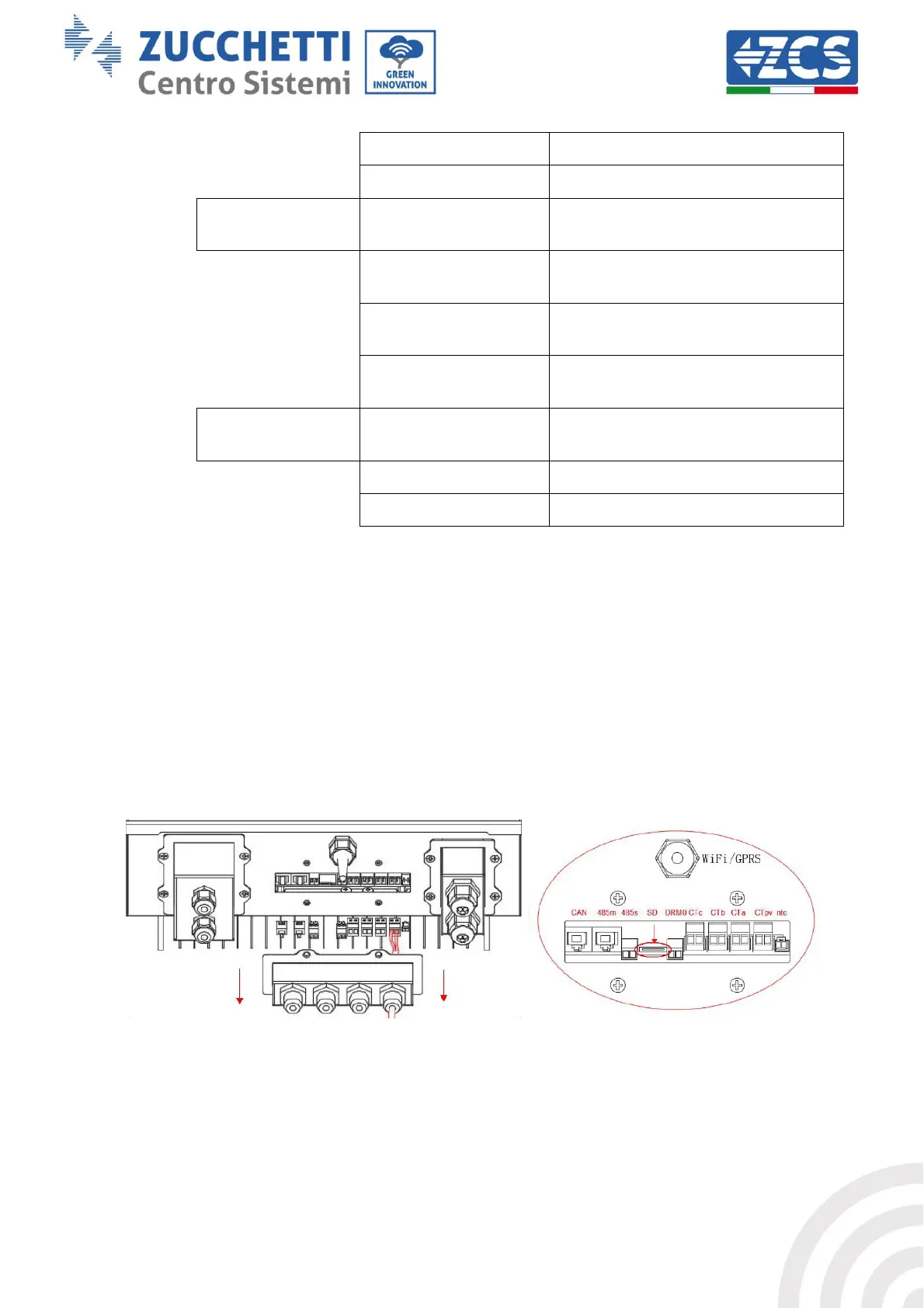
2. Remove the central cover at the bottom of the inverter by unscrewing the four star screws, making
sure to loosen the four cable glands (as shown in the figure).
3. Extract the microSD card from its slot (shown in the figure above) by pressing lightly on the card and
pulling it out of the inverter. Then insert it into the PC using the appropriate adapter.
4. Open the SD card drive and create a new folder with the name ES3000firmware, making sure to
match the lowercase and uppercase letters as indicated and checking that there are no spaces. Now
copy the files attached to the email into the ES3000firmware folder.




 To Next Page