Page 8
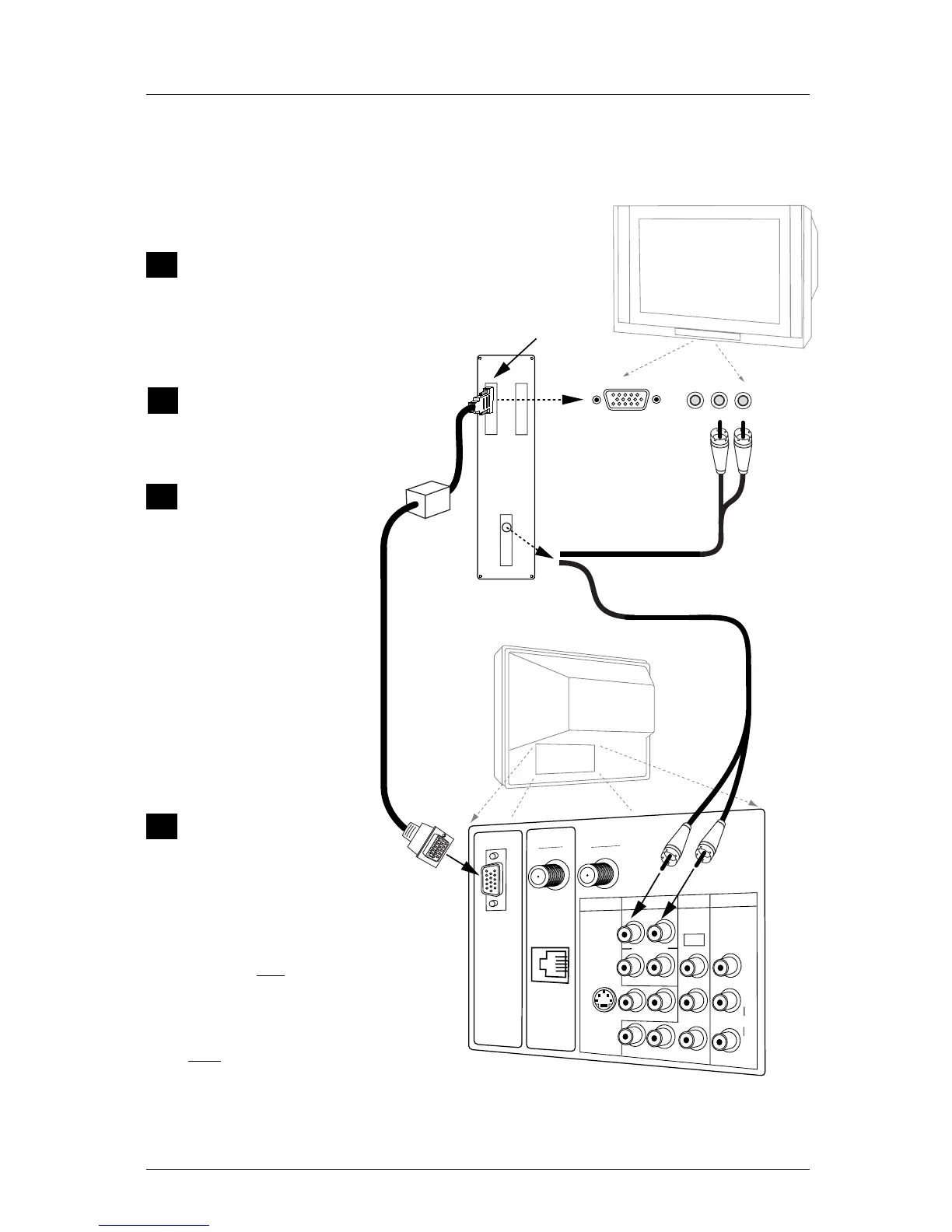
Computer Hookup
Read the following overview/instructions to set up and use the Presentation TV
as a Computer Monitor
Make the basic con-
nections as indicat-
ed. (Appearance of
components may vary
from those in the
illustrations.)
Set the computer’s
image output set-
tings to 800 x 600 @
60Hz or SVGA.
On the Source menu,
highlight “REAR COM-
PUTER SVGA” (Rear
Computer in) then
press ENTER on the
remote to change to
the computer image
source. Or plug the
computer connector
into “Computer In”
on the TV front
panel. (Note: Item
41-I Auto Compport
must be set to 0 in
the installer menu.)
Boot up your com-
puter. As it warms
up, the TV will adapt
to your computer.
Note: Unlike a computer
monitor, this TV does not
show a computer image on
the screen un
til the TV has
completely adapted to your
computer’s output. This is
normal when using this TV
as a computer monitor.
Wh
en the TV has complete-
ly adapted to your comput-
er, the computer’s image
will appear on the screen.



 To Next Page