29
6.4 Setting Bluetooth by Diagnostic Tool (Optional)
1. Make sure the media is already installed and media cover is closed. (Please refer
to section 3.4)
2. Turn on the printer power switch.
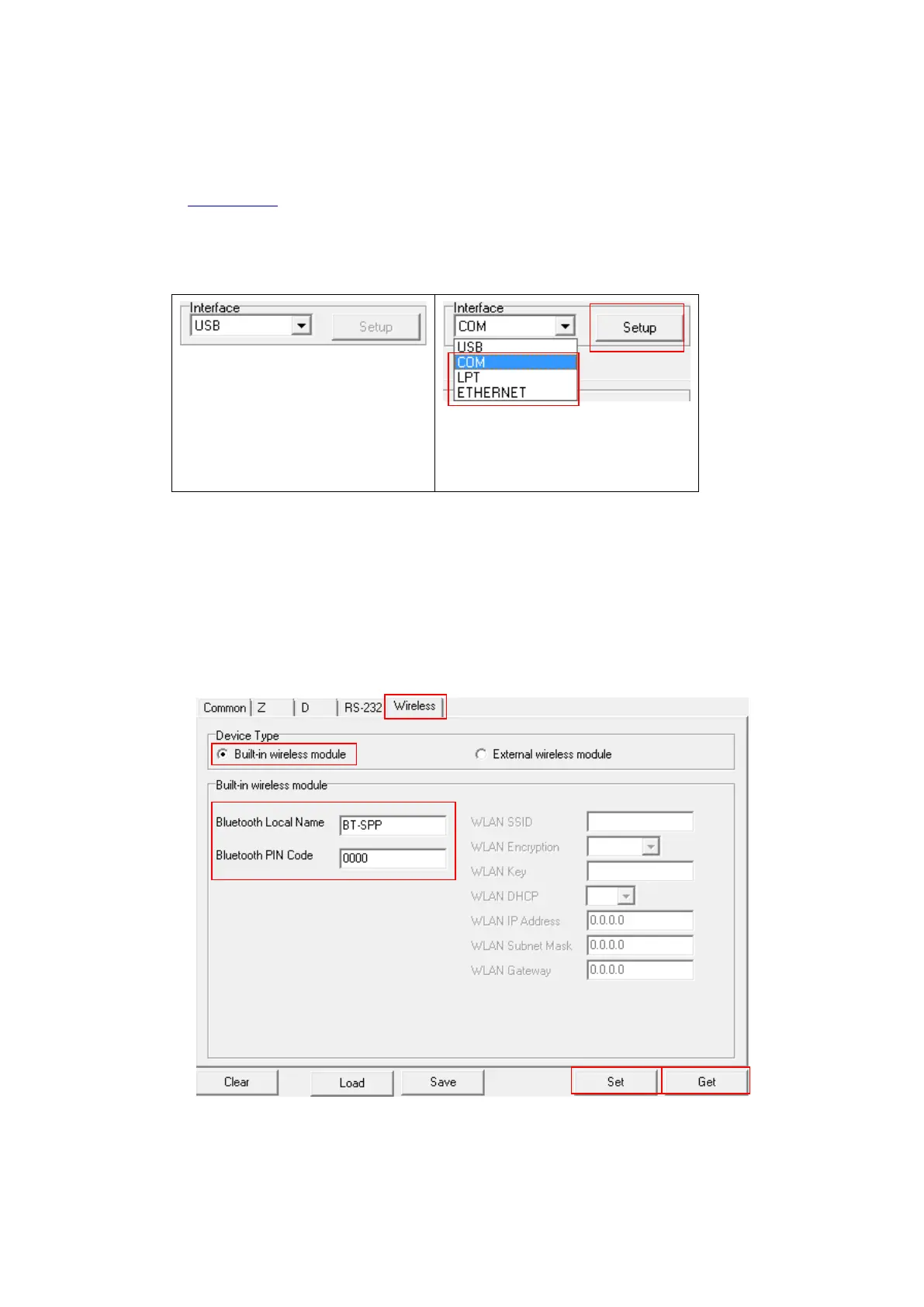
3. Open Diagnostic tool and set interface. (The default setting is USB)
The default interface setting is
USB interface. If USB interface
is connected with printer, no
other settings need to be
changed in the interface field.
4. Select “Wireless” tab and “Built-in wireless module” item.
5. Enter the new BT Local Name or BT PIN Code in the editor.
6. Press “Set” button to set the new BT name or BT PIN code of the printer.
7. Press “Get” button to get back the settings. Make sure the Bluetooth module
settings are set properly.
Note:
* The printer connects with the computer via USB cable, which is a user option.
1
5



 To Next Page