EasyManua.ls Logo

Zero 88 FLX - User Manual

Zero 88 FLX
233 pages
To Next Page IconTo Next Page
Loading...
ZerOS
Introduction
Compliance
Revisions
Hardware Introduction
Software Introduction
Warnings & Safety
Quick Start
Patching
Controlling Fixtures
Recording Cues
Front Panel
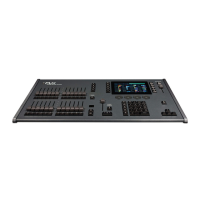
FLX
FLX S48
FLX S24
Solution
Solution Introduction
ZerOS Wing
Desktops & Windows
FLX S Touchscreen
External Display
External Touchscreen
External Desktops
View Button
Output Window
Faders Window
Patching
DMX
Add Fixtures
Multi-Part Fixtures
Fixture Schedule
Selecting Fixtures
Patch Groups
Fixture Channel Number
Fixture Names
Alignment
Change Fixture
Edit DMX Address
DMX In
Syntax
Deleting Fixtures
ZerOS Library
Fixture Files
Fixture Editor Guide
Intensity
MFFs
Commands
Encoder wheels
Groups
Automatic Groups
Recording Groups
Using groups via touch
Using groups via syntax
Referencing Intensity Groups
Naming Groups
Updating Groups
Copying Groups
Zero 88 - ZerOS - Page 1 of 233 Printed: 23/11/2020 12:50:03 JH

Other manuals for Zero 88 FLX

Questions and Answers

Zero 88 FLX Specifications

General IconGeneral
Effects EngineYes
Internal MonitorNo
External MonitorYes
Ethernet PortYes
Faders24
LCD ScreensYes
MIDIYes

Summary

Introduction

Compliance

Lists the standards FLX, FLX S48 & FLX S24 comply with for electromagnetic compatibility and safety.

Revisions

Provides a change log for the manual, detailing updates and creation dates.

Hardware Introduction

Introduces the hardware components and design of the ZerOS system.

Software Introduction

Explains the ZerOS operating software and its core functionalities.

Warnings & Safety

Details important safety information and usage guidelines for the lighting consoles.

Quick Start

Provides basic steps for controlling and programming fixtures on ZerOS consoles.

Front Panel

FLX

Overview of the FLX console's front panel controls and layout.

FLX S48

Overview of the FLX S48 console's front panel controls and layout.

FLX S24

Overview of the FLX S24 console's front panel controls and layout.

Solution

Overview of the Solution console's front panel controls and layout.

Front panel definitions

Multi-Function Faders (MFFs)

Details the function and operation of the console's Multi-Function Faders.

Channels

Explains how faders control individual fixtures when set to 'Channels' mode.

Playbacks (or cues, stacks, submasters or chases)

Defines playbacks for storing and recalling lighting states or scenes.

User Definable Keys (UDKs)

Describes the assignment and functionality of User Definable Keys.

Function keys

Explains the role of function keys in controlling console operations.

Command Keys

Details the command keys used for programming and accessing functions.

Attribute keys

Explains the attribute keys used for controlling fixture parameters.

Setup

Fixture Schedule

Lists all fixtures in the show and allows for editing and configuration.

Add Fixtures

Guides users on finding and patching fixtures from the console's library.

Save

Explains how to save the current show file to internal memory or external storage.

Load

Details how to load various file types, including show files and libraries.

Settings

Allows configuration of system settings like monitor, operational, and display options.

Defaults

Explains how to set default values for parameters, cues, and UDKs.

Universes

Details configuration for DMX, sACN, Art-Net, and CITP protocols.

Devices

Manages settings for connected devices like Art-Net, Enttec USB, and Remote Apps.

Triggers

Allows configuration of various trigger methods like MIDI and Remote Switches.

Clear Options

Provides options to clear show data or reset console settings to factory defaults.

Upgrade

Guides on upgrading console software and unlocking features.

Patching

RigSync

Explains RigSync for automatic RDM fixture discovery and patching.

Multi-Part Fixtures

Details how to patch fixtures with multiple addressable parts.

Fixture Schedule

Lists and allows editing of all currently patched fixtures in the show.

Selecting Fixtures

Describes methods for selecting fixtures within the Fixture Schedule.

Patch Groups

Explains the use of patch groups for filtering the fixture schedule.

Fixture Channel Number

Details how to change fixture numbers for control and selection.

Fixture Names

Explains how to rename fixtures for better identification in the Output Window.

Alignment

Covers Invert and Swap options for Pan/Tilt alignment based on fixture rigging.

Edit DMX Address

Allows configuration of DMX settings including address, universe, and readdressing.

Syntax

Explains syntax commands for selecting, readdressing, and deleting fixtures.

Controlling Fixtures

Selecting Fixtures

Details how to select fixtures for control using faders or commands.

Next & Previous

Describes using Next/Previous to step through fixtures for parameter adjustments.

Choosing an Attribute

Explains how to select attributes like Intensity, Colour, Beam, Shape, and Position.

Parameters

Describes how parameters are controlled via encoder wheels and attribute windows.

Colour

Explains colour control using encoder wheels, colour picker, and faders.

Beam

Details beam attribute controls like Zoom, Focus, and Shutter.

Shape

Covers shape parameters like gobos, prisms, and animation wheels.

Position

Explains position controls including Pan, Tilt, and fanning.

Cues & Playbacks

Cues Window

Displays cues within a playback, showing names, fade times, and settings.

Record Options

Defines how fixtures, attributes, and parameters are stored into cues.

Snapshot & SmartTag

Explains recording methods that determine what data is stored in cues.

Tracking

Details tracking options for cue programming and behaviour.

Record Filters

Allows filtering of recorded data based on fixtures, parameters, or attributes.

Recording cues

Explains the process of recording a lighting state into a cue.

Cues Fade Times

Details how to set fade and delay times for attributes within cues.

Updating Cues

Describes how to modify and update existing cues.

Naming Cues

Explains how to name cues for better organization and identification.

Copying Cues

Covers methods for copying individual cues or entire cue stacks.

Deleting Cues

Provides instructions on how to delete specific cues or multiple cues.

Cue Settings

Details available settings for each recorded cue, including triggers and macros.

Chases

Explains how to program multiple cues into a playback to create a chase sequence.

User Definable Keys (UDKs)

Channel Data UDKs

Describes recording lighting states directly onto User Definable Keys.

Shortcut UDKs

Explains creating UDKs as shortcuts to Groups, Palettes, Macros, or Fixtures.

Advanced UDKs

Details assigning advanced functions and customising UDK behaviour.

Networking

Building a Network

Guides on setting up a dedicated Ethernet network for ZerOS consoles.

IP Addressing

Explains IP address structure, subnet masks, and DHCP for network configuration.

ZerOS Network Settings

Details network settings for each protocol including DHCP and static IP configuration.

Connecting to Capture

Guides on connecting ZerOS to Capture visualisation software via Ethernet.

Software Updates

ZerOS USB Creator

Describes using the USB Creator tool for console recovery or software installation.

Trouble Shooting

Fixtures not responding?

Provides checks for when fixtures or dimmers are not responding to the console.

No intensity output?

Troubleshooting steps for when intensity output levels do not change.

Forgotten passcode?

Instructions for recovering a forgotten console passcode.

Front panel not responding?

Checks for issues with the console's front panel buttons and LEDs.

External Touch Screen not responding?

Troubleshooting steps for unresponsive external touch screens.

MIDI Show Control not working?

Identifies potential issues with MIDI Show Control functionality.

Remote App not connecting?

Guides on troubleshooting remote app connectivity issues.

Console does not start correctly?

Steps to take if the console fails to boot properly.

Test Mode

Explains how to enter and use Test Mode for hardware diagnostics.

Reporting a problem

Provides information required for reporting technical issues to Zero 88 support.

Startup Tool

Details the recovery method using the Startup Tool for boot failures.

Maintenance

Cleaning the surface

Instructions for cleaning the console's external surfaces.

Cleaning the touchscreen

Guidance on cleaning the internal touchscreen display.

Cleaning the faders

Provides instructions on how to clean fader tracks.

Transportation & storage

Advice on proper care during console transportation and storage.

Operating environments

Highlights the importance of observing environmental conditions for console operation.

Internal battery (FLX & ZerOS Server only)

Information on the internal battery's function and replacement.

Mechanical

FLX

Provides mechanical specifications for the FLX console.

FLX S48

Provides mechanical specifications for the FLX S48 console.

FLX S24

Provides mechanical specifications for the FLX S24 console.

ZerOS Server

Provides mechanical specifications for the ZerOS Server unit.

Mounting ZerOS Server

Details rack mounting instructions for the ZerOS Server.

ZerOS Wing

Provides mechanical specifications for the ZerOS Wing.

Support

Support

Contact details for general Zero 88 support via email.

Fixture Support

Contact for fixture-specific questions or fixture file requests.

Forum

Information on accessing the Zero 88 user forum for support and community help.

Training

Details available training opportunities, including online resources.

Enquiries

Contact for general enquiries not fitting other categories.

Speak to the Team

Information on contacting support directly for assistance.

Related product manuals