30
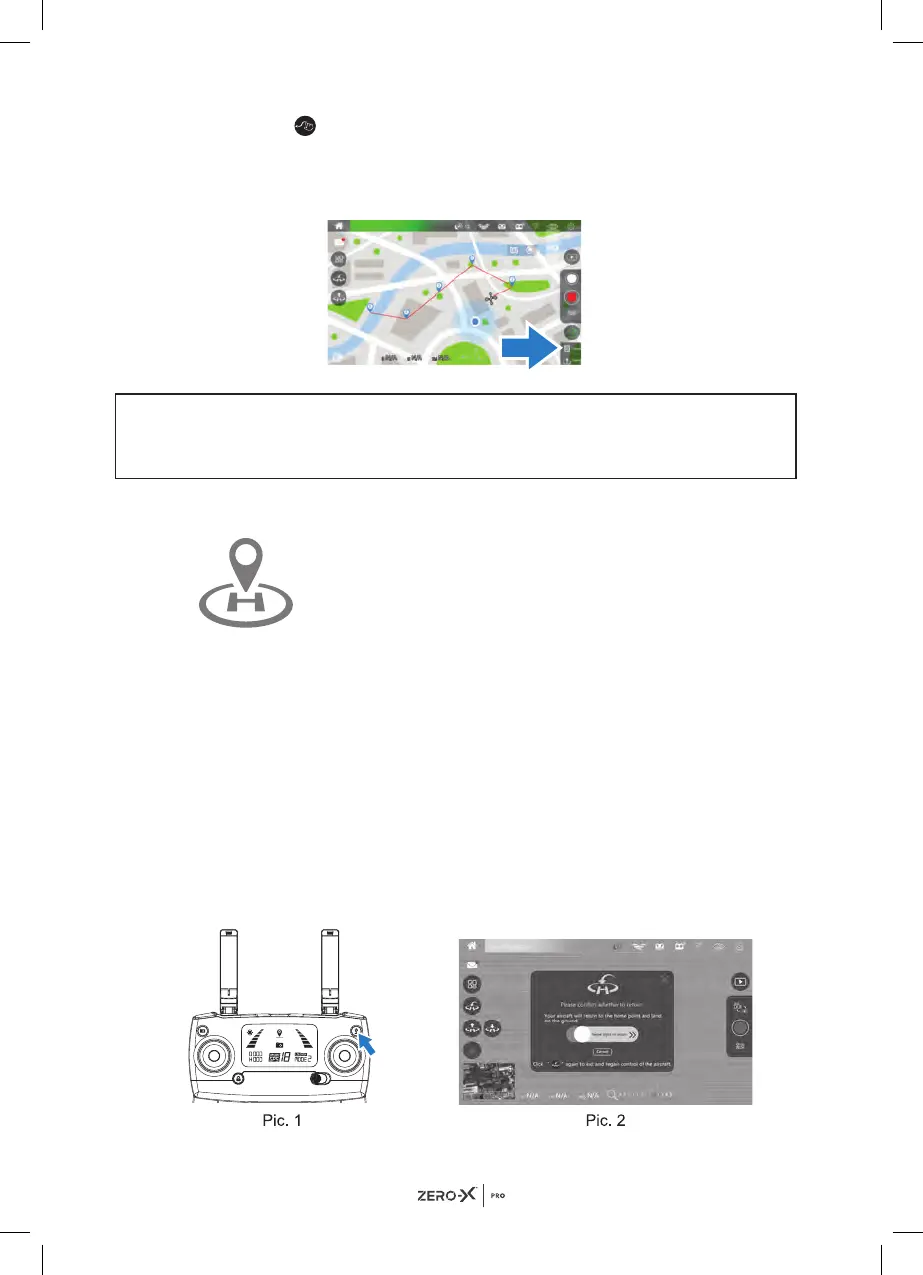
4. Press the button again to exit the way point flight mode and regain
flight control of the drone.
5. To reset the flight path, press the delete button on the bottom right
corner of the App screen..
NOTE
Please note the Way Point Flight mode may not function correctly if there is
WiFi interference.
19.1 RETURN HOME (GPS MODE ENABLED)
The Return Home Button will initiate the automatic landing
sequence. Please make sure there are no obstructions,
people or animals under the drone when this is selected.
If the drone's flying altitude is less than 15 meters from
ground level and the Return Home button is pressed, the
drone will gain altitude first and then return home. If the drone is not
connected with the App, Please press the Return to home button on the
controller for the drone to safely land at the starting point. There are 3
different types of Return to Home scenarios: Smart Return to Home, Low
Battery Return to Home and Failsafe Return to Home.
SMART RETURN TO HOME
Press the return to home button on your remote control or click the return
to home on your App and follow the instructions on screen, the remote
control will start beeping. Your drone will return to the take off point if the
return to home button is pressed on the remote control, this will cause the
remote control to start beeping. To stop return to home function, please
press the return to home button again.


 To Next Page