9
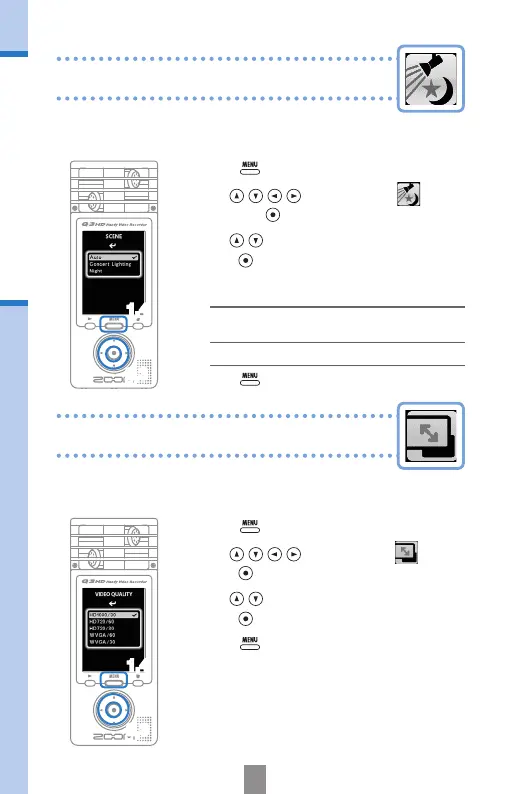
Setting video-recording lighting
Setting the image quality
You can set the resolution and frame rate used during
recording. The amount of recording time available
decreases as the image quality is increased.
Setting the image quality
1,4
2,3
You can set the camera sensitivity to suit the video
recording conditions. This allows the unit to record video
optimally even in dark places or on stages with bright lights.
Setting video-recording lighting
2,3
1,4
1.
Press to open the Main Menu.
2.
Use to select
SCENE
and press
.
3.
Use to select the mode and
press
.
• “AUTO”adjuststolightingconditions
automatically.
• “CONCERTLIGHTING”isbestforconcerts
andothersituationswithbrightlights.
• “NIGHT”isbestfornightanddarksituations.
4.
Press again after the setting is made.
1.
Press to open the Main Menu.
2.
Use to select
VIDEO
and
press
.
3.
Use to select the video quality and
press
.
4.
Press again after the setting is made.


 To Next Page