3
3. Personal Account Registration
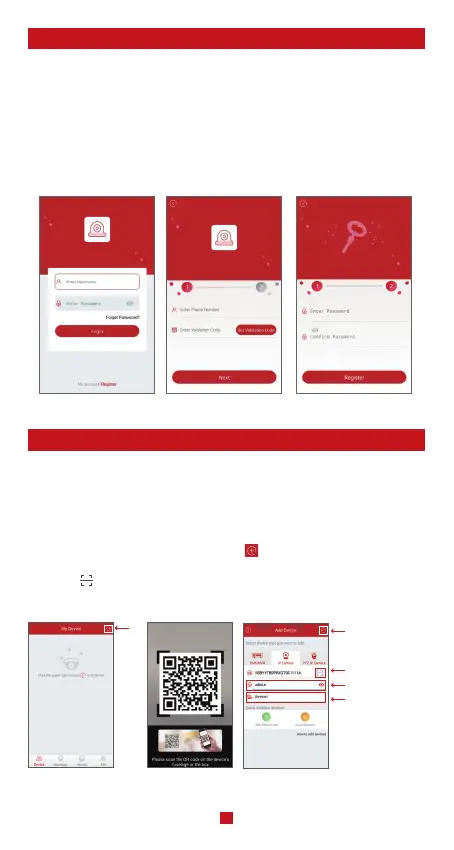
The following instructions are for the Android APP; instructions for the iOS version are
slightly different.
• Start and install the mobile app “Zosi Smart”, which can be downloaded by scanning the
QR Code shown on the front page of this manual ).
• Click “Register now” at the bottom of the interface to register your APP account.
• Enter your e-mail address to get validation code. Click “Next” to set the account password
and complete the registration process.
Note: Please login your email before registration in case you miss the validation code.
Login Interface Registration Login Password Setting
4. Add device(At the first time)
A. Power the device and wait for 20 seconds to proceed with next step
B. Use a RJ45 cable connect the device to the WI-FI router, the WI-FI router is the same
with your smart phone.
C. Connect your smart phone to the WI-FI network of your router
D. Open zosi smart APP, and select the APP icon in the upper right corner, as shown in
the figure
F. Click the ' ' icon to scan the QR on the camera.
E. Click “
✓
” in the upper right corner to save the device adding
4.1 Wired Connection
Scan QR Code
It is default admin
You can set the
name for your
need
Save
Add
device


 To Next Page