EasyManua.ls Logo

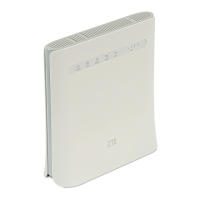
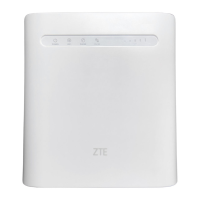
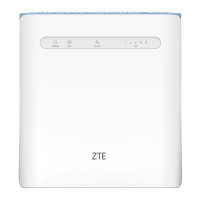
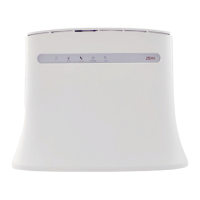
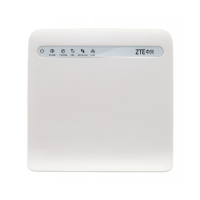
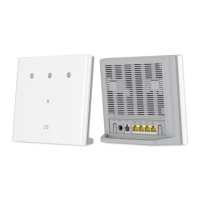
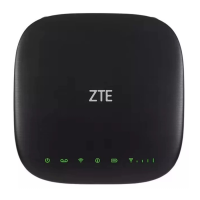
Zte MF286D - User Manual

Zte MF286D
128 pages
Print Icon
To Next Page IconTo Next Page
Loading...
MF286D
Quick Start Guide
1
Snabbstartsguide
26
Hurtigstartveiledning
51
Hurtig Start Guide
76
Pikakäynnistysopas
101

Other manuals for Zte MF286D

Questions and Answers

  • S
    Stephanie MartinSep 8, 2025
    What to do if I hear a prompt as soon as I lift the phone off the hook with Zte MF286D?
    • S
      Sheila LeonardSep 8, 2025
      If you hear a prompt, phone alert, or announcement as soon as you lift the phone off the hook, make sure your (U)SIM card is inserted correctly and the PIN number has been entered. If you entered the PIN incorrectly, you will need to enter the PUK code when prompted.
  • E
    Elizabeth MilesSep 6, 2025
    What to do if there is no dial tone on Zte Network Router?
    • S
      Shannon MitchellSep 7, 2025
      If there is no dial tone, please wait for 1~2 minutes after the device is turned on. If the issue persists, it may be due to weak RF reception, so try changing the location of the device.
  • A
    andrewsjustinAug 22, 2025
    How to access Zte MF286D Network Router configuration page?
    • M
      Michael RoweAug 22, 2025
      To access the configuration page of your Zte Network Router, enter the correct address, which is http://192.168.32.1 by default. Ensure that you are not using a proxy server.
  • M
    Mrs. Alicia RivasSep 4, 2025
    What to do if 3G/4G signal indication doesn’t turn on Zte MF286D Network Router?
    • F
      fowensSep 4, 2025
      If the 3G/4G signal indication doesn’t turn on your Zte Network Router, this indicates bad signal reception. Try moving the router to another place close to a window.
  • K
    Katie RogersSep 3, 2025
    Where can I find the password for my Zte Network Router?
    • G
      Gregory NortonSep 3, 2025
      For the Wi-Fi connection password, check the label on the device. The default password to the admin page is written on the label under your device (website password). If you changed the password and forgot the new password, you need to restore the device to the factory default settings.
  • A
    Amanda LoweSep 1, 2025
    Why is my Zte MF286D Network Router download/upload speed so slow?
    • E
      Erika GardnerSep 1, 2025
      If the download or upload speed of your Zte Network Router is very slow, this could be dependent on the signal strength. Check your signal strength and network type.
  • H
    hailey19Aug 31, 2025
    How to fix Zte MF286D when I cannot access the internet?
    • D
      djensenAug 31, 2025
      If you cannot access the internet at all using your Zte Network Router, check your configuration settings. Also, please wait 1 to 2 minutes for the device to initialize.
  • C
    Christian ChangAug 30, 2025
    How to recover the password of Zte Network Router?
    • S
      Susan SimsAug 30, 2025
      If you forgot the changed password for your Zte Network Router, you need to restore the device to the factory default settings. For the Wi-Fi connection password, check the label on the device. The default password to the admin page is written on the label under your device (Website password).
  • M
    Mr. Robert OneillAug 28, 2025
    How to establish Wi-Fi connection with Zte MF286D Network Router?
    • A
      awalkerAug 29, 2025
      If you cannot establish a Wi-Fi connection between your device and the client using your Zte Network Router, ensure that the Wi-Fi function is active. Also, refresh the network list and select the correct SSID. When you connect to the device, make sure you type the correct network key (Wi-Fi password).
  • S
    Shelly BauerAug 27, 2025
    What is the default password for Zte Network Router?
    • J
      Jerry KimAug 27, 2025
      For the Wi-Fi connection password and the default password of the 4G CPE configuration web page, please check the label on the device. If you forgot new password, you need to restore the device to the factory default settings.

Summary

Getting to Know Your Device

External View

Provides an overview of the device's physical layout and ports.

Device Indicators

POWER Indicator

Explains the status and meaning of the POWER indicator light.

WIFI Indicator

Details the states of the Wi-Fi indicator.

PHONE Indicator

Describes the states and meaning of the PHONE indicator.

3 G;4 G Indicator

Explains the 3G/4G indicator states and network connection.

SIG Indicator

Describes the signal strength indicator states.

Device Buttons

RESET Button

Instructions for using the RESET button for factory defaults.

WLAN Button

How to use the WLAN button to manage Wi-Fi.

WPS Button

Function of the WPS button for easy connection.

Installing the SIM Card

SIM Card Insertion

Guide on correctly inserting the SIM card into the device.

Getting Started With Your Device

Starting Your Device

Steps for powering on and initializing the device.

Accessing the Internet

Internet Connectivity

How the router connects to the internet automatically.

Connect to WIFI

WIFI Connection Steps

Detailed steps to connect devices to the router via Wi-Fi.

Change Router Settings

Login to Admin Webpage

Instructions for accessing the router's web interface.

Inputting Password and Login

How to enter the password and log in to the admin page.

Telephone Function

Making a Call

Steps for making phone calls using the device.

WPS Function

Activating WPS

How to use the WPS function for client connection.

Updating of the Router Software

Automatic Software Updates

Information on how the router software updates automatically.

Troubleshooting

Voice Related Problems

Solutions for common voice call issues.

Internet Related Problems

Solutions for common internet connectivity issues.

Other Problems

Solutions for other common device issues.

Warning and Notice

Safety Precautions

Important safety guidelines for using the device.

Additional Safety Guidelines

Further safety measures related to device usage and environment.

Cleaning and Maintaining

Cleaning Instructions

How to clean and maintain the device properly.

Limited Warranty

Warranty Exclusions

Conditions under which the warranty is not applicable.

Warranty Limitations

Details on warranty remedies and limitations.

Limitation of Liability

Liability Exclusions

Information on ZTE's liability for product use.

For More Assistance

Contact Information

How to get further help via email or website.

RF Exposure

RF Exposure Compliance

Compliance with CE radiation exposure limits.

Specification

Frequency Bands and Power

Lists supported frequency bands and max radio power.

CE Caution

Proper Use

Guidelines on correct usage and handling of the device.

Disposal of Your Old Appliance

Recycling Instructions

Instructions for proper disposal of the old device.

EU DECLARATION OF CONFORMITY

Declaration Details

ZTE's declaration of conformity with EU directives.

Zte MF286D Specifications

General IconGeneral
CategoryNetwork Router
Download Speed300 Mbps
Upload Speed50 Mbps
Wi-Fi Standards802.11 a/b/g/n/ac
Wi-Fi Frequency2.4 GHz & 5 GHz
Max. Users Supported64
LAN Ports4
Ethernet Ports4
USB Ports1
SIM Card SlotYes
External Antenna Ports2
Weight500 g
Operating Temperature0°C to 40°C
AntennaInternal & External
Wi-Fi SpeedDual-band, 2.4 GHz: 300 Mbps, 5 GHz: 867 Mbps
Storage Temperature-20°C to 70°C
Antennas2
ChipsetQualcomm
Ports4 x LAN, 1 x USB, 2 x External Antenna
Network BandsB1/B3/B7/B8/B20/B28
SIM Slot1 x Standard SIM

Related product manuals