1.
Once started, the application begins to automatically search for all the 2N devices in
the LAN including their smart extensions which are DHCP/statically assigned IP
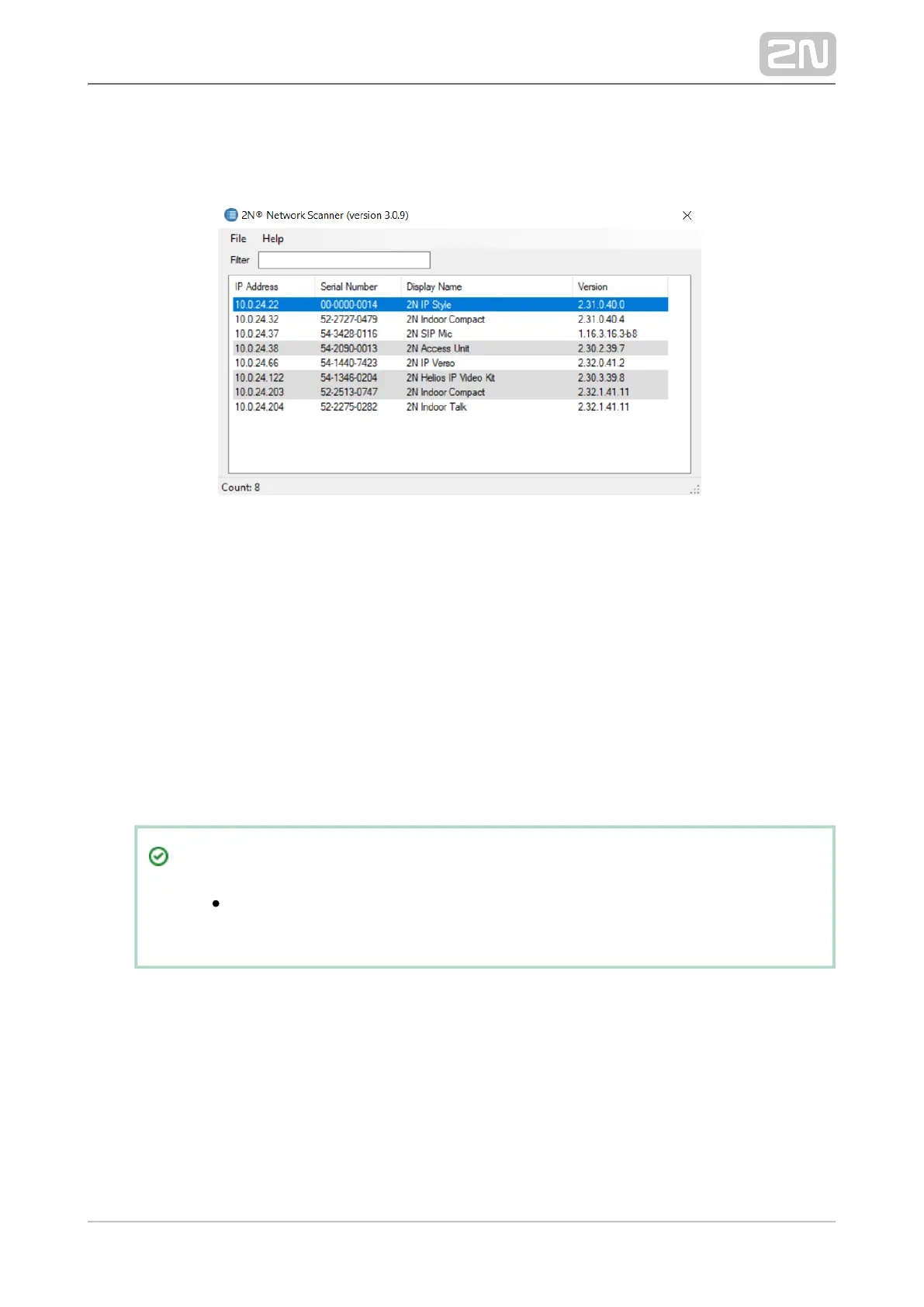
addresses. All the devices are then displayed in a table
Window of2N
®
IP Network Scanner
Select the device to be configured and right-click it. Select 2N IP Style
®
Browse...
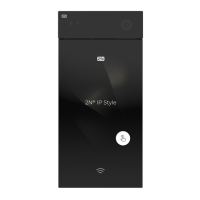
to open the administration web interface login window for 2N IP Style
®
configuration. To change the device IP address, select and enter the
Config
required static IP address or activate DHCP. The default configuration password
is: 2n. If the found device is grey highlighted, its IP address cannot be configured
using this application. In that case, click Refresh to find the device again and
check whether multicast is enabled in your network.
Tip
Double click the selected row in the list to 2N
®
IP Network Scanner
access the device web interface easily.


 To Next Page