VISIX S-Series Network Camera | USER MANUAL v6.0
10385 Westmoor Drive, Suite 210, Westminster, CO 80021 | www.3xlogic.com | (877) 3XLOGIC
6.3 Configuring Image Settings
NOTE:
On the event configuration page, click
to show the PTZ control panel or click
to hide it.
Click the direction buttons to control the pan/tilt movements.
Click the zoom/iris/focus buttons to realize lens control.
The functions vary depending on different camera models.
CONFIGURING DISPLAY SETTINGS
Purpose:
A user can configure image adjustment, exposure settings, day/night switch, backlight settings, white balance,
image enhancement, video adjustment, and other parameters in the display settings.
NOTE:
The parameters in Display Settings interface vary depending on different camera
models.
Double click the live view to enter full screen mode and double click it again to
Steps:
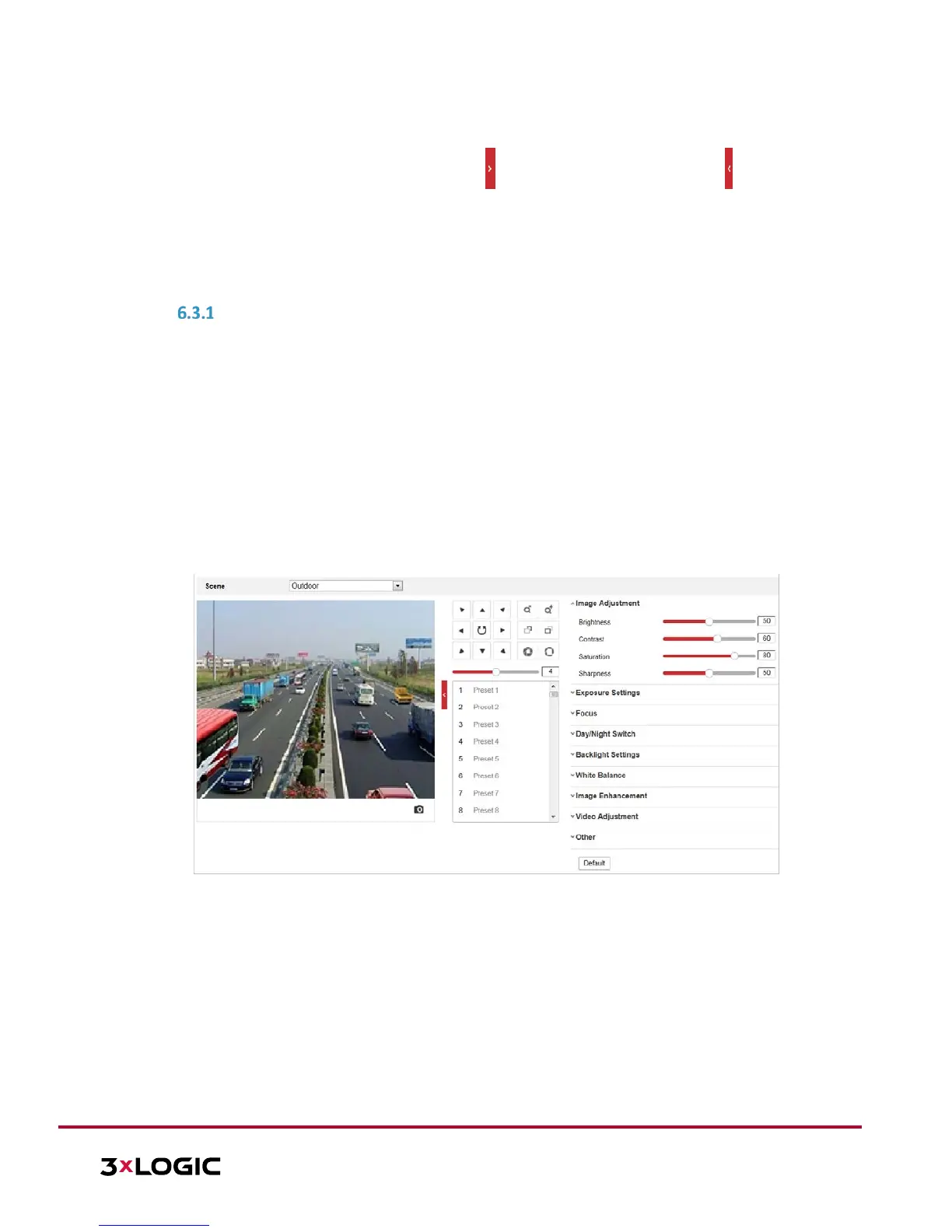
1. Enter the Display Settings interface: Configuration > Image> Display Settings
2. Select the Scene from the dropdown list, each containing different predefined image parameters.
3. Set the image parameters of the speed dome.
Figure 6-23 Display Settings
Image Adjustment
Brightness
This feature is used to adjust image brightness. The value ranges from 0 to 100.
Contrast
This feature enhances the difference in color and light between parts of an image. The value ranges from 0 to
100.
Saturation
This feature is used to adjust color saturation of the image. The value ranges from 0 to 100.
Sharpness
Sharpness function enhances the detail of the image by sharpening the edges in the image. The value ranges
from 0 to 100.


 To Next Page
 Loading...