OI-LLT100-EN Rev. D | User Guide 11
4 Presenting the User Interface
4.1 LCD interface and keypad
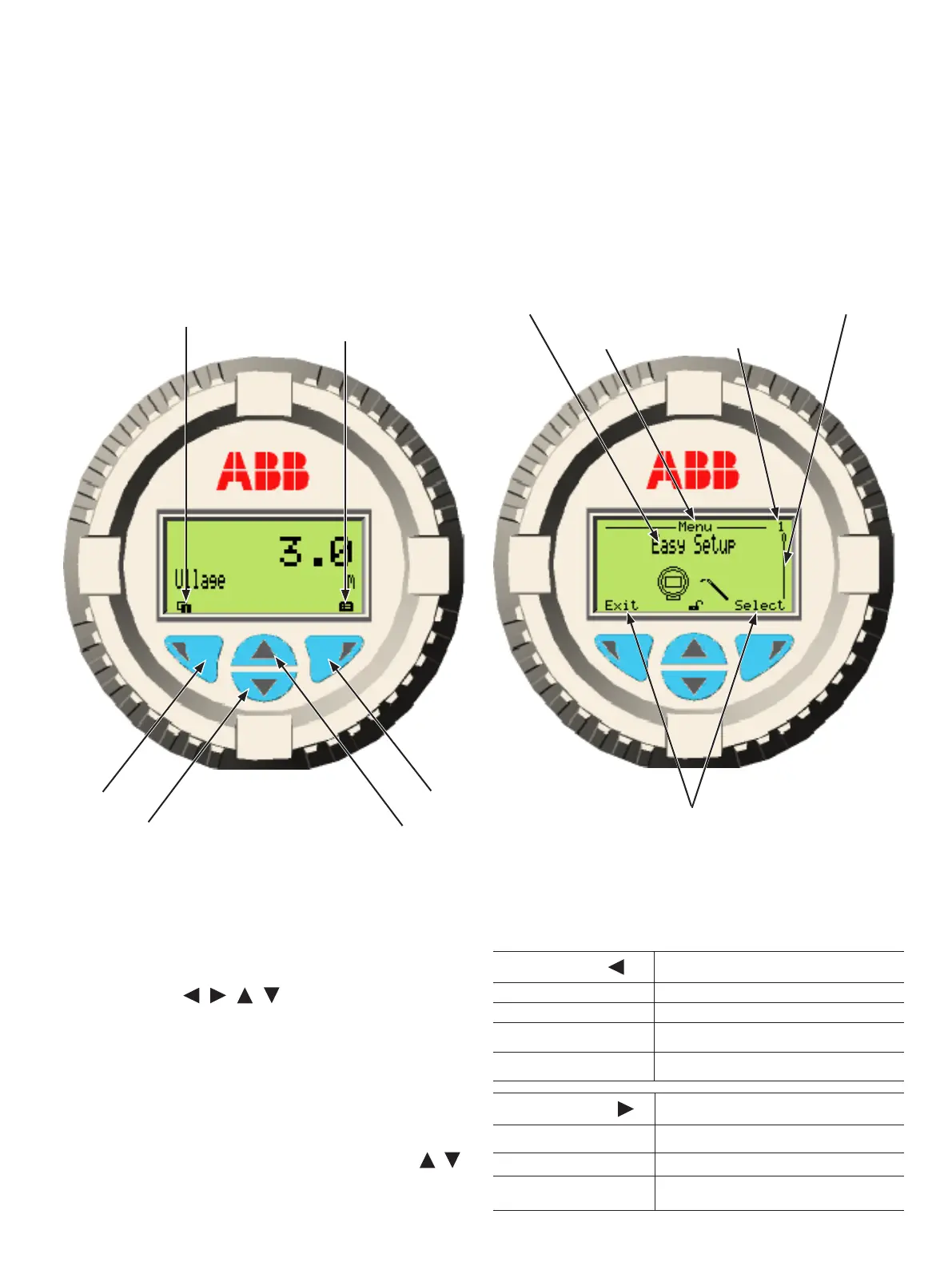
The integrated LCD can be used to configure the LLT100 and
to visualize process measured variables.
Four arrow keys ( , , , ) are available for the menu-
driven configuration.
– A scroll bar shows the relative position of the currently
selected menu item within the menu.
– The Left and Right arrow keys have many functions (see
Table 1). The meaning of these keys is displayed in the LCD
above the respective key.
– You can browse through the menu or select numbers of a
parameter value using the Up or Down arrow keys (
,
).
Figure 9 Typical User screen (left) and Configuration screen (right)
Table 1: Left and Right arrow key functions
Left arrow key
( )
Meaning
Exit Exit menu
Back Back one sub-menu
Cancel
Exit without saving the selected parameter
value
Next
Select next position for entering numerical
values or letters
Right arrow key
( )
Meaning
Select Select sub-menu/parameter
Edit Edit parameter
OK
Save selected parameter and display stored
parameter value
Menu item
number
Left arrow key
Up arrow key
Down arrow key
Right arrow key
Menu/sub-menu
name
Menu title
Actions performed by
pressing the arrow key
underneath
Access to
User menus
Access to
Configuration
menus
Scroll bar


 To Next Page