42 User Guide | OI-LLT100-EN Rev. D
LLT100
Laser lever transmitter
13.4 Managing alarm display
The LLT100 allows you to mask alarms that could be deemed
unnecessary such as:
– Maintenance requests
– Function checks
– Off-specification alarms
13.4.1 Masking maintenance request alarms
To mask maintenance alarms:
1. From the Diagnostics menu, select Group Masking >
Maintenance Req.
2. From the Maintenance Req screen, select Enable and
press OK.
Maintenance request alarms are now masked.
13.4.2 Masking function check alarms
To mask alarms concerning potentially defective functions:
1. From the Diagnostics menu, select Group Masking >
Check Function.
2. From the Check Function screen, select Enable and press
OK.
Function check alarms are now masked.
13.4.3 Masking off-specification alarms
To mask alarms concerning situations where the instrument is
off its specifications:
1. From the Diagnostics menu, select Group Masking> Off
Specification.
2. From the Off Specification screen, select Enable and
press OK.
Off-specification related alarms are now masked.
13.5 Obtaining software version numbers
When contacting ABB for troubleshooting or service requests,
you might be asked to provide the version number for the
software in your instrument.
To find the software versions, select the menu Device Info >
Versions> Software Version or FPGA Version.
The information displayed is the number of the version residing
in your instrument.
You can also obtain the HART version number by selecting
Communication > HART Revision.
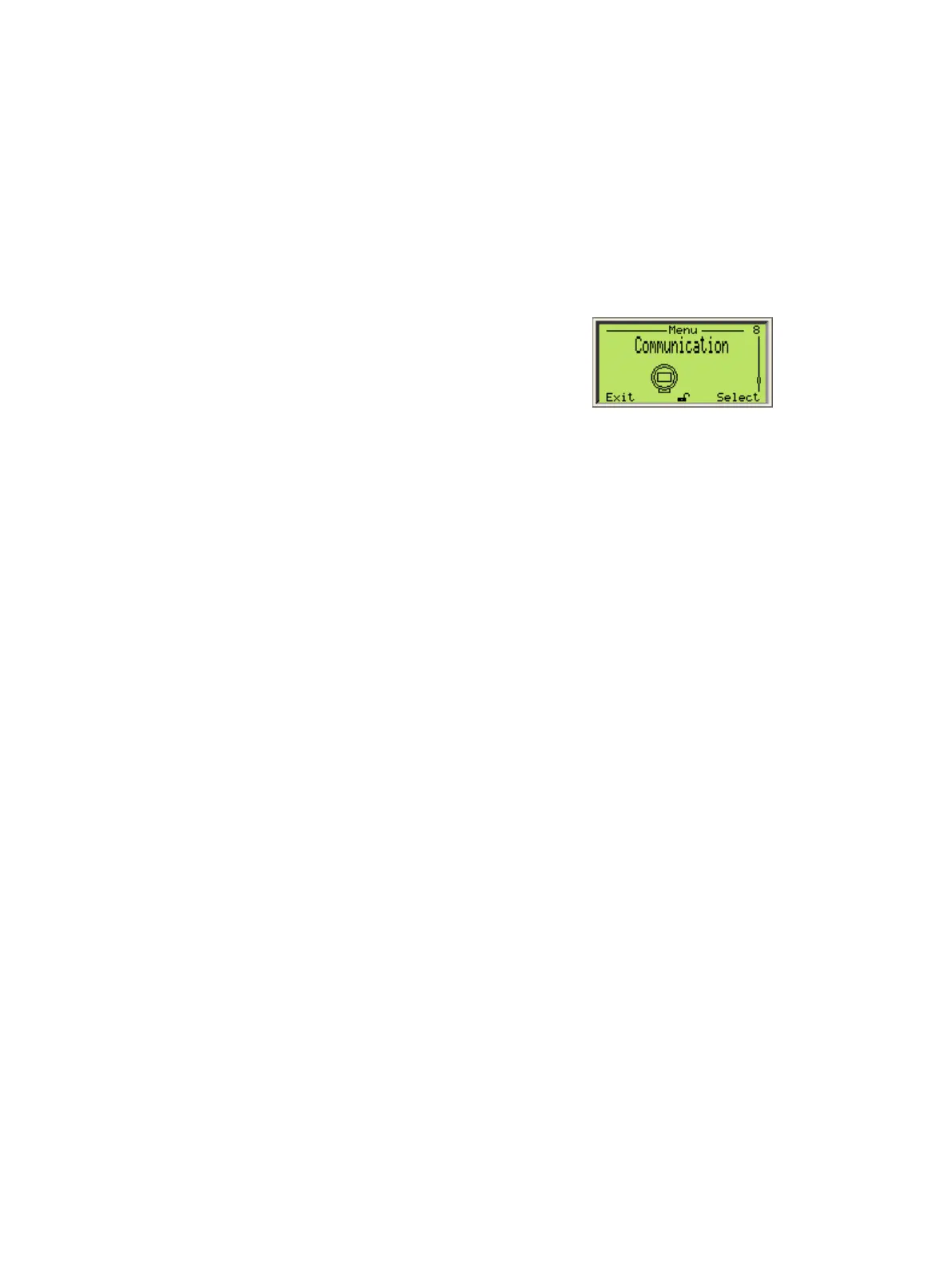
13.6 Managing Instrument Communications
When your LLT100 is on a network, you can set multiple
connection parameters from the Communication menu.
13.6.1 Editing the instrument address
To modify the instrument address:
1. From the Communication menu, select Device Address.
2. Edit the address and press OK.
13.6.2 Selecting the loop current mode
Should you connect multiple LLT100 instruments in a loop
linked to the same power supply (a.k.a. multi-drop mode), you
must set the loop current mode to a fixed value and not to the
4–20mA mode.
To do so:
1. From the Communication menu, select Loop Current
Mode.
2. In the Loop Current Mode menu, select Fixed instead of
4–20mA and press OK.
13.6.3 Creating a tag
A tag is intended to simplify identifying the location of a LLT100
(on the network, in the plant, etc.)
To create a tag for the instrument:
1. From the Communication menu, select Tag.
2. From the Tag menu, edit the tag name as explained in
section 4.2.2, “Setting a value”, on page12.
13.6.4 Creating a descriptor
A descriptor can be used to describe the instrument over a
network.
To create a descriptor:
1. From the Communication menu, select Descriptor.
2. From the Descriptor menu, edit the descriptor name as
explained in section 4.2.2, “Setting a value”, on page12.
13.6.5 Creating a message
A message can be used to give additional information about
the instrument.
To create a message:
1. From the Communication menu, select Message.
2. From the Message menu, edit the message as explained in
section 4.2.2, “Setting a value”, on page12.


 To Next Page