Menu Navigation
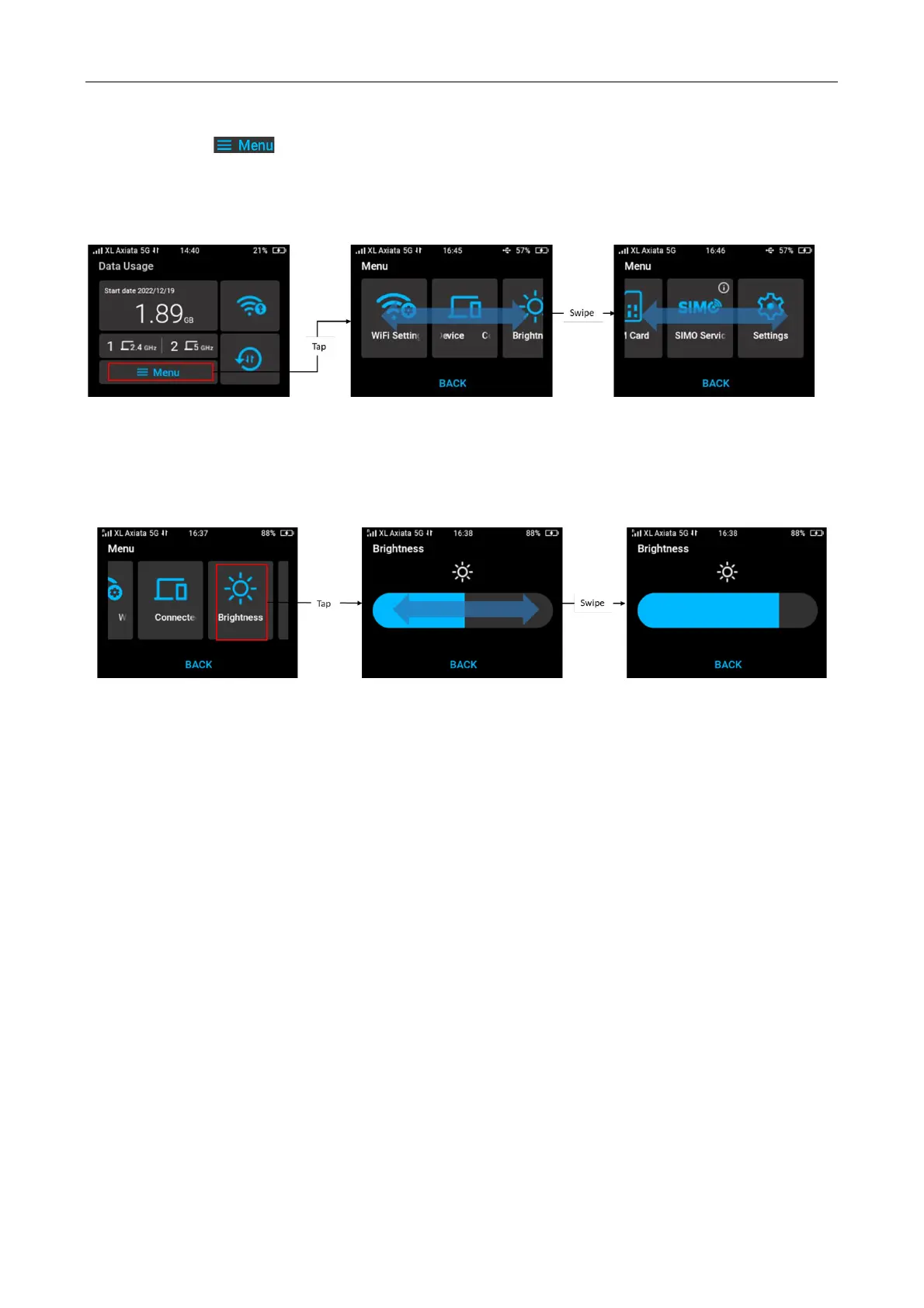
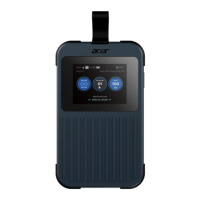
Tap Menu icon “ “ from home screen, navigate the available Menu by swiping to left or
right and tap your selection. From this menu selection page, you can access Wi-Fi Settings,
Connected Devices, Brightness, SIM Card, SIMO Service, and Settings. Tap Back at any time to
go back to previous menu.
Screen Brightness
You can adjust screen brightness from Menu > Brightness. Swipe right or left by your finger to
adjust the screen brightness depend on your eye’s comfort level.
4.3 Initial Setting
1. Power on the device by long press power button 3 seconds.
The Acer startup logo screen will be displayed.
2. Tap Menu > Setting from home screen to configure some basic parameter such as:
a. Select the preferred language you want to use for navigating touchscreen menu.
Languages supported are English, Traditional Chinese, German, French, Italian, Spanish,
Polish, Czech, Portuguese, Brazilian Portuguese, Latino Spanish, Swedish, Norwegian,
Danish, Finnish, Netherlands, Hungarian, Thai, and Hebrew.
b. Select your time zone.
Default time zone setting is “Auto”. You can change it by selecting time zone as your
preference.
c. Select your SIM type.
You can choose using physical SIM card or SIMO service (virtual SIM). Detailed steps for
these SIMs settings will be explained on another part of the document.
3. From Menu, you can also select SIM Card or SIMO Service for more setting and
configuration.


 To Next Page