1. If you have active data plan and successfully connected to Internet via SIMO partner’s
network, you will be brought to SIMO home screen with “Active SIMO Data Plan” state. You
can now use the SIMO service.
2. If failed to connect to Internet, you will receive “SIMO Connection Error” alert.
Please refer to SIMO Connection Error section below for next steps.
3. If successfully connected to Internet but you don’t have any active SIMO data plan, you
will have notification “No SIMO Data Plan”.
Please refer to SIMO Data Plan section below for further explanation.
SIMO Connection Error
When you received SIMO Connection Error notification during your initial setup first initial setup
or during switching to other service provider, tap Learn More > tap Try connecting again > wait
for the system to re-connecting to the service provider’s network again.
SIMO Data Plan
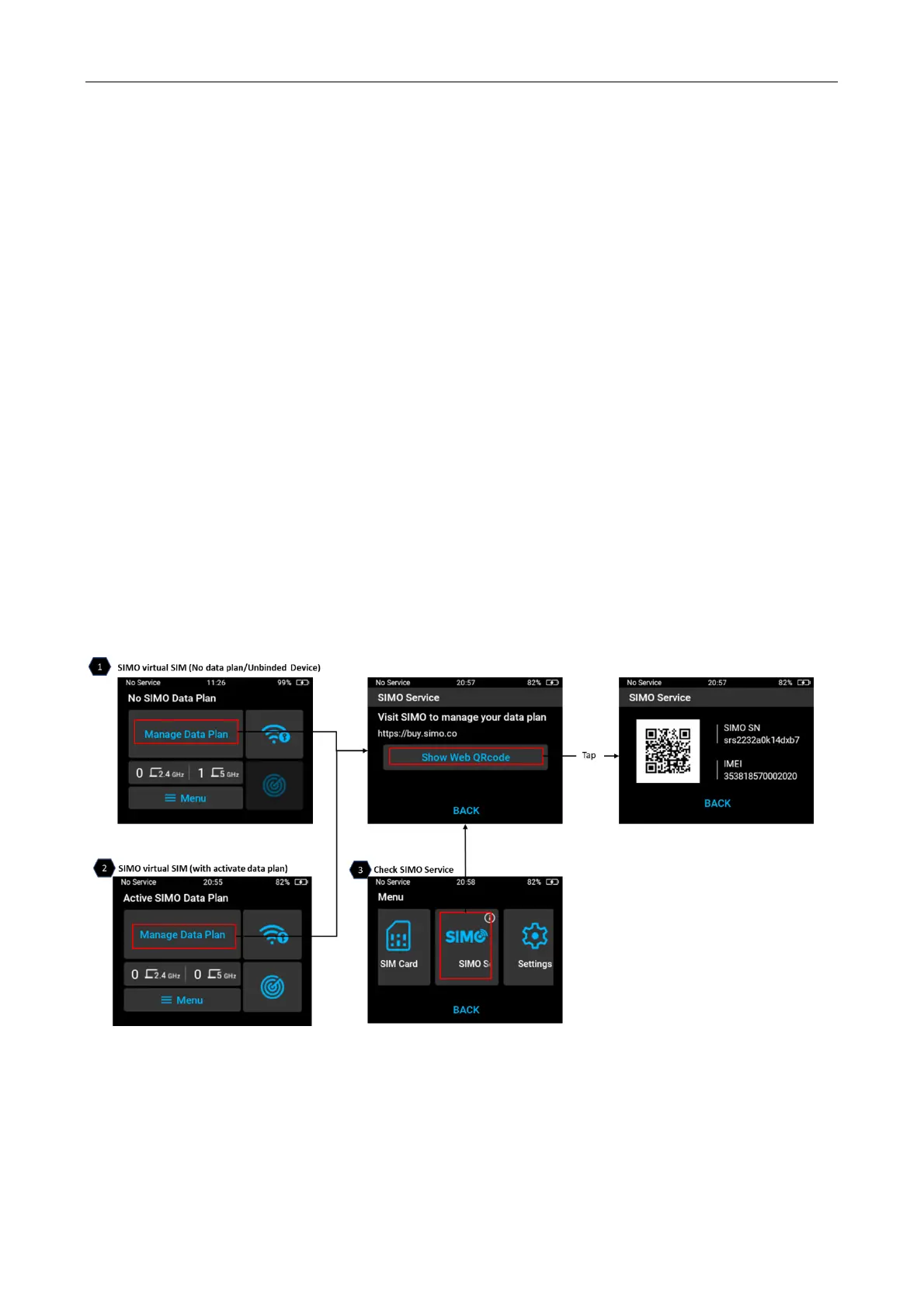
There are 3 situations where you need to manage your data plan:
1. When you received “No SIMO Data Plan” notification during initial setup due to no data plan
defined yet or unbinded device with the service. To enable it, select Manage Data Plan from
SIMO home screen > visit SIMO URL to manage your data plan (link provided by QR code).
2. You can also access this Manage Data Plan from your Active SIMO Data Plan from Home
screen, whenever you need to adjust or modify your existing data plan.
3. You can also access your data plan from Menu on SIMO home screen > SIMO Service.
SIMO Error Messages
There are some possibilities of errors happen during SIMO setup and the possible causes as
follow:


 To Next Page