5
Step 4: Upload the ‘User_Setup’ file back to the clock
a. Plug the USB stick into the side of the clock.
b. Press the ‘Menu’ button, select User Mgt and ‘OK’, then ‘Upload User’ and
‘OK’.
c. When finished, press ‘ESC’ repeatedly to exit the menus or simply allow
the menus to time out.
d. Remove the USB stick from the clock.
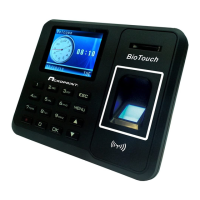
Step 5: Enroll an employee’s finger template at the clock
a. Press the ‘Menu’ button, select User Mgt and ‘OK’, select UserView and
‘OK’, select the specific employee and ‘OK’ , select Edit and ‘OK’, and
then select Finger and ‘OK’.
b. The clock will request the user to press a finger (press and release quickly
for best results) at least twice to insure a good read. When completed, the
clock will return to the previous screen.
c. If you wish to record more than one finger for an employee, simply select
Finger and ‘OK’ again and repeat 2 above.
d. When finished, press ‘ESC’ once, then press ‘OK’ to save the finger
template(s).
e. Now press ‘ESC’ repeatedly to exit the menus or you can simply allow the
menus to time out.
Note: Employee card/badge numbers and passwords can be entered at the clock
by following Step 5 above; just select Card or Password instead of Finger on the
menu.
However, these types of entry are more easily done on the PC through the Excel
spread sheet.


 To Next Page