4
Adding or modifying employee information
Employees are added to the clock along with one or more of the following: a
password, a proximity card/badge number, a finger template.
The steps involved in adding or modifying employees are to download the current
clock user file to the USB stick, open the user file in Excel, make your additions
or changes, upload the user file back to the clock, and then enroll the employee’s
finger templates on the clock.
Step 1: If this is your initial setup, Acroprint has already loaded the user file onto
the USB stick, so you can skip to step 2. Otherwise download the user file to a
USB stick:
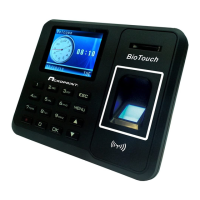
a. Plug the USB stick into the side of the clock.
b. Press the ‘Menu’ button, select User Mgt and ‘OK’, then Download User
and ‘OK’.
c. When complete, press ‘ESC’ repeatedly to exit the menus or simply allow
the menus to time out.
d. Remove the USB stick from the clock.
Step 2: Open the user file in Excel
a. Plug the USB stick into your computer.
b. If a directory does not automatically open, use Windows Explorer to
navigate to the USB directory.
c. Double click on the ‘User_Setup’ file.
d. Excel should launch and open the file. If not, run Excel and open the
‘User_Setup’ file from the USB directory.
Step 3: Enter your employee data
a. Follow the instructions at the top of the spread sheet and add your
employee(s) or modify existing data as necessary.
Note
: An employee’s password and badge number can be entered via the
Excel spreadsheet and USB stick, but a finger template can only be
entered at the clock.
Note
: Before setting an employee to Manager, see “Setting Up Managers”
b. Save the file back to the USB stick.
c. Remove the USB stick from your computer.


 To Next Page