9
Clock Data
Adding a Missed Transaction
An employee’s missed punch can be added at the clock
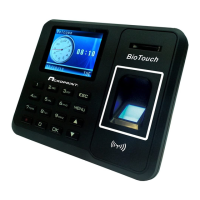
1. Select ‘Menu’, User Mgt, User View, Select the specific employee, and
then select Retroactive.
2. Set the date and time for the missed transaction. Use the arrows and the
key pad to change the values. Press ‘OK’ to move to the next setting.
When done press ’ESC’ once only.
3. The clock will prompt you to “Save”. Select ‘OK’ to save the transaction
or ’ESC’ to discard.
4. When finished, press ’ESC’ repeatedly to exit the menus or simply allow
the menus to time out.
Downloading Raw Transactions
The GLog is similar to reports except that the file that is created will contain just
the raw transactions. This can be ideal for importing your data into an application.
The data download has two options: 1) collect new transactions since the last
download, and 2) collect all transactions on the clock.
To get the raw transaction file:
1. Plug the USB stick into the side of the clock
2. Select ‘Menu’ and then Data Man
3. Select Down GLog to download only transactions since the last download,
or Down All GLog to download all the transactions on the clock.
4. When finished, press ‘ESC’ repeatedly to exit the menus or simply allow
the menus to time out.
5. Remove the USB stick from the clock.
You can now insert the USB stick into your PC to upload your clock data file(s)
for further processing as desired.


 To Next Page