8
Reporting
Two transaction reports can be generated: Punch Report and Time cards. To
generate either or both reports:
Step 1: Create the report
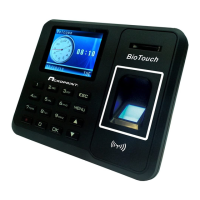
1. Plug the USB stick into the side of the clock.
2. Press the ‘Menu’ button, Report, and then select the specific report.
3. Set the Starting and Ending dates for the report data. Use the arrows and
the key pad to change the values. Press ‘OK’ to move to the next setting.
When done press ‘ESC’ once only.
4. The clock will prompt you to “Start report”. Select ‘OK’
5. Once complete, follow the same process to create the other report if
desired.
6. When finished, press ’ESC’ repeatedly to exit the menus or simply allow
the menus to time out
7. Remove the USB stick from the clock.
Step 2: View the report in Excel
1. Plug the USB stick into your computer.
2. If a directory does not automatically open, use Windows Explorer to
navigate to the USB directory
3. Double click the report file you want.
4. Excel should launch and open the file. If not, run Excel and open the
report file from the USB directory.
You can now edit the report to install missed punches and totals based on your
company’s time and attendance policies.


 To Next Page