7
Setting the time and date
To set the time and date at the clock:
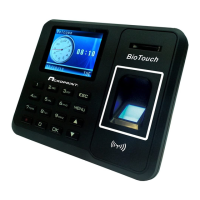
1. Press the ‘Menu’ button, select Setup and ‘OK’, select System and
‘OK’, select Time and ‘OK’.
2. Use the arrow keys or key pad to change a setting. Press ‘OK’ to move
to the next setting.
3. When finished, press ‘ESC’ once only.
4. The clock will prompt you to “Save?” Select ‘OK’
5. When finished, press ’ESC’ repeatedly to exit the menus or simply
allow the menus to time out.
Employee punching
Finger:
1. Touch an enrolled finger on the sensor.
2. Alternately, the employee can enter their employee ID first, press ‘OK’,
and then press their finger.
Badge:
1. Hold the proximity badge close to the clock immediately below the
finger reader.
ID and Password:
1. The employee will enter their User ID and press ‘OK’.
2. The clock will prompt the user to enter their password
3. The employee will enter their password and press ‘OK’
Clock Response
The clock will respond by displaying the employee’s name and ID number and
saying “Thank You!”


 To Next Page