6
Setting up Managers
The clock data can be protected by designating one or more users as Managers.
Special care must be taken to insure that a Manager has a finger template, a
badge number, or a password registered on the clock. If there is a least one
Manager on the clock, the menus can only be accessed by a Manager who
enters their ID and password, or their finger image, or swipes their badge.
IMPORTANT: Do not change a User to a Manager unless they have a finger
template registered or a password or badge assigned.
To change a User to an Administrator at the clock:
1. Press the ‘Menu’ button, select User Mgt and ‘OK’, select UserView
and ‘OK’, select the specific employee and ‘OK’, select Edit and ‘OK’,
and then select Privilege and ‘OK’.
2. Select Manager and ‘OK’, and then press ’ESC’ once only.
3. The clock will prompt you to “Save?” Select ‘OK’.
4. When complete, press ’ESC’ repeatedly to exit the menus or simply
allow the menus to time out.
To change a User to a Manager via the Excel spreadsheet:
Follow the instructions for “Adding and Modifying Employee Information”.
When editing the data on the spread sheet, locate the employee you want
to change to a Manager, change the ‘0’ to ‘1’ in the Admin column.
Manager access to the menu
IMPORTANT: Only employees with a Manager status can access the clock
menu when one or more Managers are enrolled. Any one of the following three
processes allow a Manager to access the menu:
1. Press the ‘Menu’ button (clock responds with ‘Manager?’)
2. Now do one
of the following:
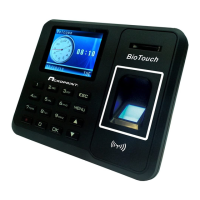
a. Touch finger on the sensor
or
b. Swipe Proximity Card/Badge
or
c. Enter the Manager’s ID number and ‘OK’, then enter the Manager’s
Password and ‘OK’


 To Next Page